

What these settings control
- Which social icons appear. An icon shows only when its link is filled in.
- Where each icon leads when a shopper clicks it.
How to access
1
Open the Theme Customizer
In your Shopify admin, open Online Store, then Themes, and click Customize next to Facet.
2
Open Theme settings
Click the Theme settings icon in the left sidebar.
3
Open Social media
Expand Social media and paste the full address of each account, for example
https://www.instagram.com/yourstore.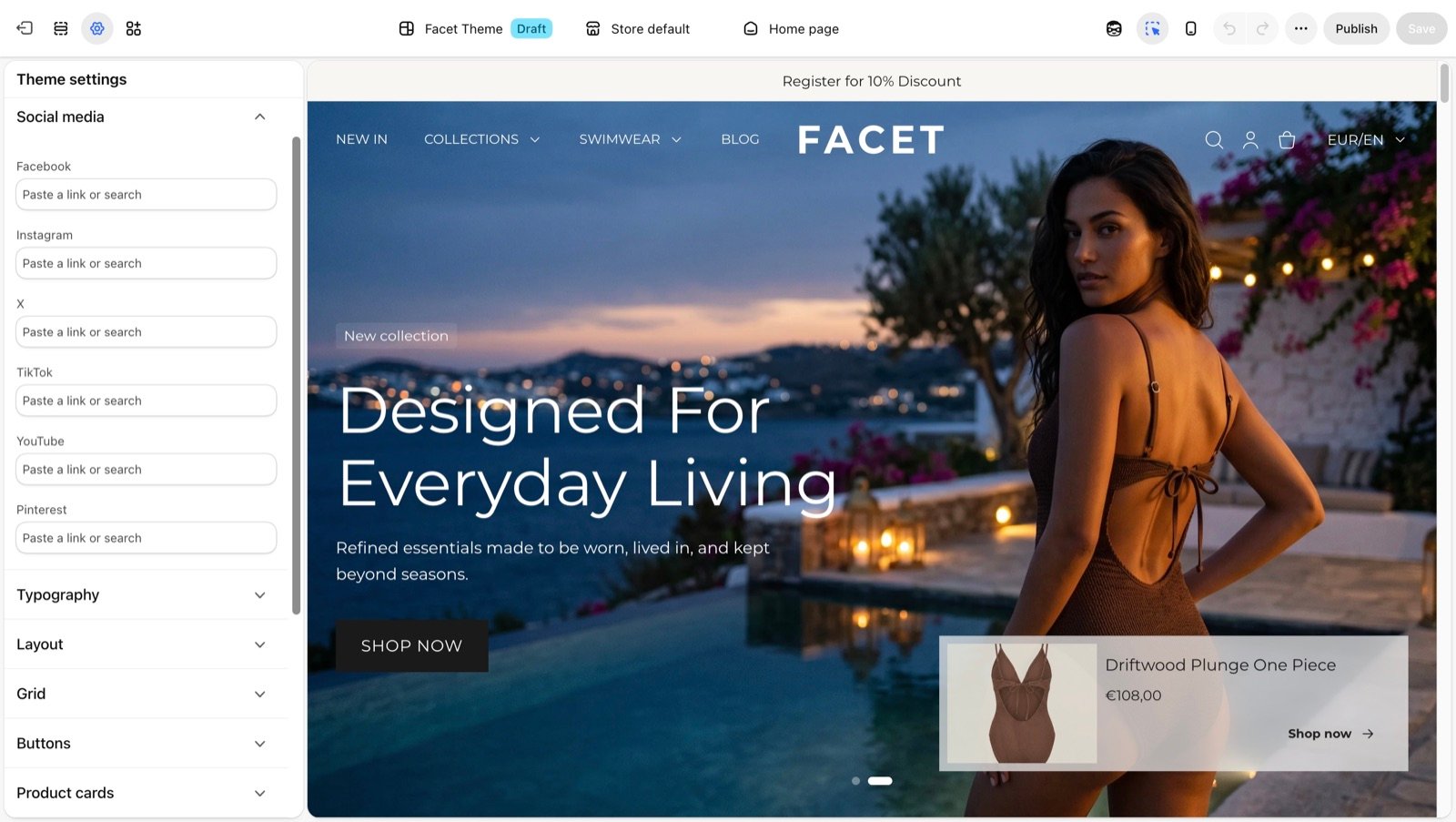
Social media settings
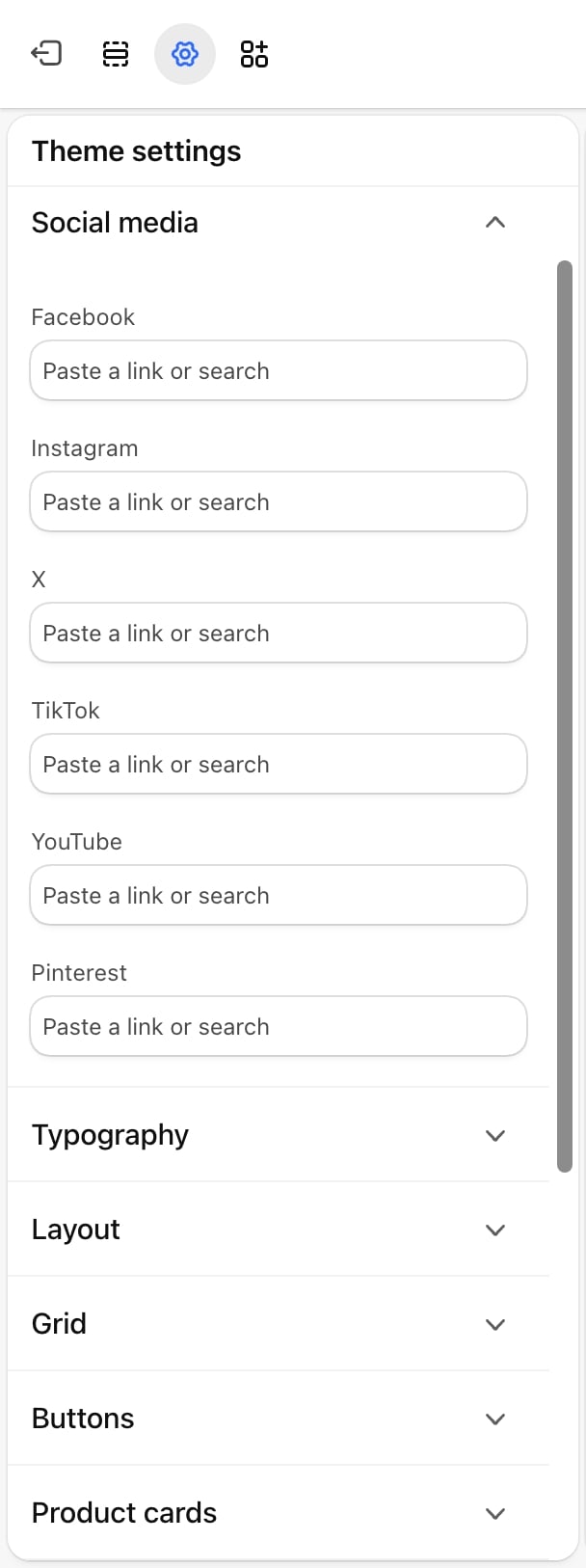
- Facebook: the link to your Facebook page.
- Instagram: the link to your Instagram profile.
- X: the link to your X profile.
- TikTok: the link to your TikTok profile.
- YouTube: the link to your YouTube channel.
- Pinterest: the link to your Pinterest profile.
Where the icons appear
- Announcement bar: when its Show social media icons setting is on. See Announcement bar.
- Footer: in the Brand block, when its Show social media icons setting is on. See Footer.
Best practices
- Paste full addresses. Start each link with
https://so it opens your profile and not a page on your own store. - Only list active accounts. An icon that leads to an empty or old profile costs more trust than no icon.
- Test each icon. After saving, click every icon in the preview to check it opens the right account.
Related guides
Announcement bar
Show the icons in the bar above the header.
Footer
Show the icons in the footer’s brand column.