

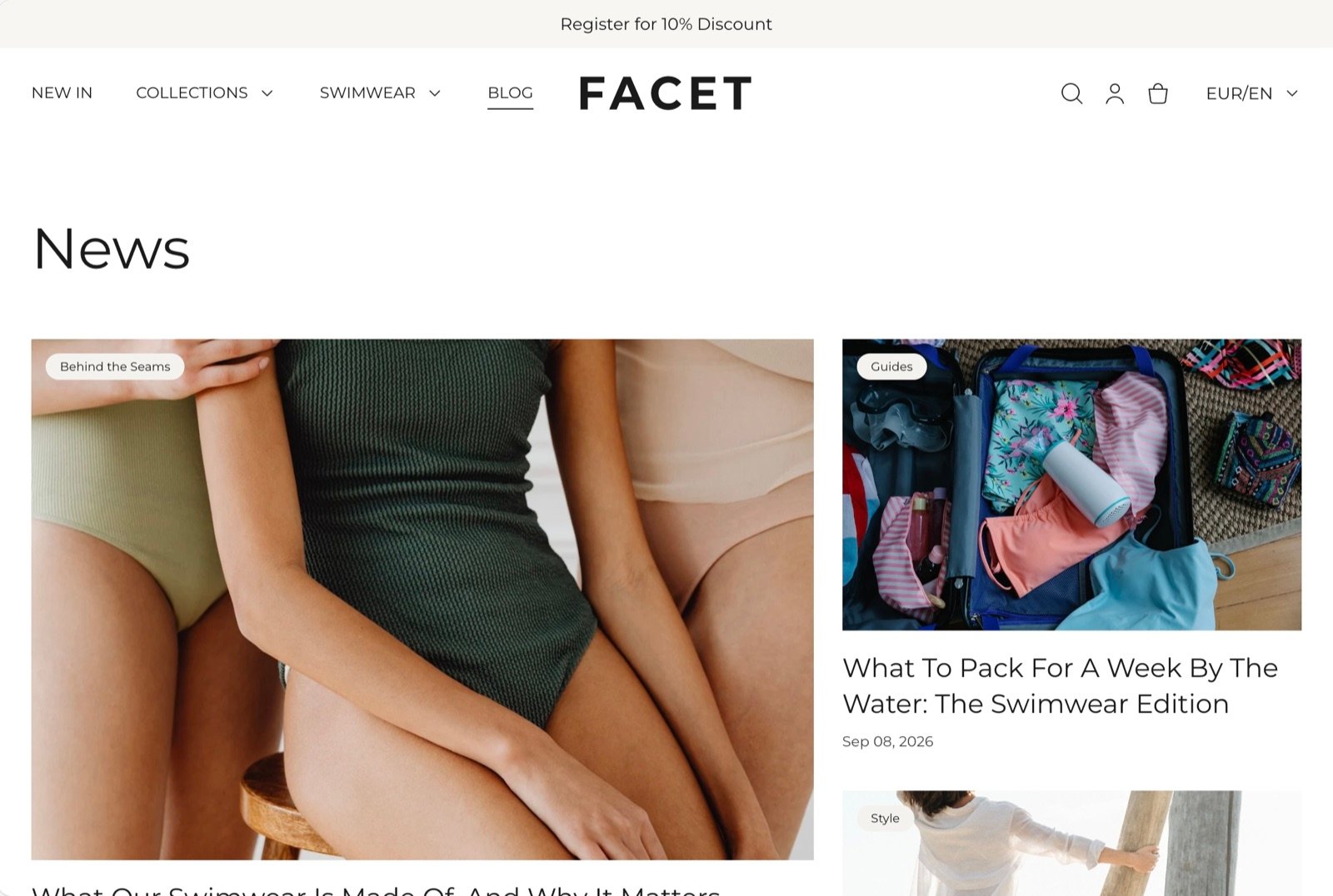
What this section controls
- An intro under the blog title.
- A featured row with the newest posts.
- The heading above the post grid.
- A row of tag buttons that filter the posts.
- How many posts show on each page.
- The colors, spacing and width of the page.
Getting started
1
Open the Theme Customizer
In your Shopify admin, open Online Store, then Themes, and click Customize next to Facet.
2
Open the blog page
In the page selector at the top of the Customizer, choose Blogs, then pick a blog to preview. Click Blog in the Sections panel.
3
Add an intro
Type a sentence or two in Intro text to tell readers what the blog is about.
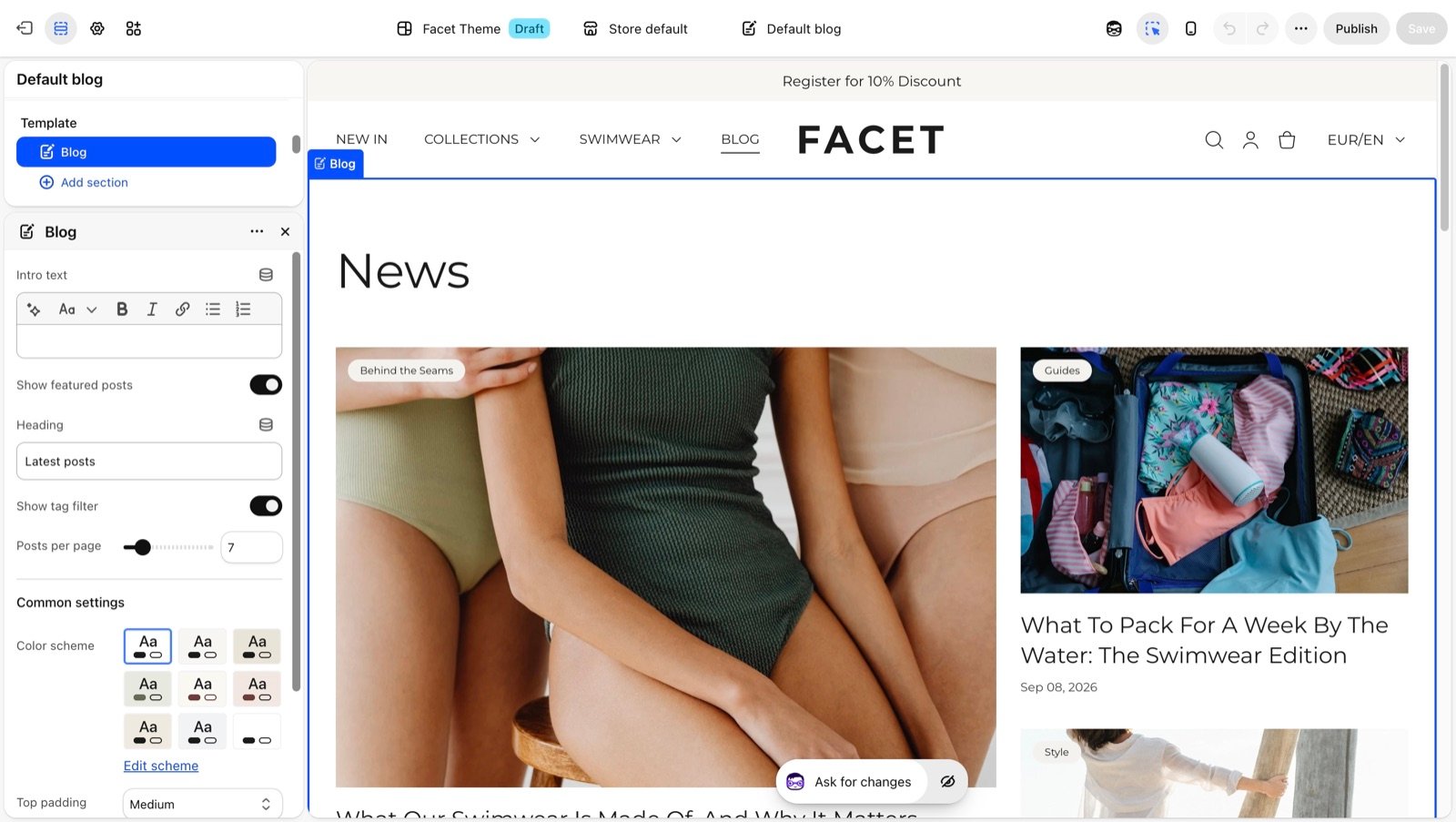
Section settings
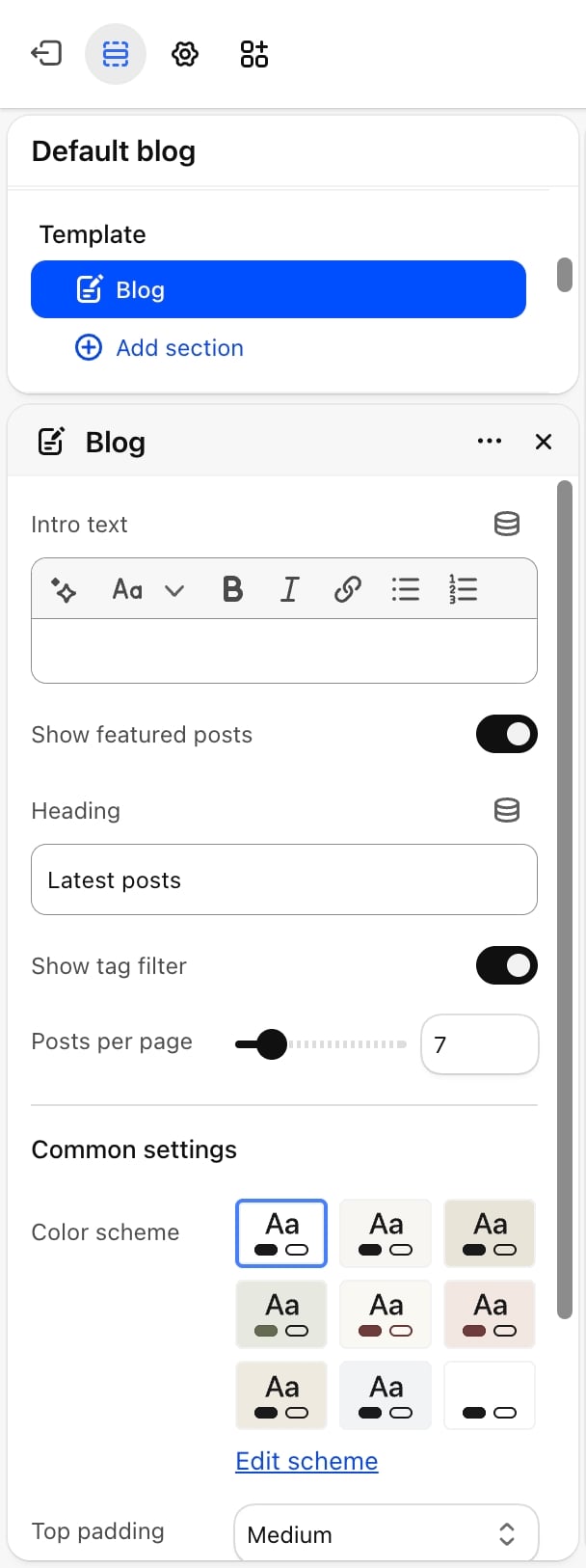
- Intro text: text under the blog title, shown in a large heading style. Leave it blank to show the title alone.
- Show featured posts: on by default. On the first page, the newest post shows large with the next two beside it. On phones the three posts stack. The row only appears when the blog has more than two posts, and it is left out while a reader filters by tag.
- Heading: the heading above the post grid. Default: “Latest posts”. Leave it blank to hide it.
- Show tag filter: on by default. Shows an All posts button and one button per tag used in the blog. Clicking a tag lists only the posts with that tag. The row is hidden when no post has tags.
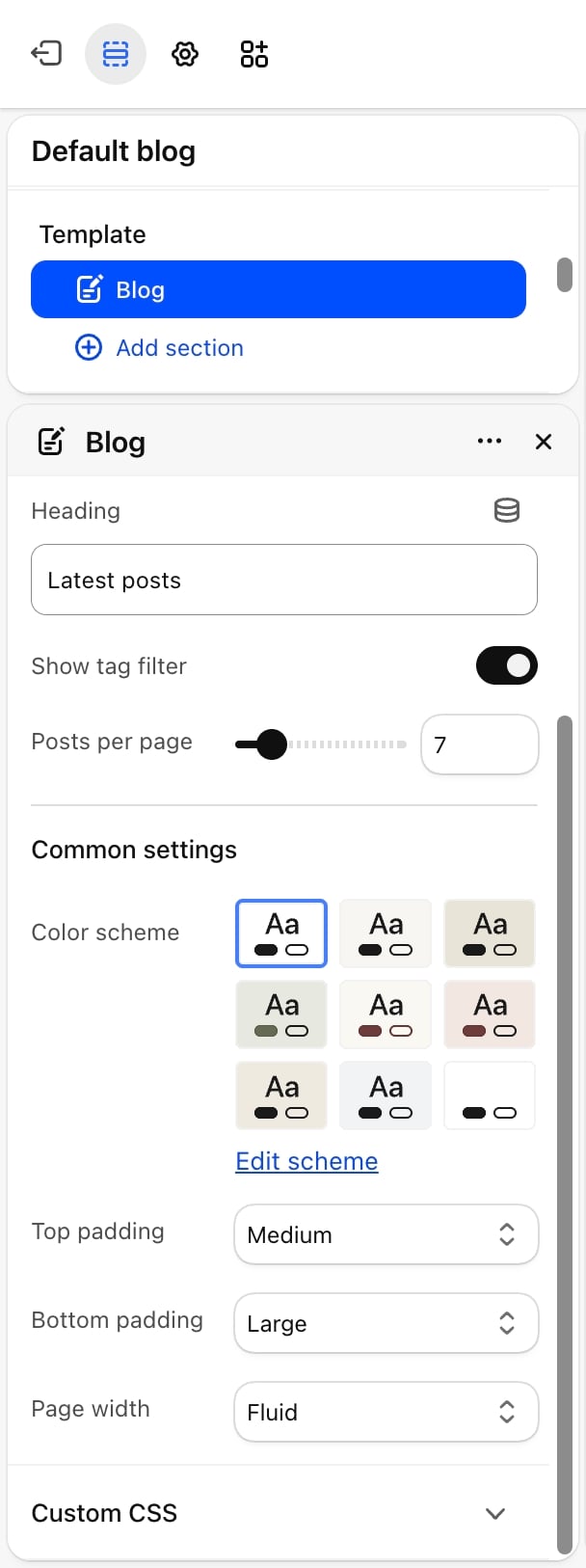
- Posts per page: from 4 to 24. Default: 7. Page numbers appear when the blog has more posts. On the first page, the featured posts count toward this number.
Common settings
These work the same in every section. See Common settings for details.- Color scheme: the page colors.
- Top padding: None, Small, Medium (default), Large or Extra large.
- Bottom padding: None, Small, Medium, Large (default) or Extra large.
- Page width: Narrow, Narrower, Fluid (default) or Full.
Best practices
- Use an odd number with featured posts on. With the default of 7, the first page shows three featured posts and a grid of four, which fills two full rows.
- Tag every post. The tag filter is only as useful as your tags. Keep a short list and use it on every post.
- Give every post a featured image. Posts without one show a gray placeholder drawing on the blog page.
Related guides
Blog post
Lay out the page each post opens on.
Common settings
How padding, width and color scheme work.