

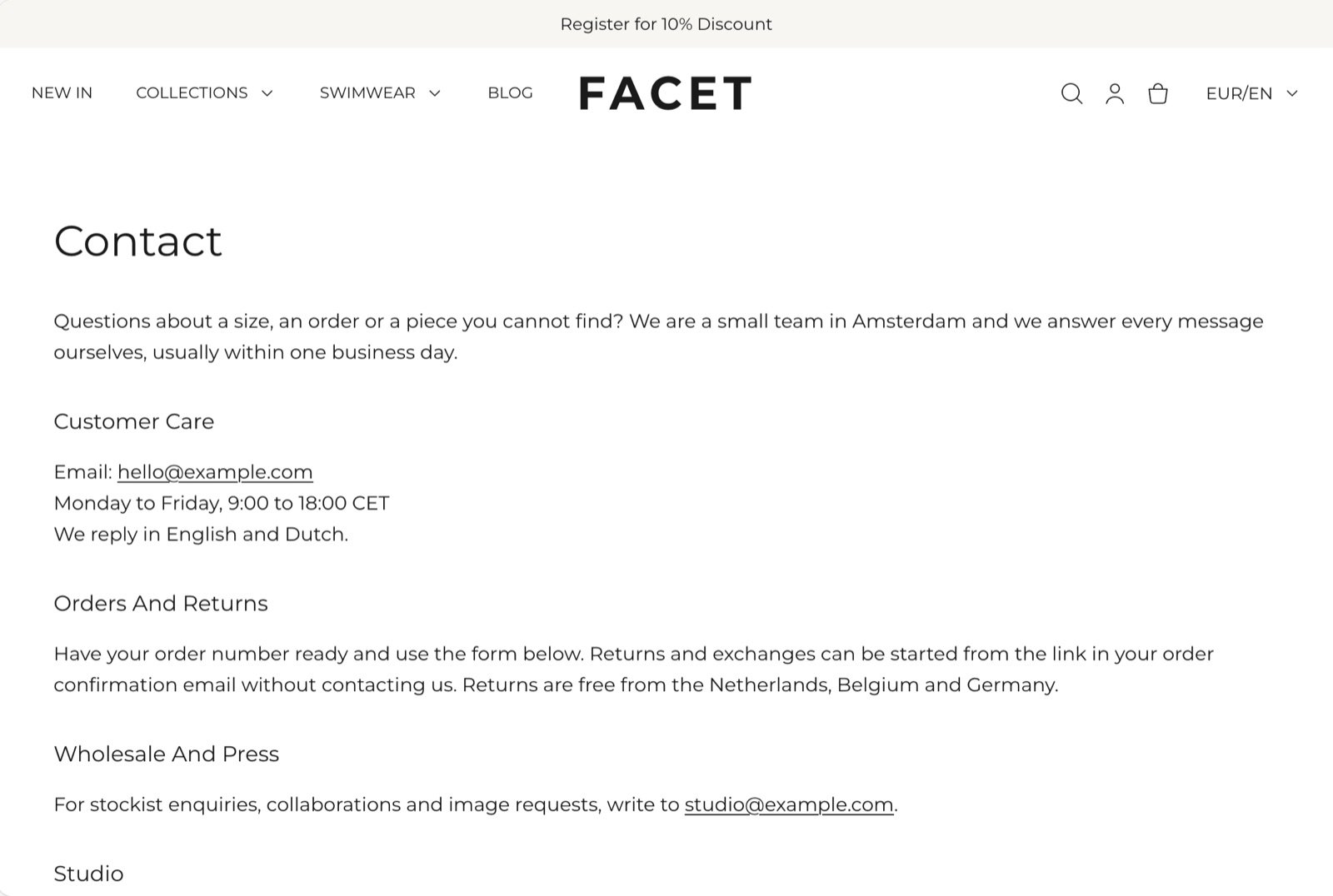
What this template contains
- A Page section with the page’s title and the text you write in your Shopify admin.
- A Contact form section with a heading, a short intro and the form fields. Out of the box the form asks for an order number and a country, but not a phone number.
Getting started
1
Create the page
In your Shopify admin, open Online Store, then Pages, and click Add page. Give it a title, such as “Contact”, and write any text you want above the form, such as opening hours.
2
Assign the contact template
On the same screen, find Theme template and choose contact. Click Save.
3
Add the page to your menu
Open Content, then Menus, and add the page to your header or footer menu so shoppers can find it.
4
Edit the form in the Theme Customizer
Open Online Store, then Themes, and click Customize next to Facet. In the page selector at the top, choose Pages, then contact. Click Contact form to change its heading and fields.
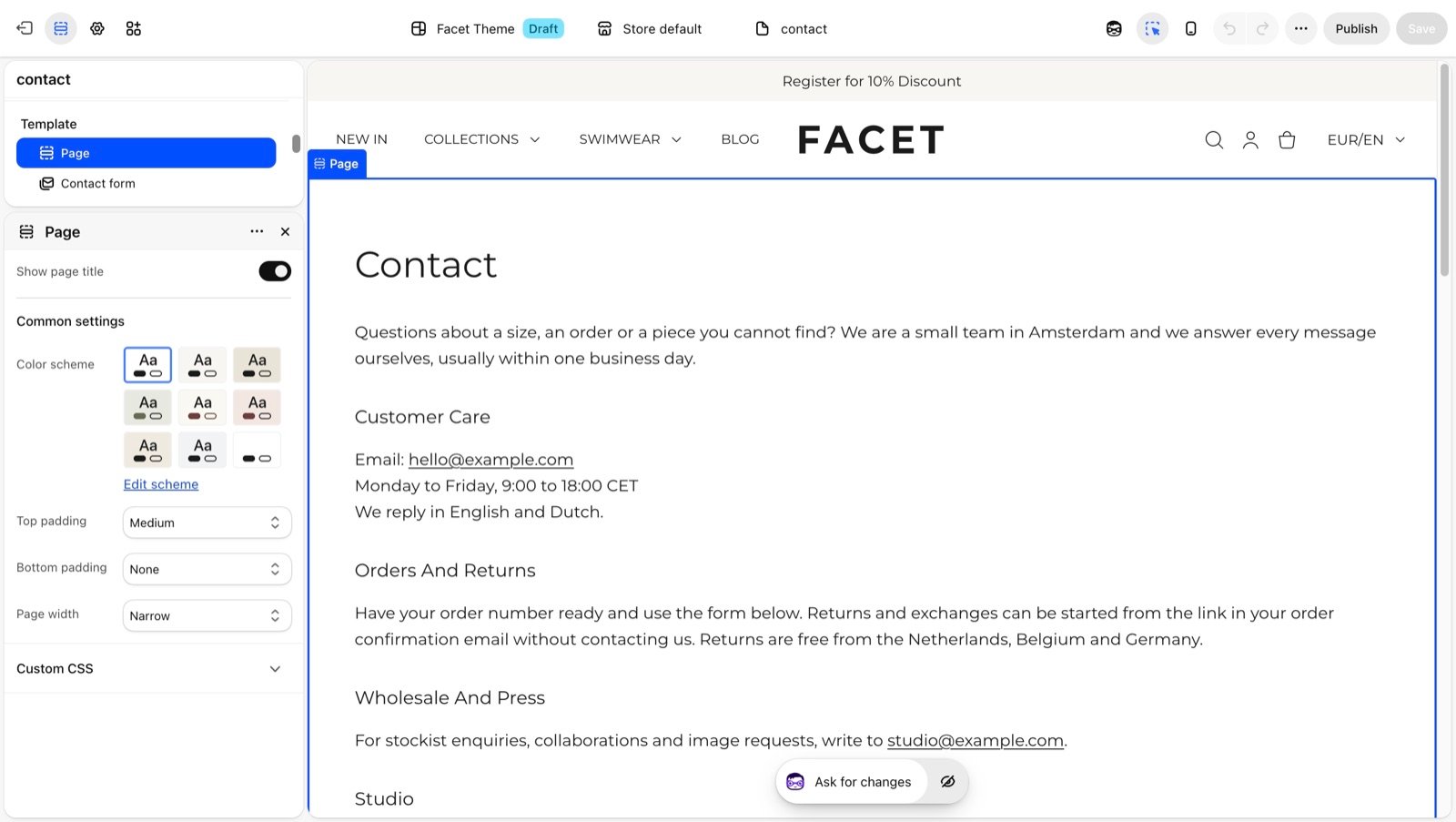
Sections
Page
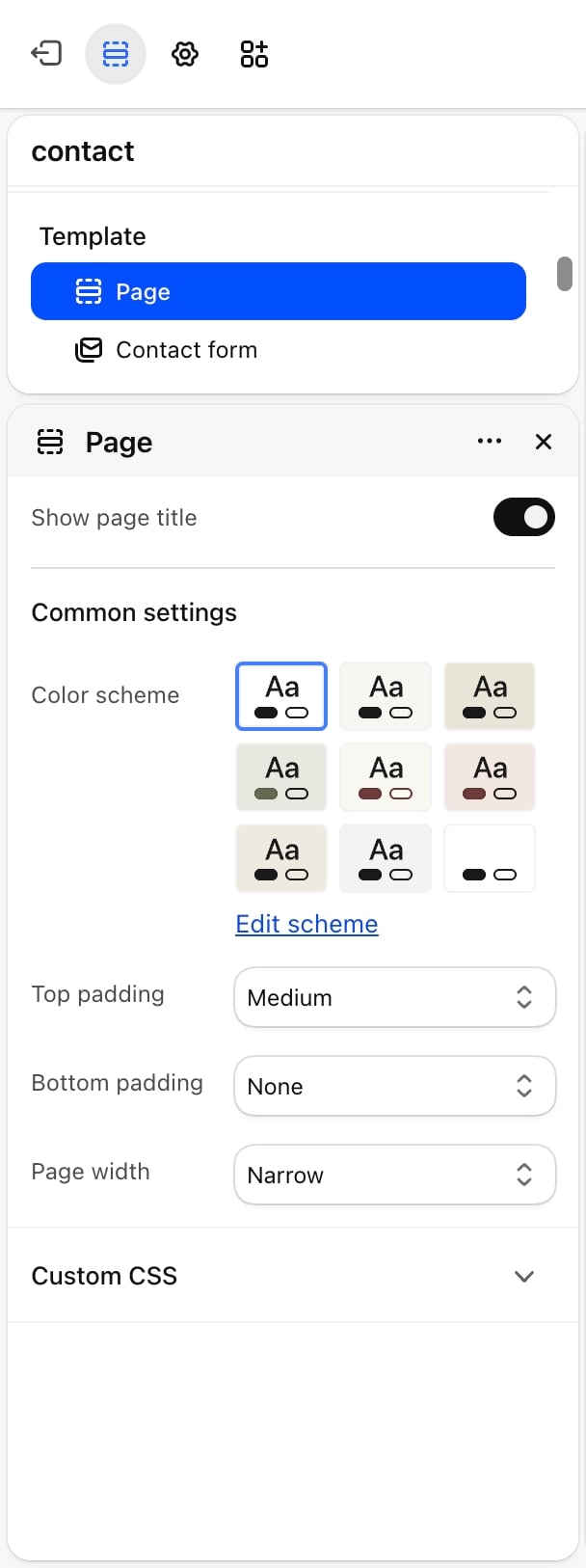
Contact form
The form shoppers fill in. Its heading, intro, optional fields and colors are described in Contact form.Messages go to the sender email set in your Shopify admin under Settings, then Notifications. Send yourself a test message after you set up the page.
Best practices
- Say when you reply. A line such as “We reply within one business day” in the form intro sets expectations.
- Ask only for what you need. Turn off fields you won’t use, such as the phone number, to keep the form short.
- Put practical details in the page text. Opening hours, a returns address or a phone number fit well above the form.
Related guides
Contact form
Settings for the form section.
FAQ page
Answer common questions before shoppers need to write.