

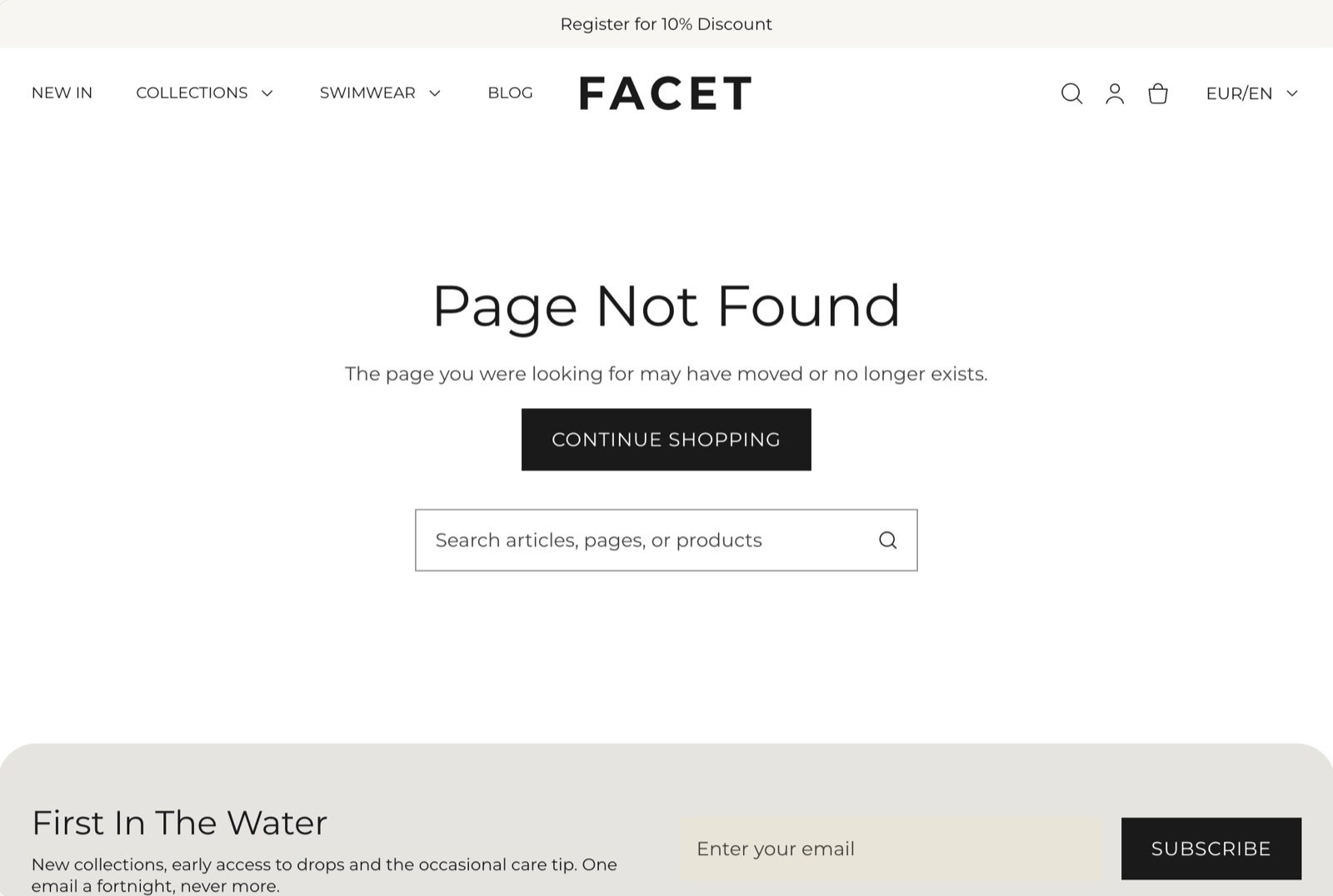
What this section controls
- The message shoppers see: a heading, text, buttons and an optional picture.
- A search field below the message.
- The alignment of everything on the page.
- The colors, spacing and width of the page.
Getting started
1
Open the Theme Customizer
In your Shopify admin, open Online Store, then Themes, and click Customize next to Facet.
2
Open the 404 page
In the page selector at the top of the Customizer, choose 404 page. Then click Not found in the Sections panel.
3
Write your message
Facet starts the page with a Heading (“Page not found”), a Text block and a Continue shopping button that links to all products. Click each block to change its wording or link.
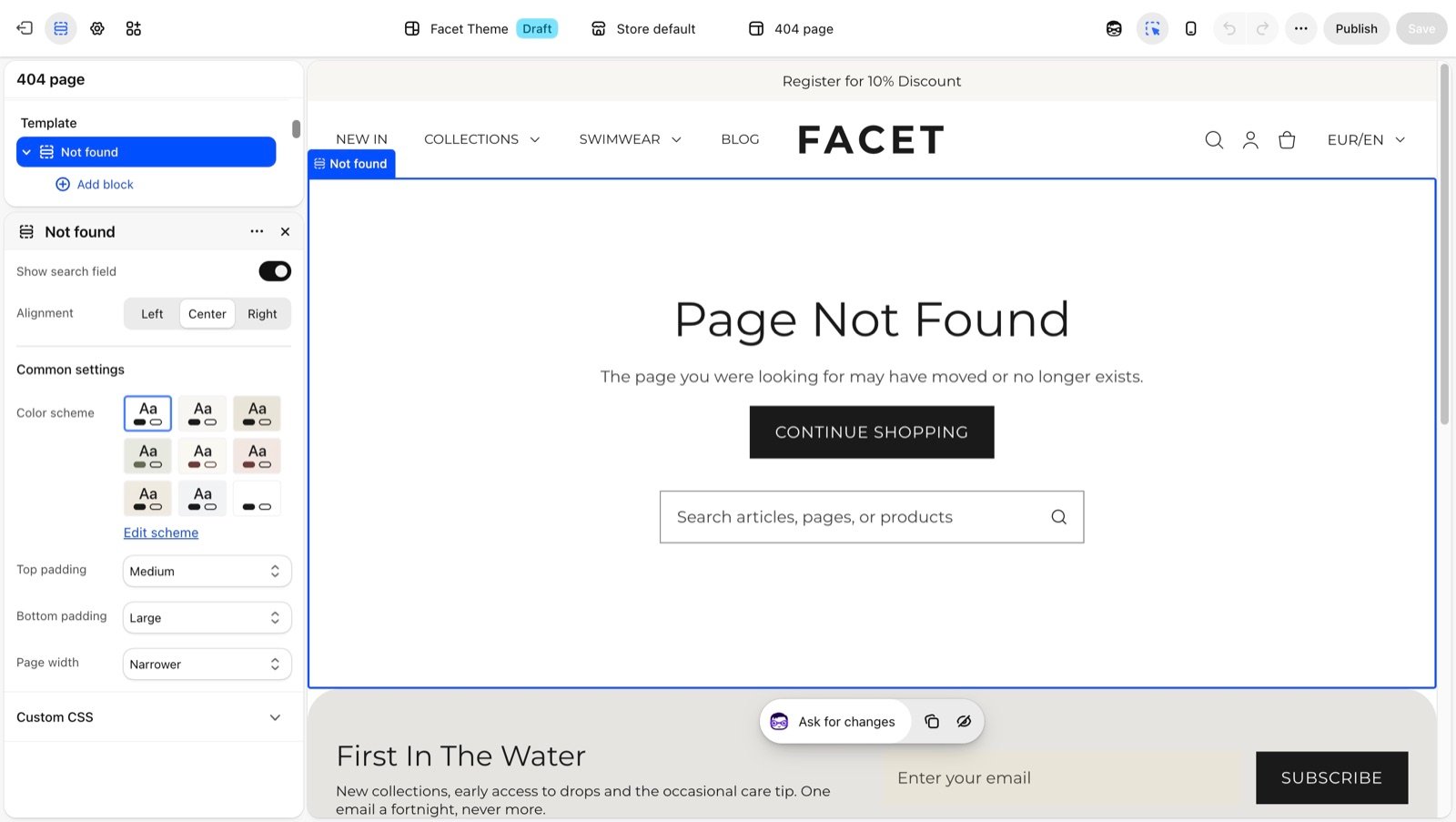
Section settings
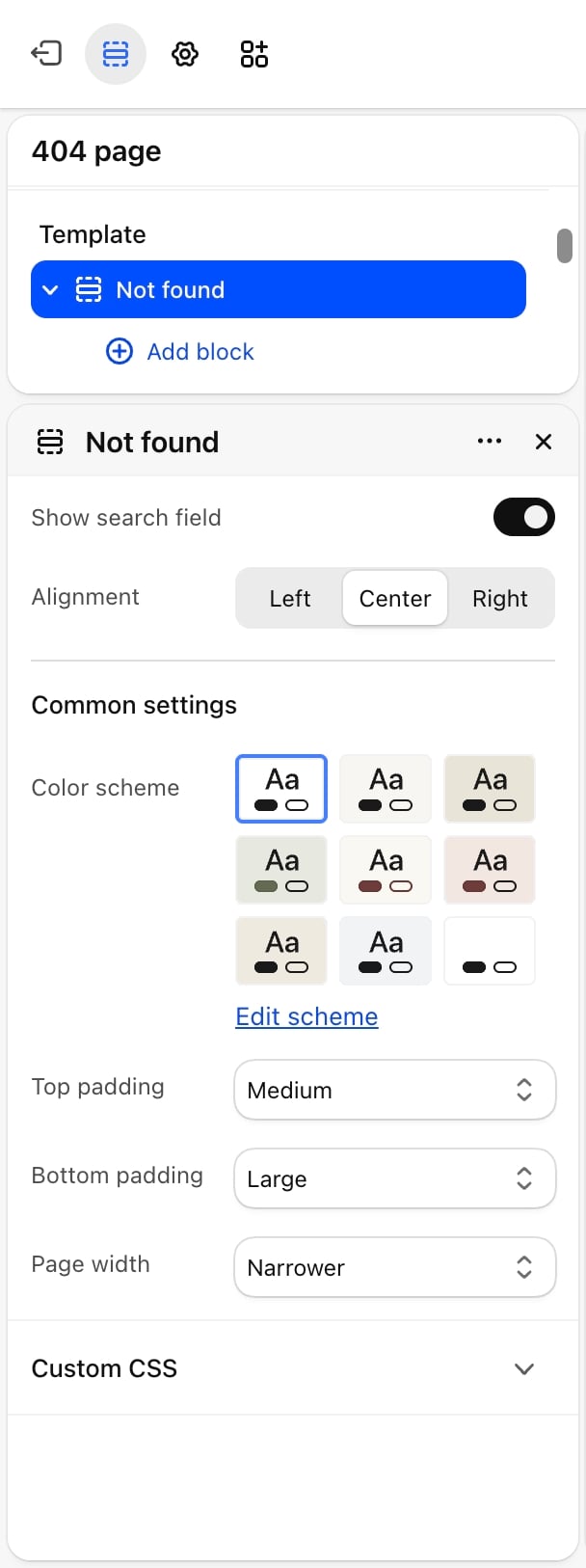
- Show search field: on by default. Adds a search box below your message. Shoppers type a word and land on the search results page.
- Alignment: Left, Center (default) or Right. Lines up the blocks and the search field.
Common settings
These work the same in every section. See Common settings for details.- Color scheme: the page colors.
- Top padding: None, Small, Medium (default), Large or Extra large.
- Bottom padding: None, Small, Medium, Large (default) or Extra large.
- Page width: Narrow, Narrower (default), Fluid or Full.
Blocks
The Not found section accepts the generic Heading, Text, Button, Image and Group blocks. Use a Group to place two buttons side by side. Their settings are described in Theme blocks.Best practices
- Keep the search field on. A shopper who followed an old link usually knows what they wanted, and search gets them there in one step.
- Link to a useful page. Point the button at your best sellers or a current collection rather than the home page.
- Keep the message short. One heading and one sentence are enough. The shopper wants to move on.
Related guides
Theme blocks
Settings for the heading, text, button, image and group blocks.
Search
Set up the results page the search field opens.