


What this section controls
- Which blocks the section holds, and their order.
- An optional background picture behind the blocks.
- The colors, width and spacing around the blocks.
Getting started
1
Open the Theme Customizer
In your Shopify admin, open Online Store, then Themes, and click Customize next to Facet.
2
Add the section
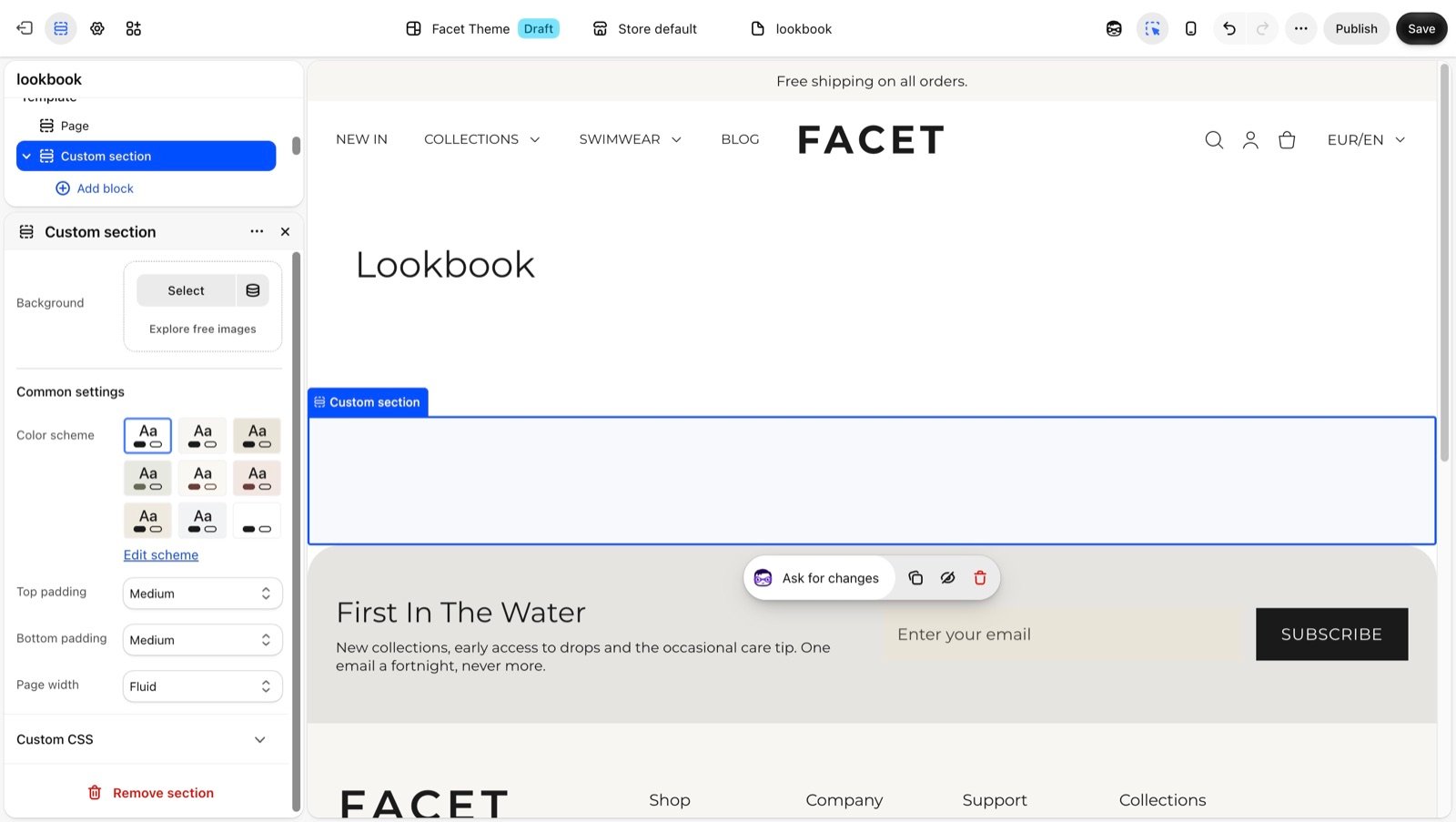
In the Sections panel, click Add section and choose Custom section. It starts with no blocks.
3
Add blocks
Under Custom section, click Add block and choose a block, such as Heading or Image. Repeat for each piece of content.
4
Arrange the blocks
Drag the blocks in the sidebar to change their order.
Building a section from blocks
The custom section accepts every theme block in Facet. The blocks sit in one column, top to bottom, in the order shown in the sidebar, with even space between them.- Stack content with Heading, Text, Image, Button and Label blocks.
- Place blocks side by side with a group. In the Add block menu, groups appear as Row and Column under Layout. A group holds other blocks, and its Layout direction (Horizontal or Vertical) decides whether they sit next to each other or on top of each other, so you can put two buttons in a row, or an image beside text.
- Nest groups inside groups to build columns within rows.
Section settings
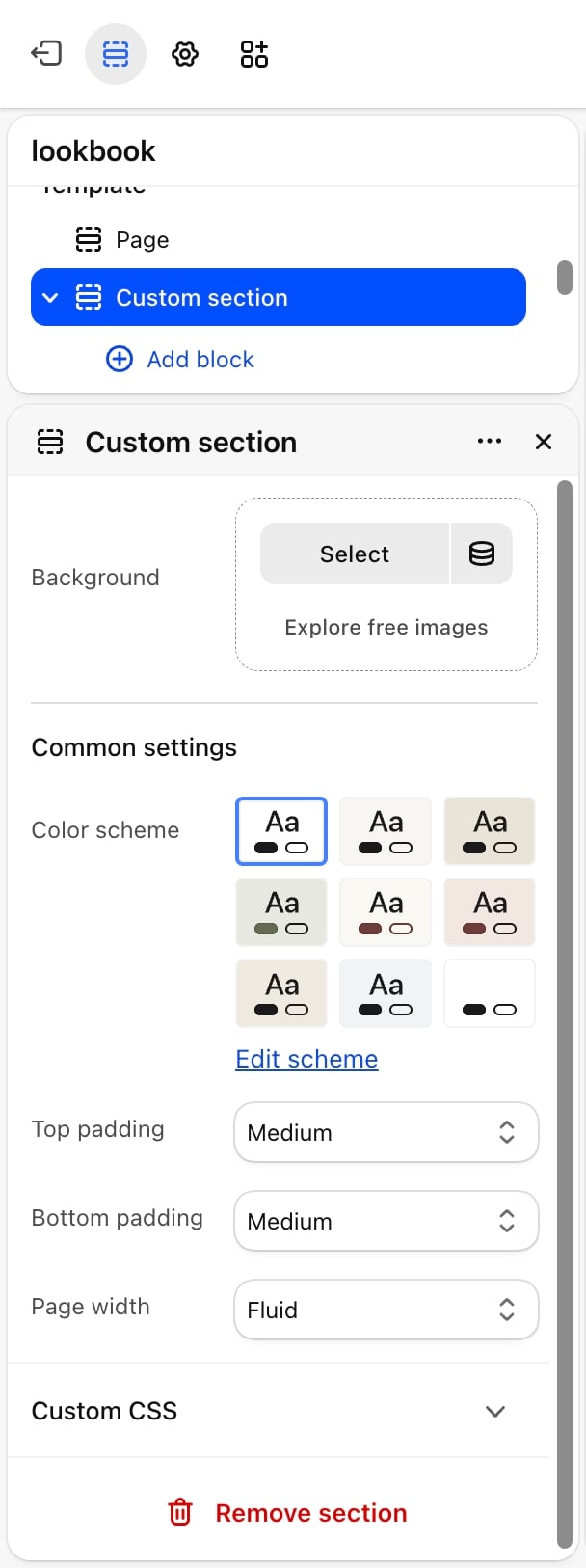
- Background: an optional picture behind the blocks. It covers the whole section, including the padding, and is cropped to fit the section’s shape, so its edges may be cut off. The blocks sit on top of it. Without a picture, the section shows its color scheme’s background.
Common settings
See Common settings for details.- Color scheme: the background and text colors of the section. A Background picture covers the background color. Blocks with their own color scheme keep it.
- Top padding and Bottom padding: None, Small, Medium (default), Large or Extra large.
- Page width: Narrow, Narrower, Fluid (default) or Full.
Best practices
- Sketch the layout first. Decide which pieces go in a row before you add blocks, then add a Row for each one.
- Rename your blocks. Give blocks clear names in the sidebar, such as “Hero buttons”, so the section stays easy to edit later.
- Check phones. Blocks that fit side by side on a laptop can get cramped on small screens. Preview every custom section at phone size.
Related guides
Theme blocks
Every block you can add to a custom section, with its settings.
Custom Liquid
Add your own code when blocks are not enough.