

What this section controls
- The heading above the row.
- How many products the row can show.
- How many cards fit across the screen on desktop.
How it works
There is no product picker. The section builds the row on its own for each shopper:- Each time a shopper opens a product page that has this section, the product is saved in that shopper’s browser. The browser keeps up to 50 products, newest first. Nothing is stored in your Shopify admin or in a customer account.
- When the section comes into view, it shows those products as product cards, newest first. On a product page, the product being viewed is left out.
- Sold-out products still show, in the order they were viewed.
Products are only remembered on product pages that include this section. Add it to your product template so every product a shopper opens is saved, then add it to other pages too, such as the home page or the cart.
Getting started
1
Open the Theme Customizer
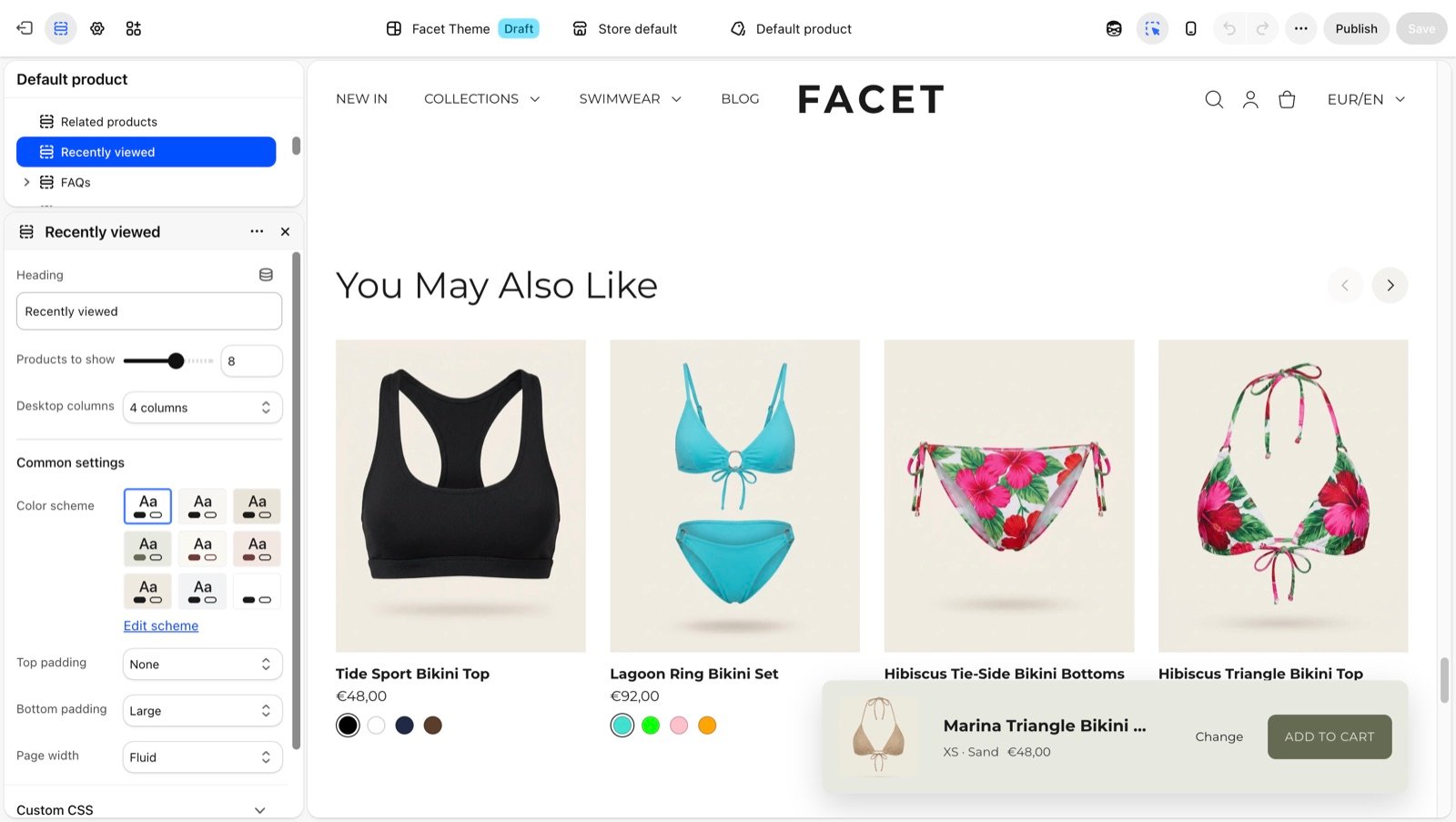
In your Shopify admin, open Online Store, then Themes, and click Customize next to Facet.
2
Open a product page
Use the page selector at the top to open Products, then Default product.
3
Add the section
Click Add section and choose Recently viewed. It can’t be added to the header or footer.
4
Check it in a preview
The section stays hidden until you have viewed other products. Open two or three product pages in your store preview, then return to see the row.
Section settings
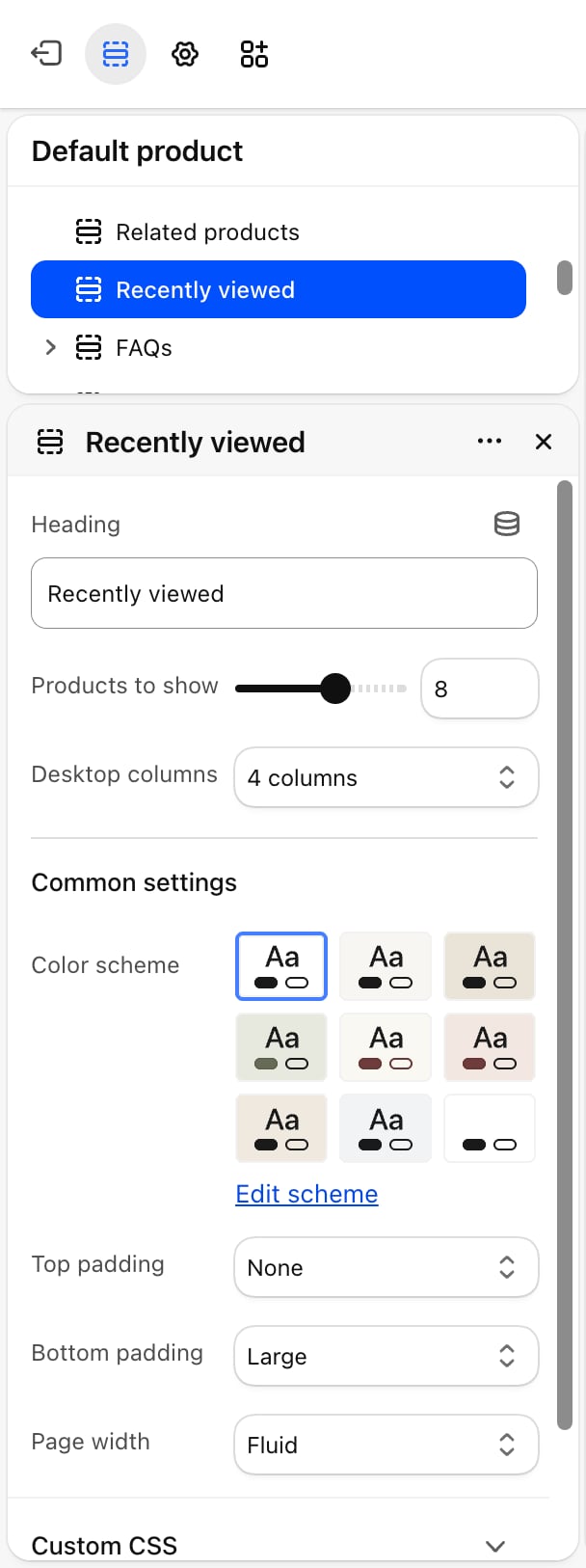
- Heading: the title above the row. Default: “Recently viewed”.
- Products to show: from 2 to 12. Default: 8.
- Desktop columns: 3 columns, 4 columns (default) or 5 columns. Phones show 2 cards across and tablets 3. Shoppers scroll the row sideways to see more.
Common settings
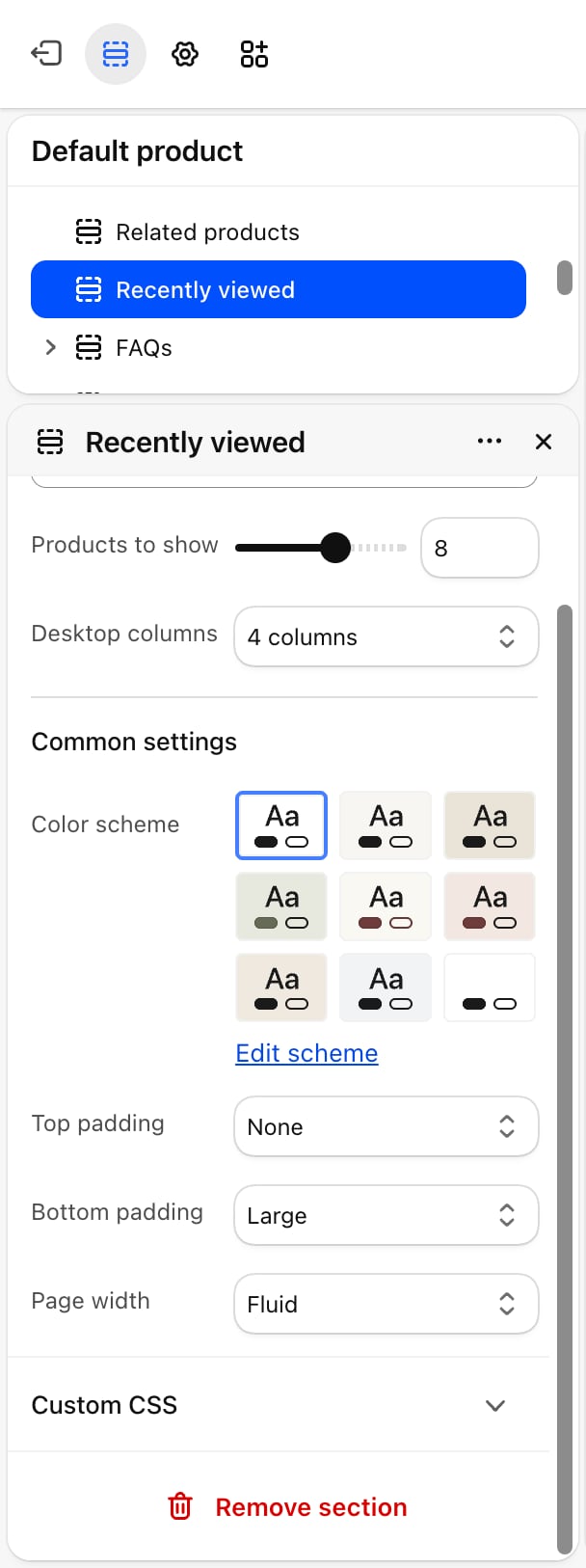
- Color scheme: the colors of the section.
- Top padding: None (default), Small, Medium, Large or Extra large.
- Bottom padding: None, Small, Medium, Large (default) or Extra large.
- Page width: Narrow, Narrower, Fluid (default) or Full.
Best practices
- Put it on the product template first. That is where products get remembered. Without it there, the row on other pages stays empty.
- Place it low on the product page. Shoppers who scroll past the description and related products are often still deciding.
- Pair it with related products. Related products shows new ideas, recently viewed brings back what the shopper already liked.
Related guides
Related products
Suggest other products on the product page.
Product cards
Change how the cards in this row look.