

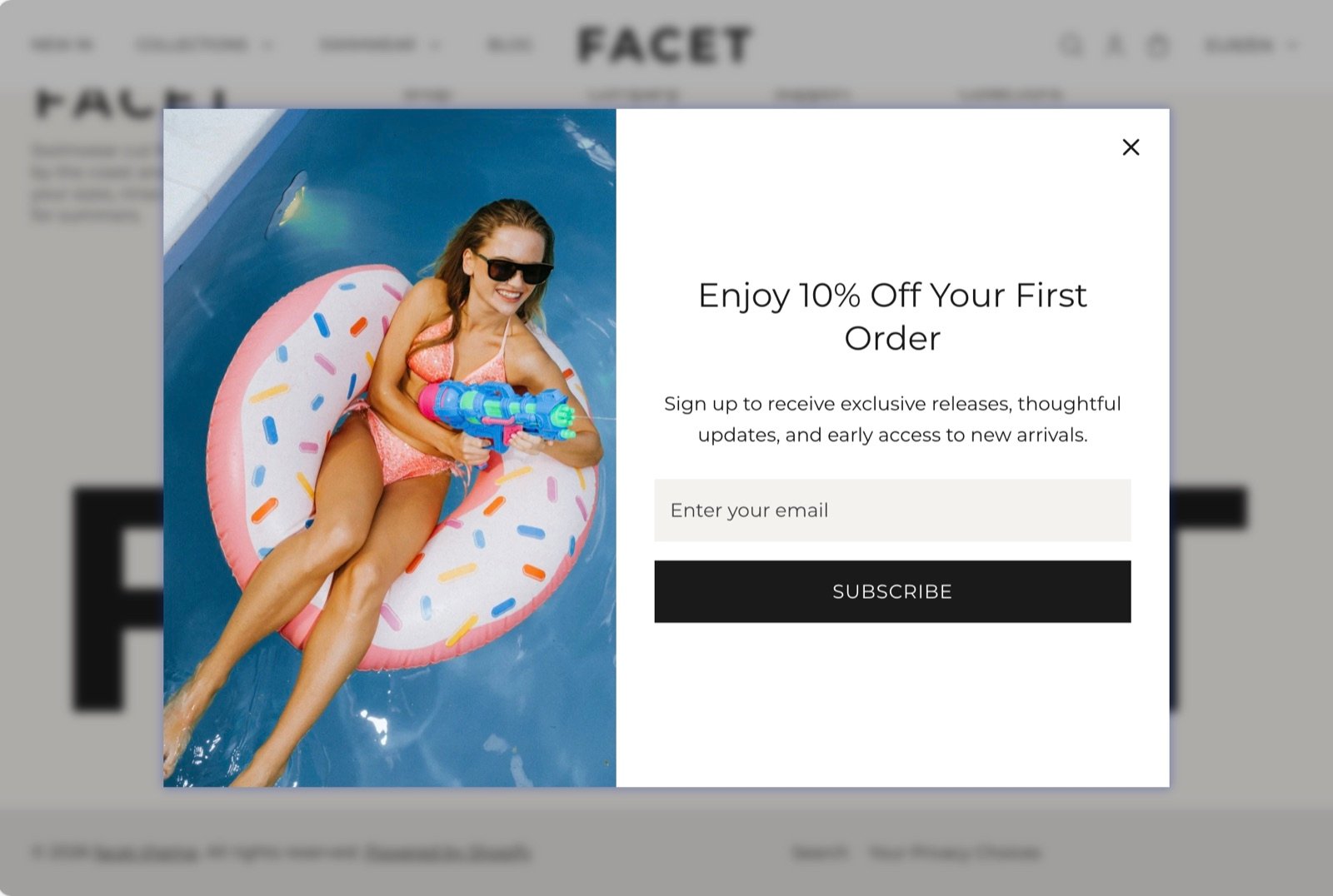
What this section controls
- The picture beside the pop-up content.
- How long the pop-up waits before it appears.
- How many days pass before it shows again to a shopper who closed it.
- Whether it opens by itself in the Theme Customizer.
- The heading, text and newsletter form inside it.
- The pop-up’s color scheme.
Getting started
1
Open the Theme Customizer
In your Shopify admin, open Online Store, then Themes, and click Customize next to Facet.
2
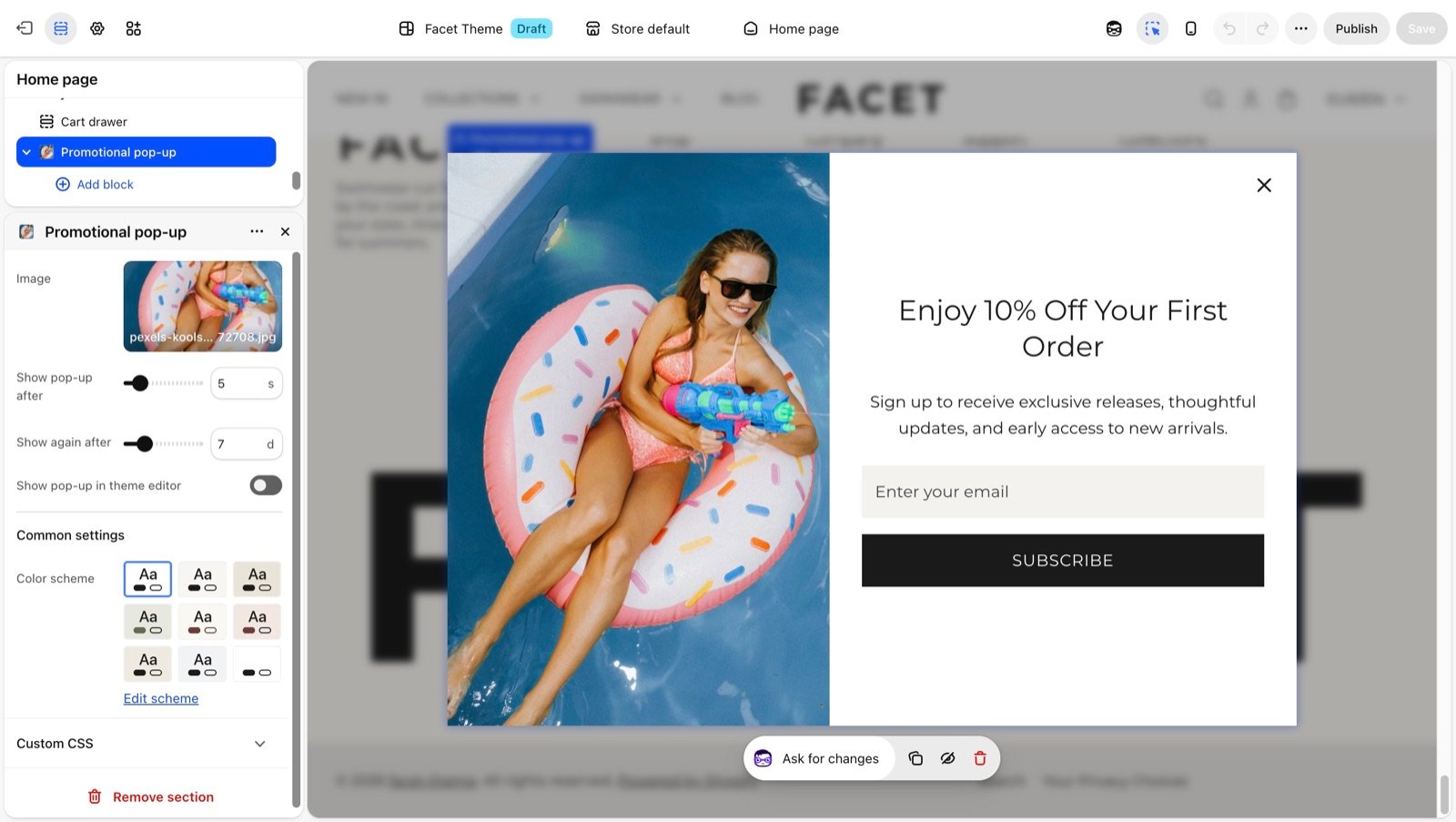
Select the pop-up
In the Sections panel on the left, find the Overlay group and click Promotional pop-up. If it isn’t there, click Add section in the Overlay group and choose Promotional pop-up. The pop-up opens in the preview while it is selected.
3
Write your offer
Click the Heading and Text blocks to edit the offer, and pick an Image for the side of the pop-up.
4
Set the timing
Choose Show pop-up after and Show again after to control when and how often shoppers see it.
When the pop-up shows
On your live store the pop-up follows these rules for each shopper:- First visit: it opens after the number of seconds set in Show pop-up after, on whichever page the shopper is viewing.
- After closing it: a shopper closes the pop-up with the close button, by clicking outside it, or with the Escape key. It then stays hidden on every page until the number of days in Show again after has passed.
- After signing up: the pop-up reopens once to show “Thanks for subscribing”, then never shows again to that shopper. This counts only sign-ups made in the pop-up’s own form. A shopper who signs up with another form, such as the one in the footer, sees the thanks message under that form, and the pop-up keeps its usual timing.
Section settings
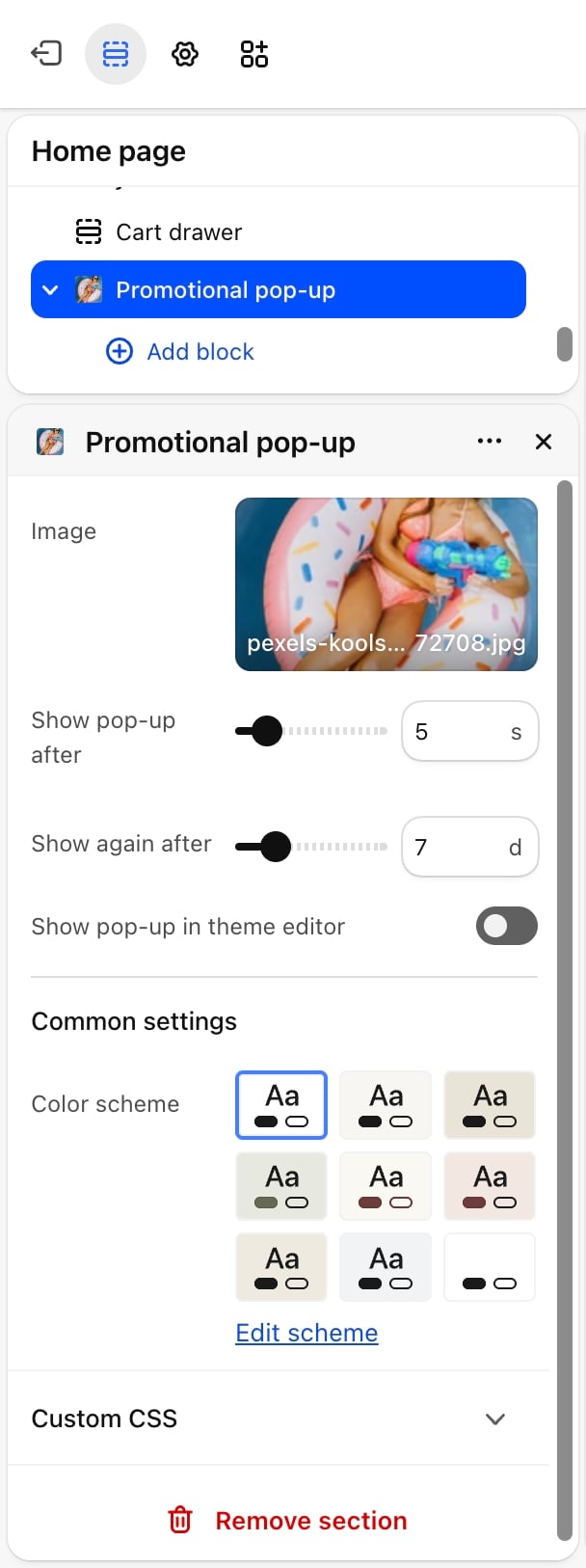
- Image: a picture shown beside the content, on the left, taking just under half the pop-up. It shows on screens 750 pixels wide and larger only. On phones the pop-up shows its content alone.
- Show pop-up after: the wait before the pop-up opens: from 1 to 30 seconds. Default: 5.
- Show again after: how long the pop-up stays hidden after a shopper closes it: from 1 to 30 days. Default: 7.
Preview in the Theme Customizer
- Show pop-up in theme editor: on by default. Opens the pop-up as soon as the preview loads, so you can see your changes. Turn it off to work on other sections without the pop-up in the way.
Common settings
- Color scheme: the colors of the pop-up.
Blocks
A new pop-up comes with a Heading, a Text and a Newsletter block. Add, remove or reorder them.Heading and Text
The pop-up accepts the Heading and Text theme blocks. See Theme blocks for their settings.Newsletter
An email field with a Subscribe button. It has no settings. When a shopper signs up, Shopify adds their email to your customers in the Shopify admin, tagged newsletter, and the pop-up stops showing for that shopper.Best practices
- Don’t open it at once. A delay of 5 seconds or more lets shoppers see your store before the pop-up asks for an email.
- Pick a longer repeat interval for small offers. Shoppers who closed the pop-up once are unlikely to want it every day. 7 days or more keeps it from feeling pushy.
- Lead with the offer. Put the benefit, such as “10% off your first order”, in the Heading, and keep the Text to one or two lines.
- Check it on a phone. Phones don’t show the picture, so the heading and text must stand on their own.
Related guides
Newsletter banner
Add a newsletter sign-up inside the page as well.
Theme blocks
See the settings of the Heading and Text blocks.