

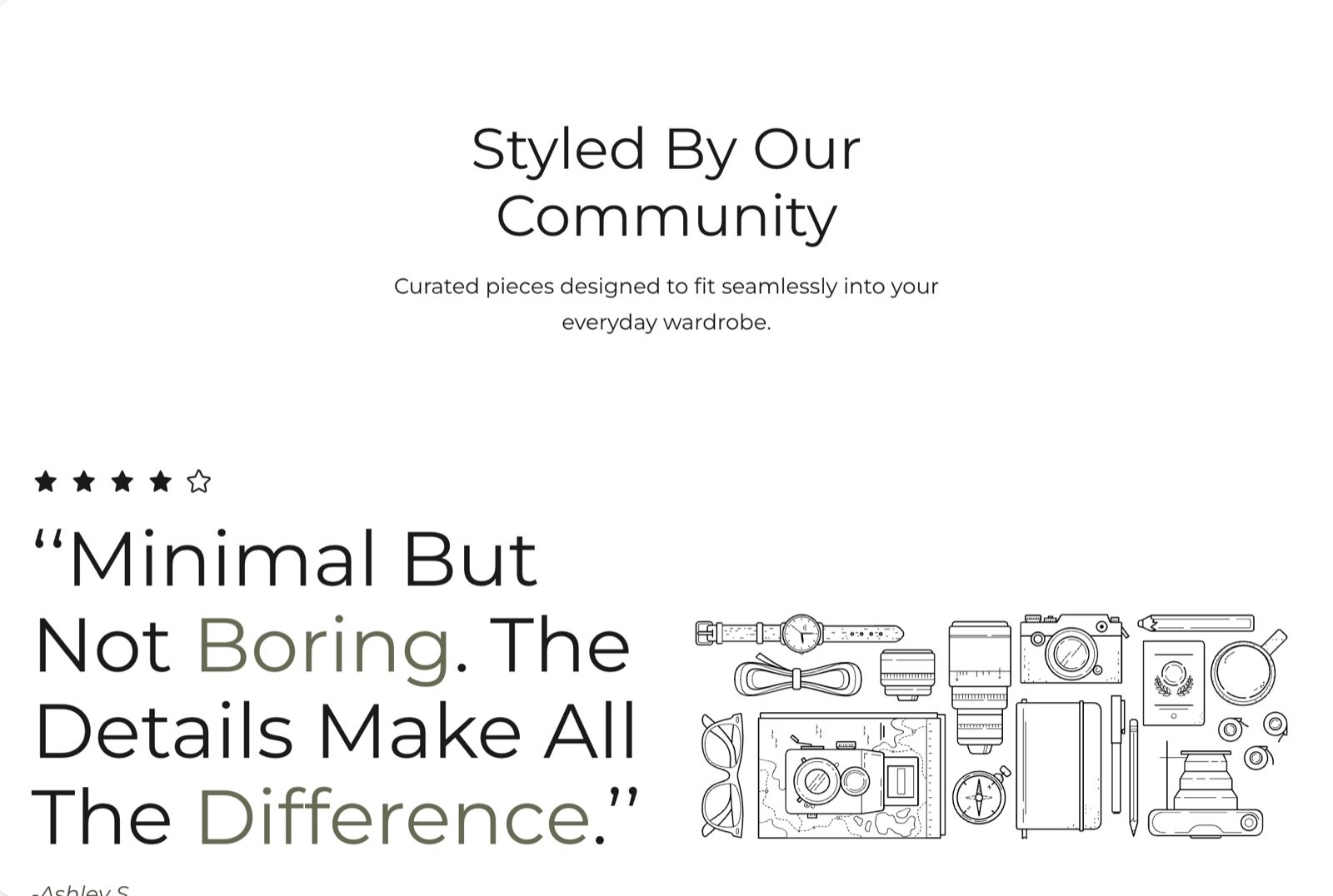
What this section controls
- An optional heading and text above the slider.
- The slides, each with a rating, quote, author and picture.
- Autoplay and the time between slides.
Getting started
1
Open the Theme Customizer
In your Shopify admin, open Online Store, then Themes, and click Customize next to Facet.
2
Add the section
In the Sections panel, click Add section and choose Testimonials. It starts with sample quotes. It can’t be added to the header or footer.
3
Enter your reviews
Click each Testimonial block to set its rating and picture, then edit the quote and author inside it. Click Add block, then Testimonial, to add a slide.
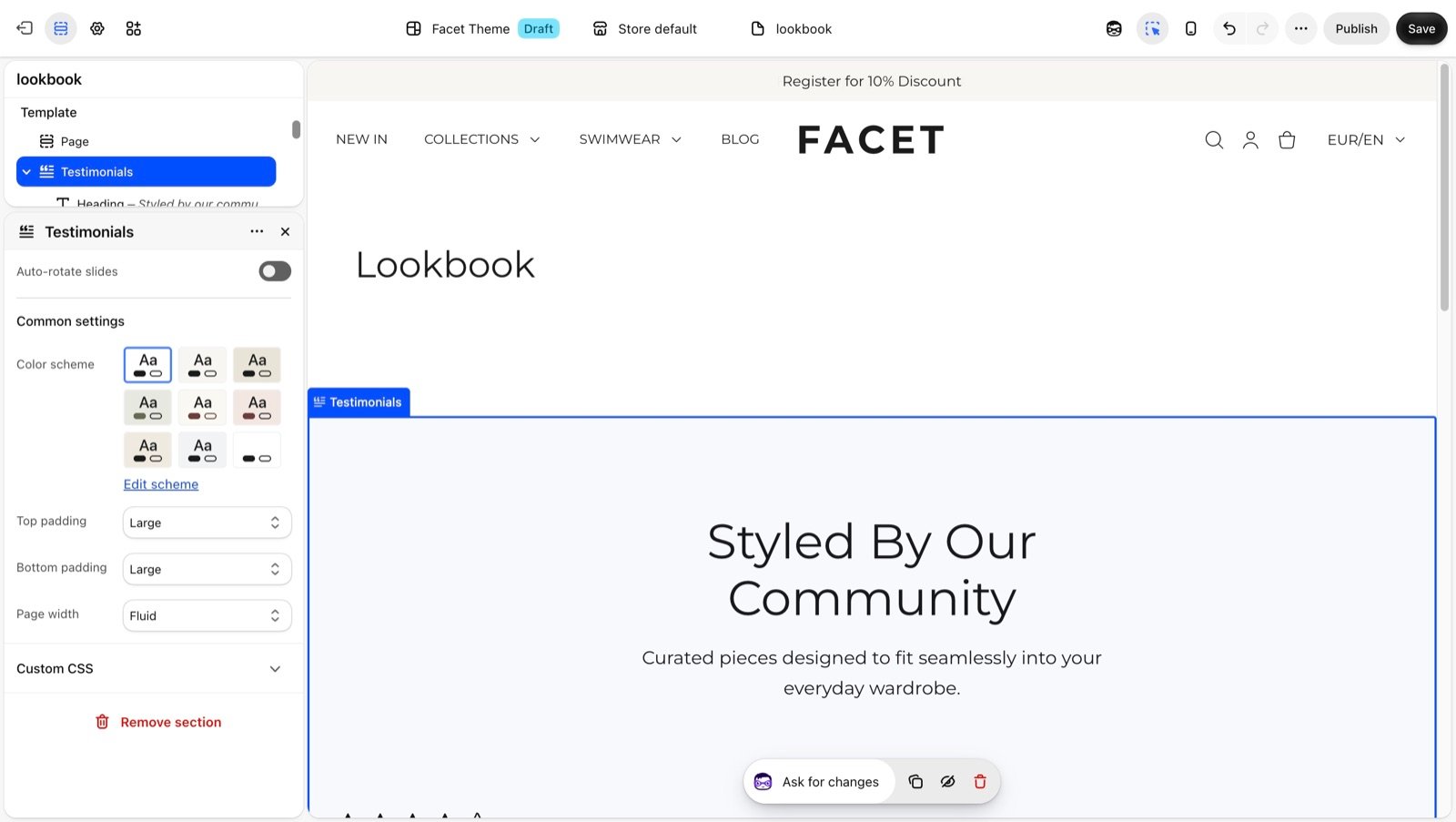
Section settings
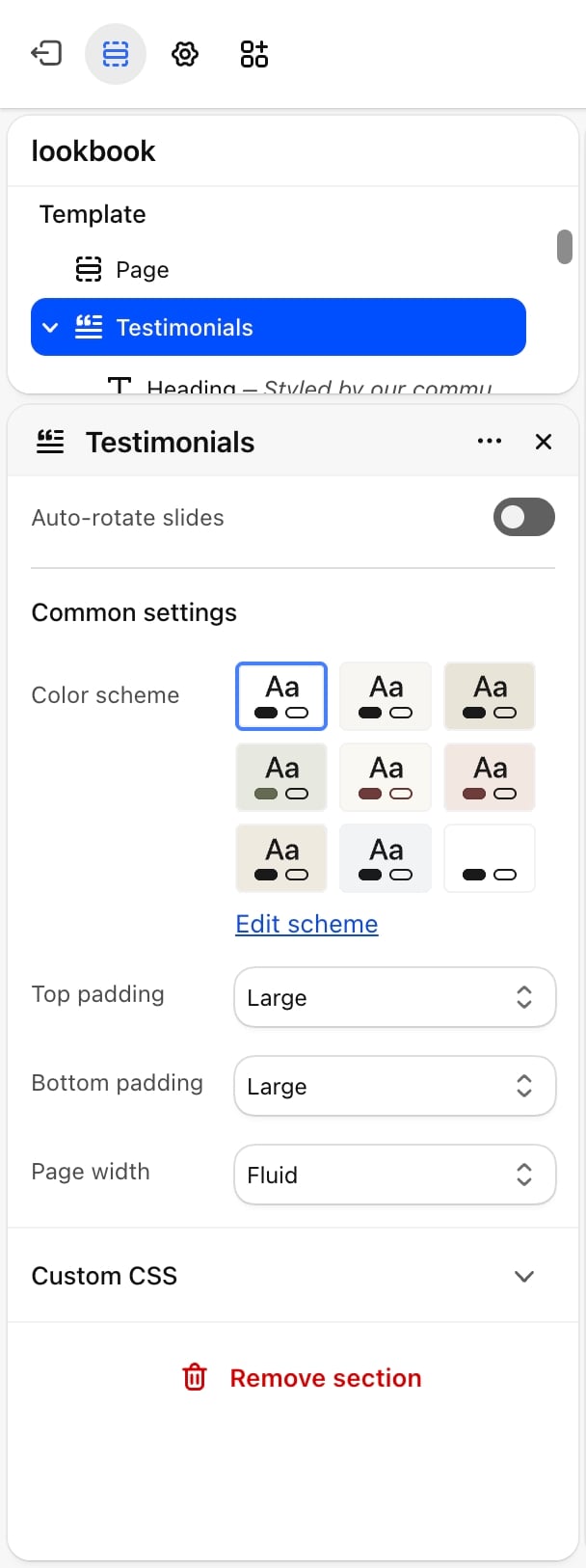
- Auto-rotate slides: off by default. Moves to the next quote on its own and pauses while the pointer is over the slider. Shoppers who ask their device to reduce motion don’t get autoplay.
- Change slides every: from 3 to 9 seconds. Default: 6. Appears only when Auto-rotate slides is on.
Common settings
- Color scheme: the colors of the section.
- Top padding and Bottom padding: None, Small, Medium, Large (default) or Extra large.
- Page width: Narrow, Narrower, Fluid (default) or Full.
Blocks
Heading and text
The section has a fixed Heading and Text above the slider. A new section starts with the heading “Styled by our community” and a line of text. Change them to your own, or empty both to hide them; the slider then moves up into their place. See Theme blocks for their settings.Testimonial
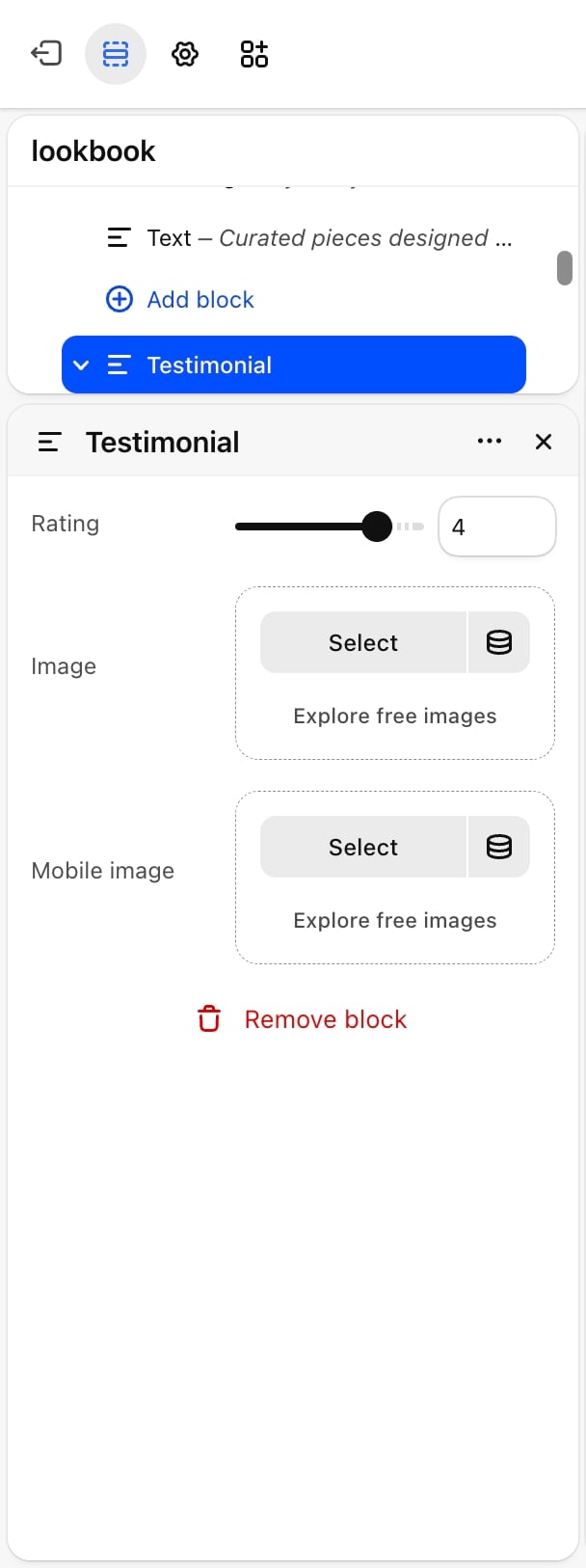
- Rating: from 0 to 5 stars. Default: 5. Filled stars show the rating and outlined stars the rest. Set it to 0 to hide the stars.
- Image: a picture shown in a square beside the quote. A placeholder shows until you pick one.
- Mobile image: an optional picture for phones. Without one, phones show Image.
Author
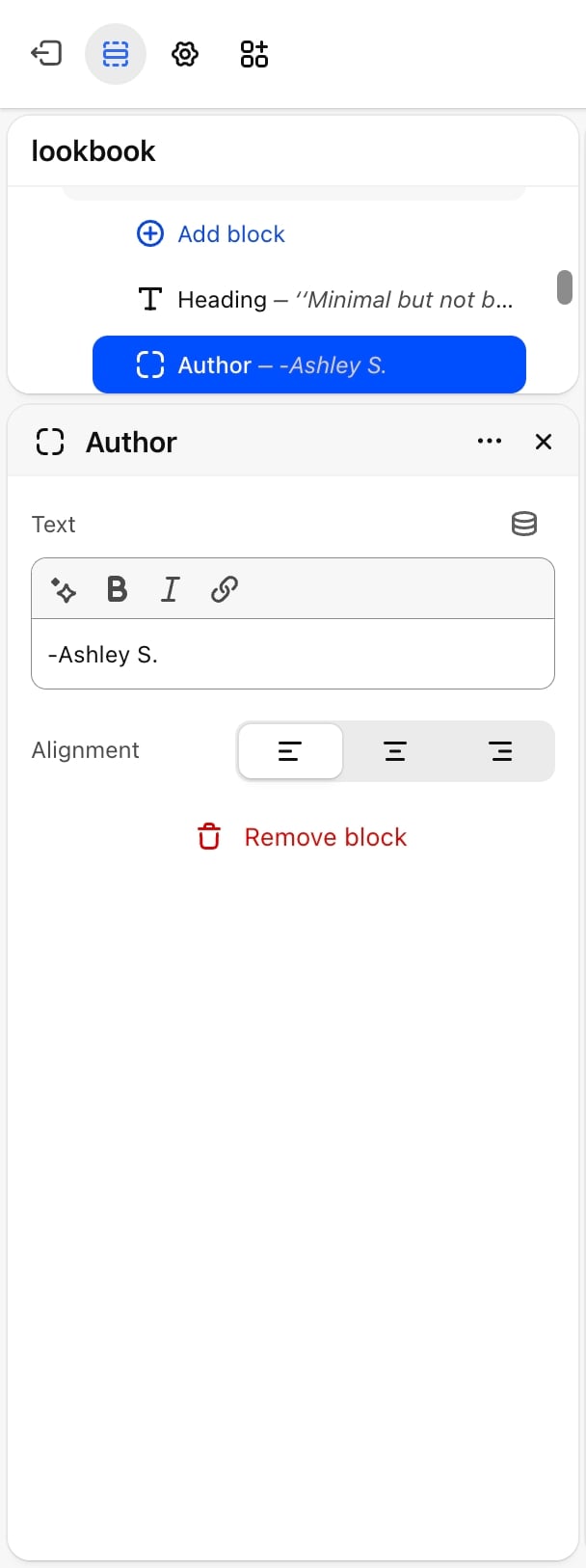
- Text: the name or credit line.
- Alignment: Left, Center (default) or Right. On phones the author is always centered.
Best practices
- Quote real customers. Copy reviews word for word and ask permission before you use a name or photo.
- Keep quotes short. One or two sentences fit the large heading size. Use a Text block for longer reviews.
- Use 3 to 6 testimonials. Enough to show a range of customers without making shoppers click through a long slider.
- Pick pictures that crop well to a square. Every picture is cropped to 1:1.
Related guides
Stories
A slider of large pictures with a text card on each.
Colors
Set the accent color used for highlighted words and the author.