

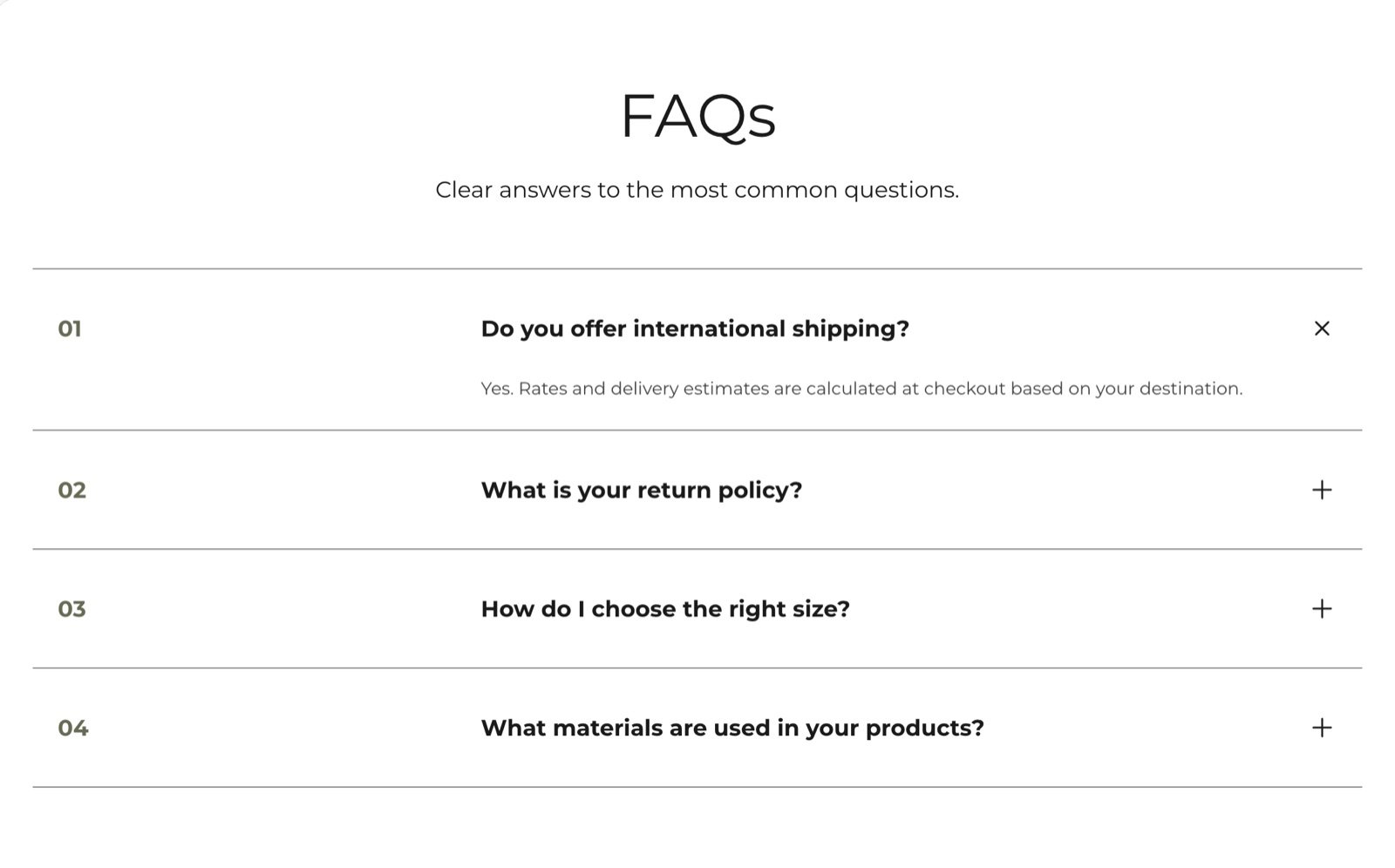
What this section controls
- An intro heading and text.
- The questions, their answers, and whether they start open.
- The section colors, width and spacing.
Getting started
1
Open the Theme Customizer
In your Shopify admin, open Online Store, then Themes, and click Customize next to Facet.
2
Add the section
In the Sections panel, click Add section and choose FAQs. The section can’t be added to the header or footer.
3
Add questions
Click Add block, then Question. Type the question in Heading, then write the answer in the Text block inside it.
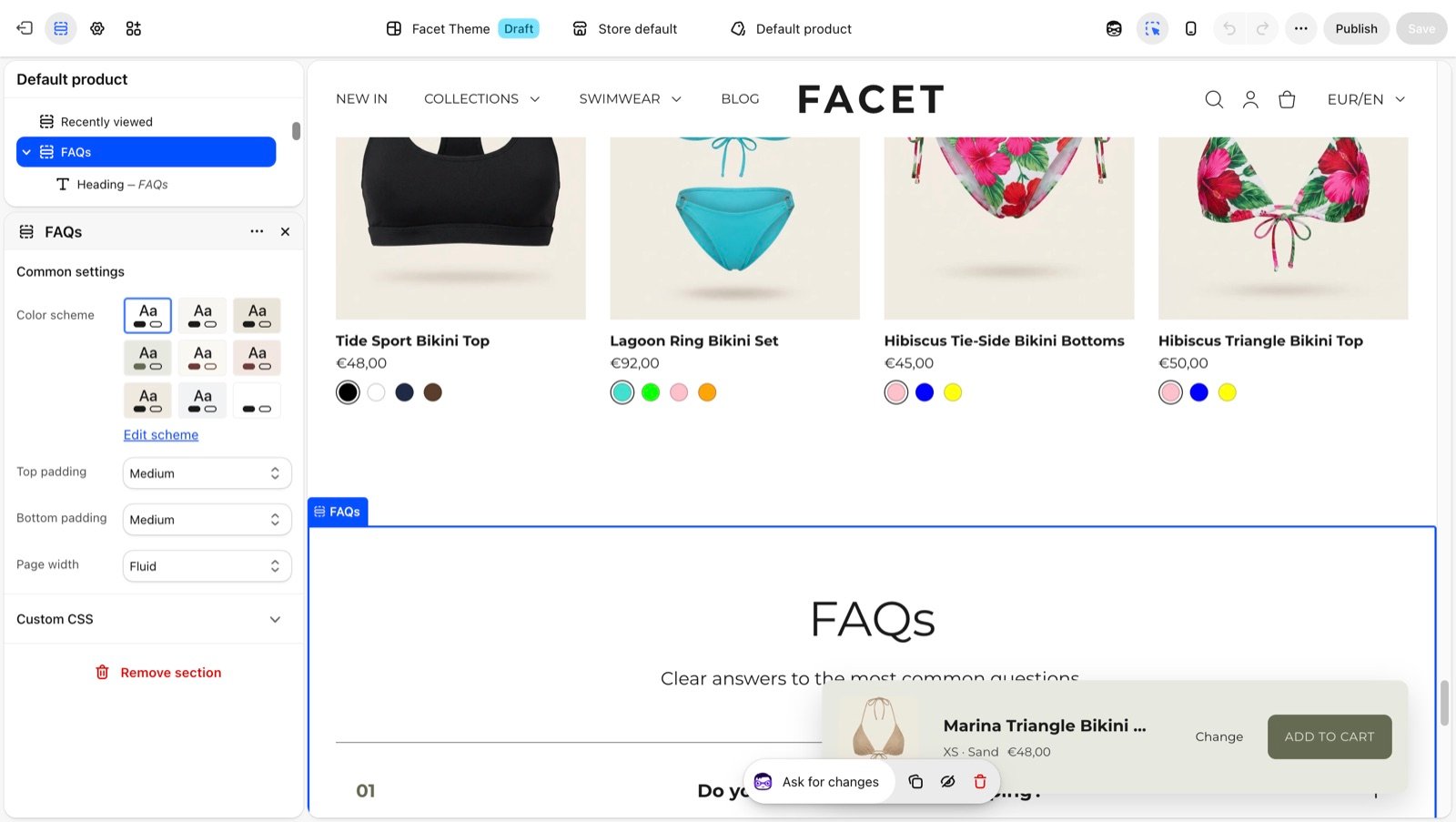
Section settings
Common settings
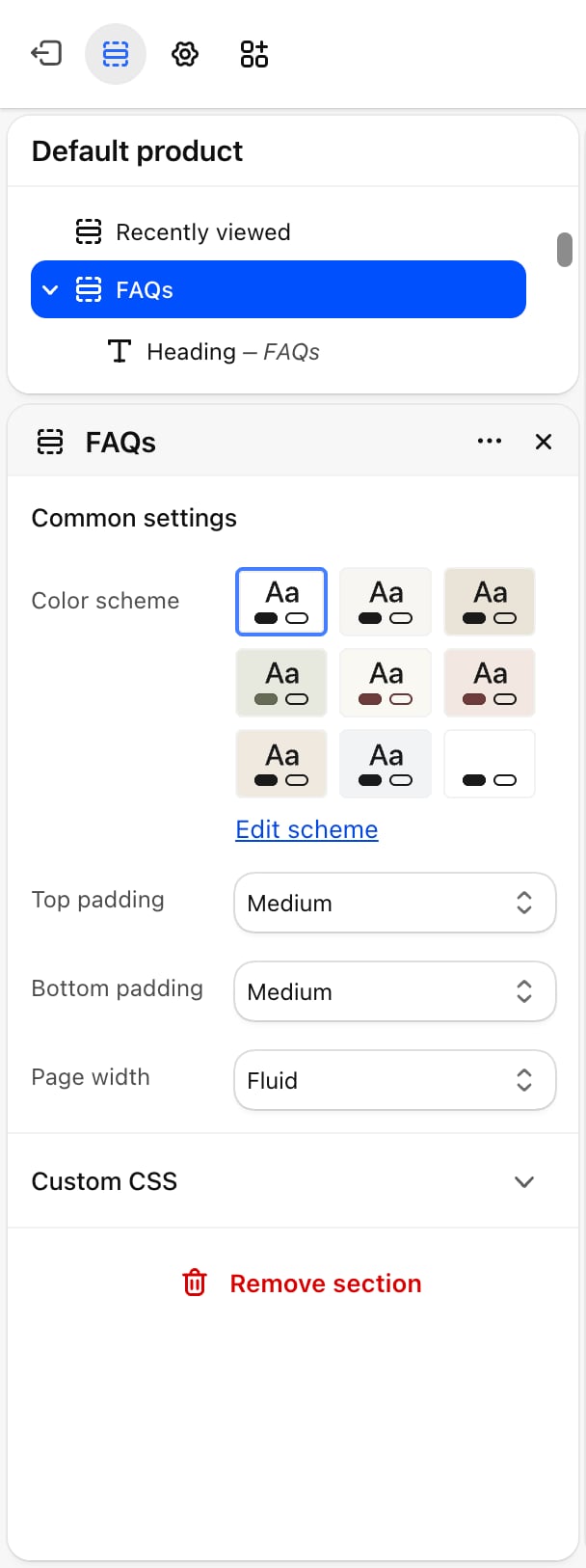
- Color scheme: the colors of the section.
- Top padding and Bottom padding: None, Small, Medium, Large (default) or Extra large.
- Page width: Narrow, Narrower, Fluid (default) or Full.
Blocks
Intro heading and text
The section has a fixed Heading and Text block for the intro. When both are empty, the intro is hidden and the questions take its place. Their settings are described on Theme blocks.Question
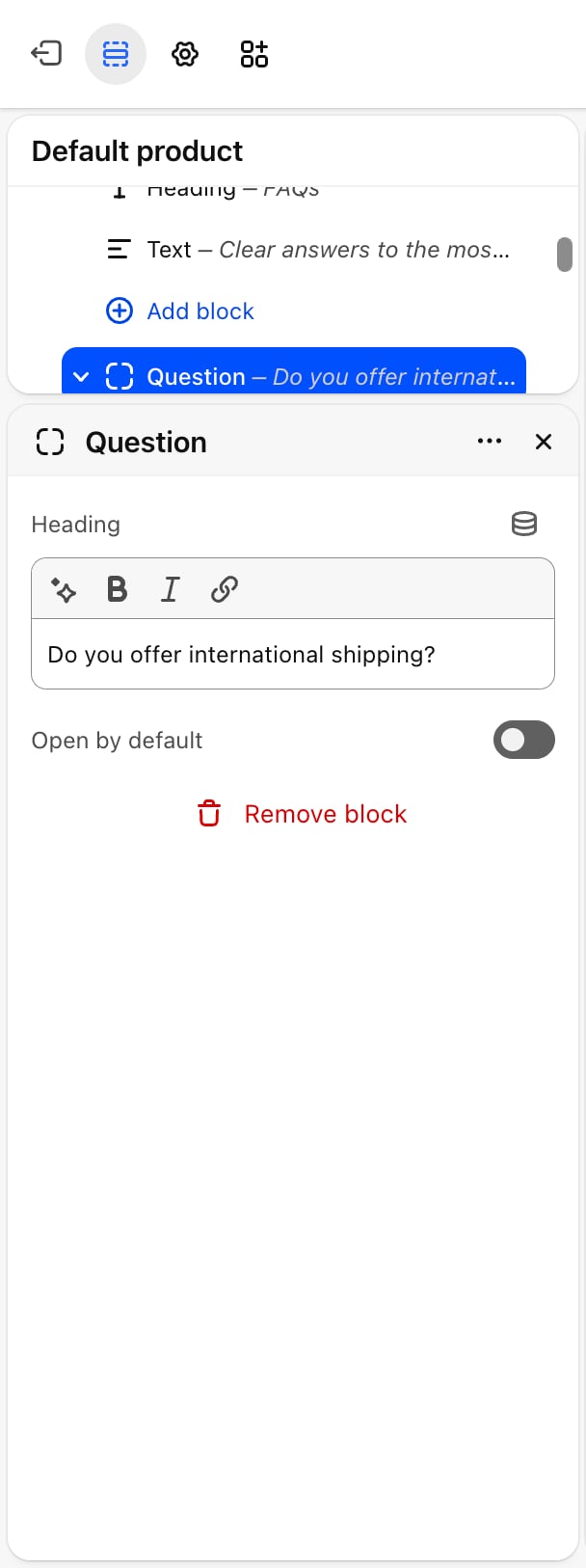
- Heading: the question. Default: “Do you offer international shipping?”.
- Open by default: off by default. When on, the answer shows when the page loads.
Heading and Text
You can also add Heading and Text blocks between the questions, for example to title a group of questions. They are not numbered. See Theme blocks for their settings.Best practices
- Group related questions. Put shipping, returns and sizing questions next to each other so shoppers find them in one place.
- Answer in the first sentence. Start with “Yes” or “No” or the key fact, then add detail.
- Use a separate FAQs section per topic. On a long FAQ page, several sections, each with its own intro heading, are easier to scan than one long list.
Related guides
FAQ page
Set up the store’s FAQ page template.
Collapsible content
Show rows that open and close, without numbers.