


What this section controls
- The text that scrolls.
- The size of the text.
- How fast the text moves.
- The colors, width and spacing of the band.
Getting started
1
Open the Theme Customizer
In your Shopify admin, open Online Store, then Themes, and click Customize next to Facet.
2
Add the section
In the Sections panel, click Add section and choose Marquee text. The section can’t be added to the header.
3
Write the text
Click Marquee text and type your line in Text.
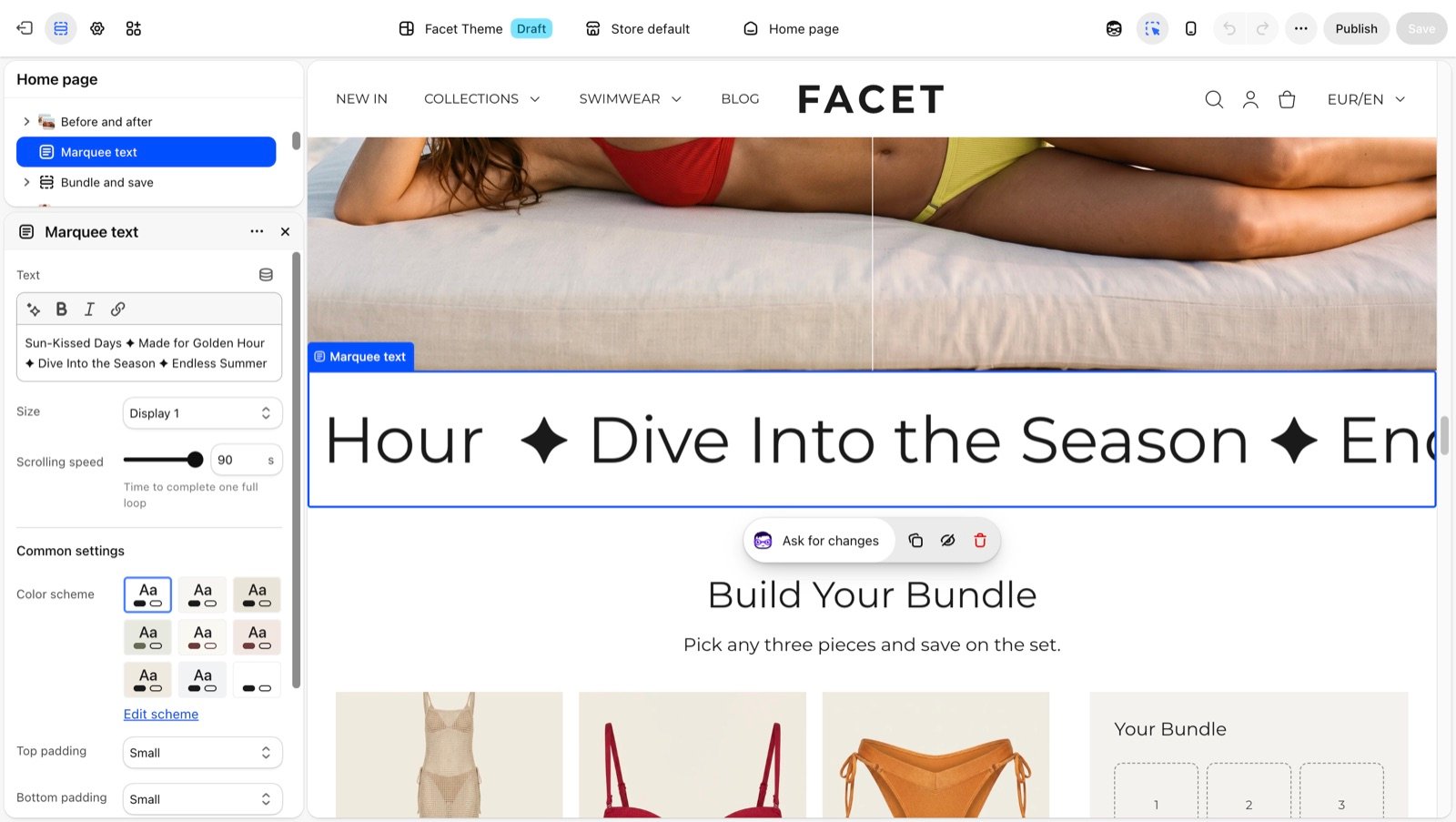
Section settings
Text
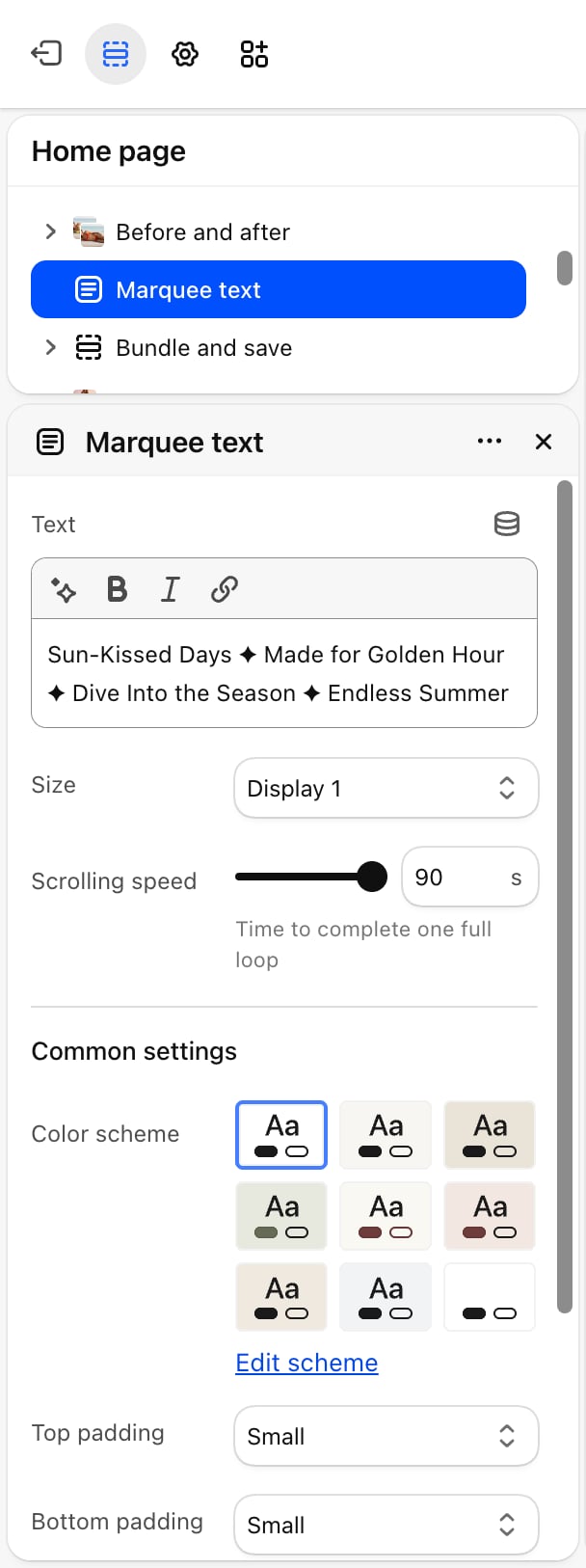
- Text: the line that scrolls. Default: “Designed to move”. You can make words bold or italic, or add a link. Facet repeats the text to fill the loop. Leave it empty to show nothing but the band’s padding.
- Size: Display 1 (default), Display 2, Heading 1 or Heading 2. The sizes come from your typography settings.
- Scrolling speed: the time to complete one full loop, from 10 to 90 seconds. Default: 40. Higher values scroll more slowly.
The text stops while a shopper’s pointer rests on it. For shoppers who have turned on reduced motion on their device, the text doesn’t move at all.
Common settings
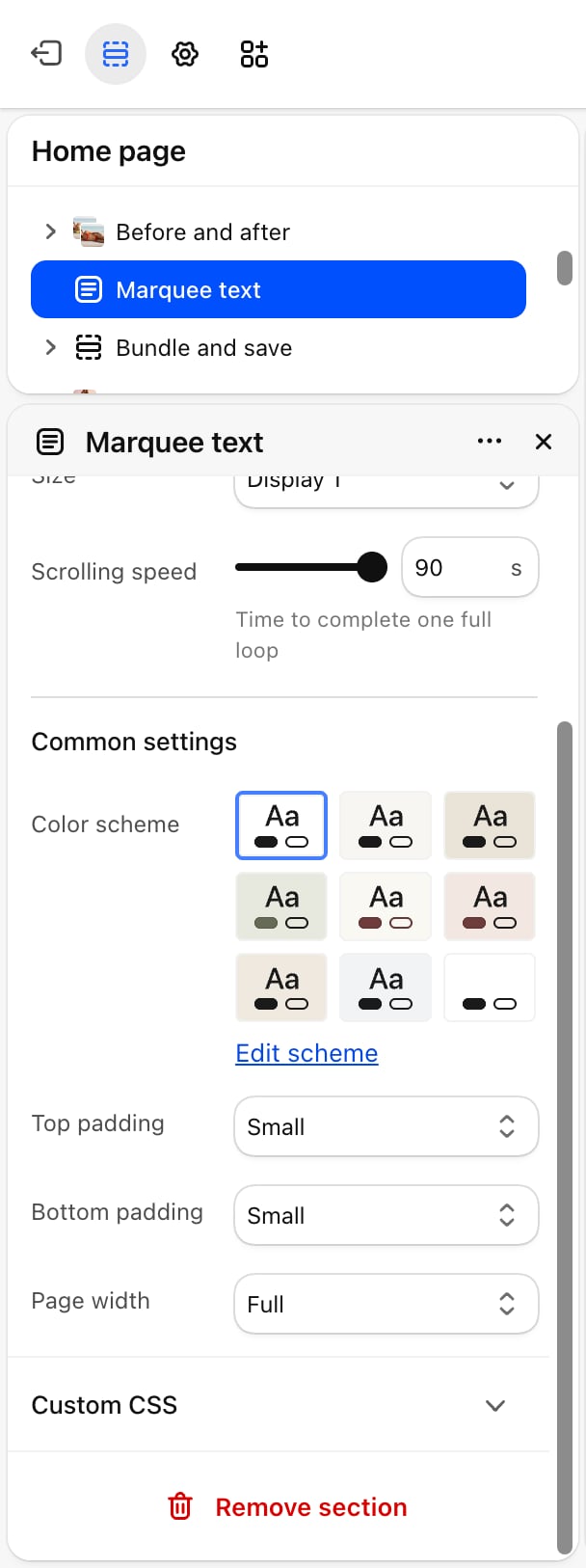
- Color scheme: the colors of the band and the text.
- Top padding and Bottom padding: None, Small (default), Medium, Large or Extra large.
- Page width: Narrow, Narrower, Fluid or Full (default).
Best practices
- Keep it short. Two to five words read easily while they move. Long sentences are hard to follow.
- Add a separator. End your text with a symbol such as a dot or a star, with spaces around it, so the repeats don’t run together.
- Slow it down for large sizes. With Display 1, a speed of 40 seconds or more keeps the text readable.
Related guides
Typography
Set the fonts and sizes used by Display and Heading.
Announcement bar
Show short messages at the top of every page.