


What this section controls
- The words and pictures in the line, and their order.
- The size of the type.
Getting started
1
Open the Theme Customizer
In your Shopify admin, open Online Store, then Themes, and click Customize next to Facet.
2
Add the section
In the Sections panel, click Add section and choose Statement. It starts with four text blocks and three image blocks in turn. It can’t be added to the header or footer.
3
Write your line
Click each Text block to change its words, and each Image block to pick its picture. Drag the blocks to change where the pictures fall.
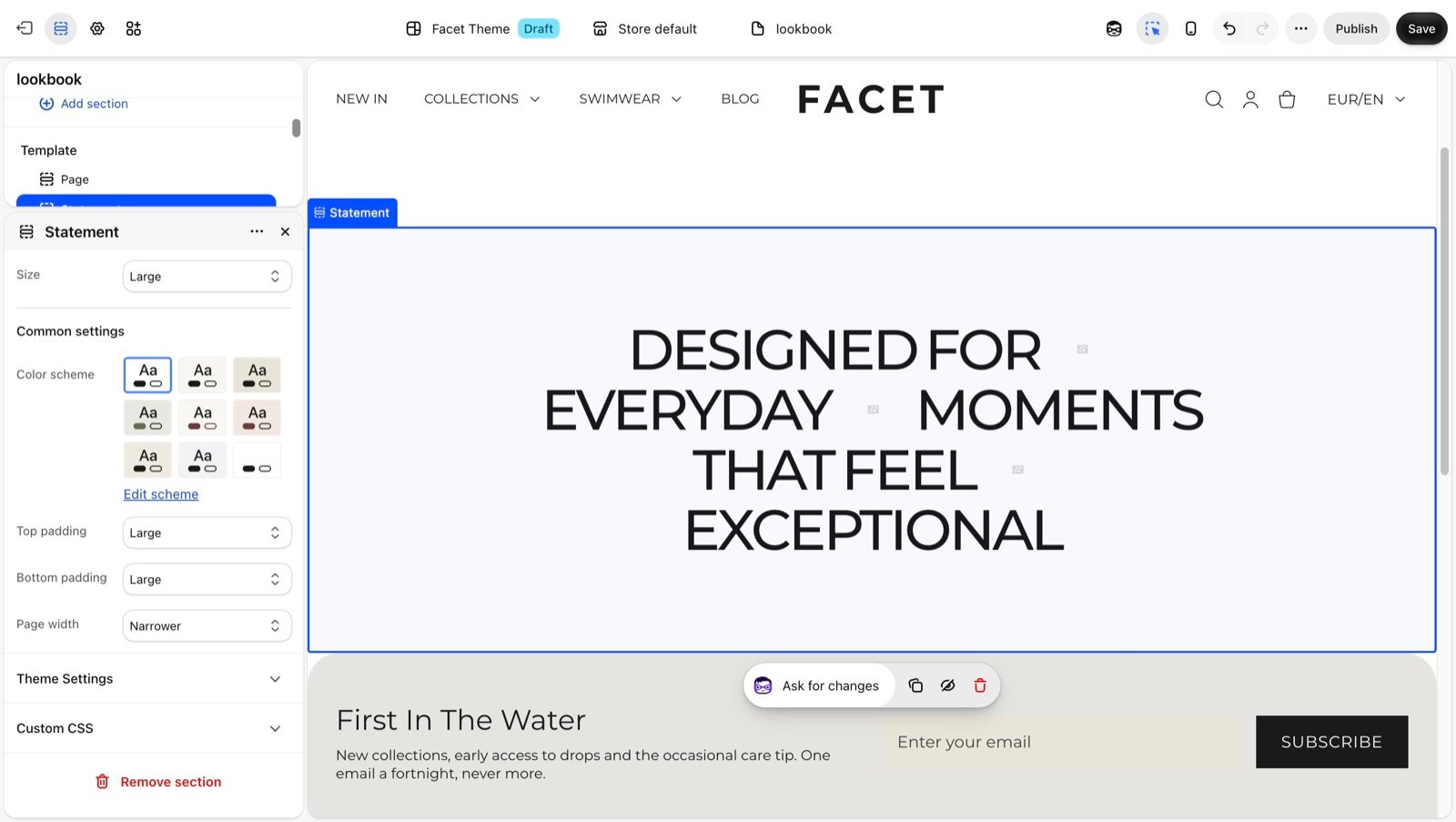
Section settings
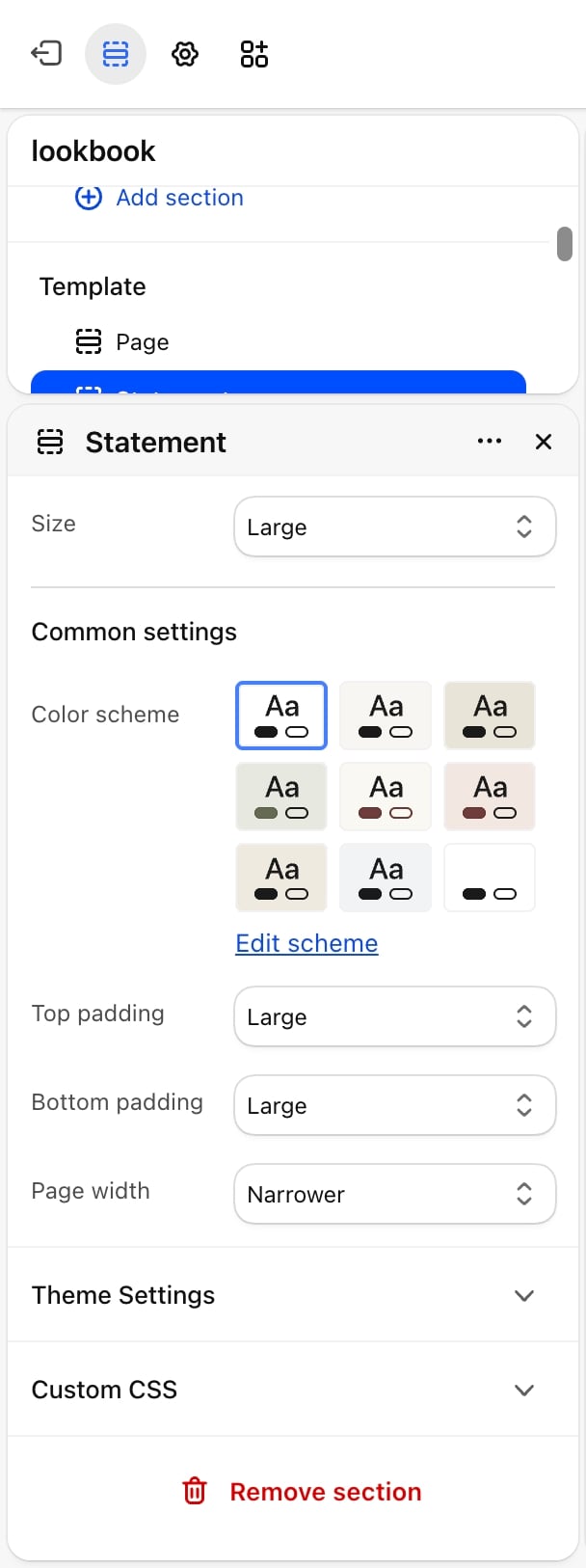
- Size: Medium, Large (default) or Extra large. Medium matches the Heading 1 size of a heading block, Large matches Display 2 and Extra large matches Display 1.
Common settings
- Color scheme: the colors of the section.
- Top padding and Bottom padding: None, Small, Medium, Large (default) or Extra large.
- Page width: Narrow, Narrower (default), Fluid or Full.
Blocks
The statement has its own two block types. They are not theme blocks and can’t be used in other sections.Text
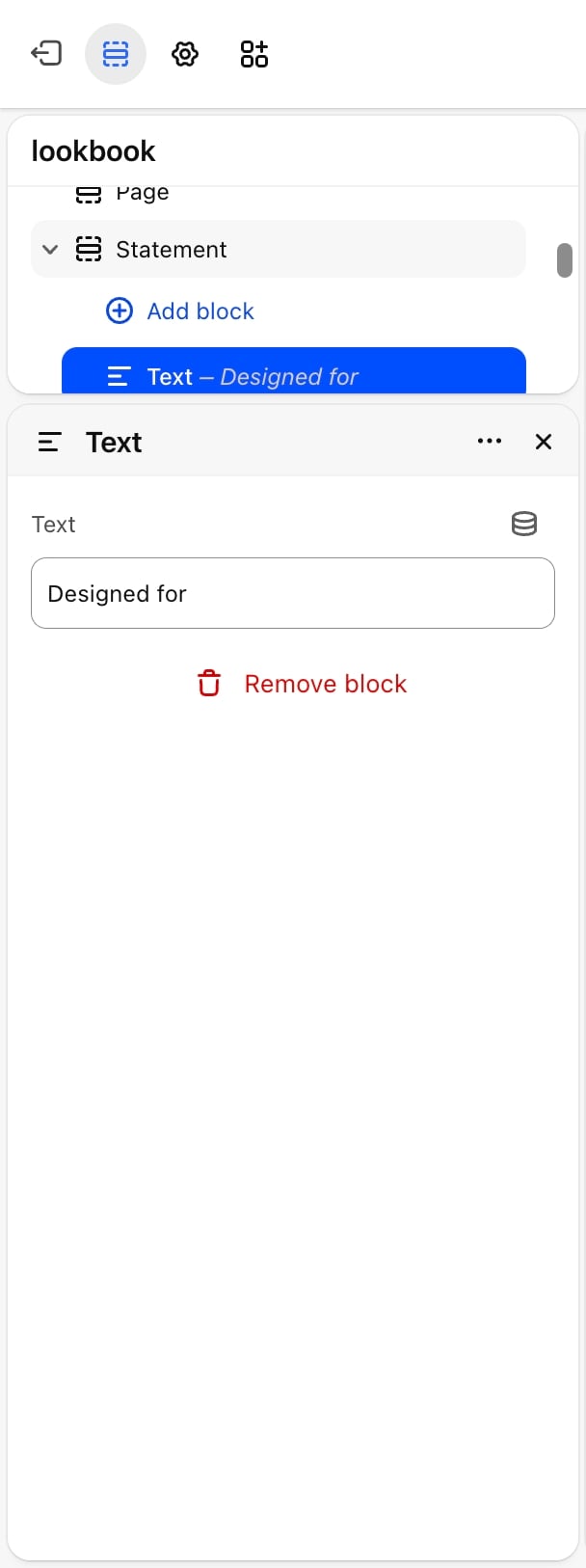
- Text: one or more words. Default: “Designed for everyday”.
Image
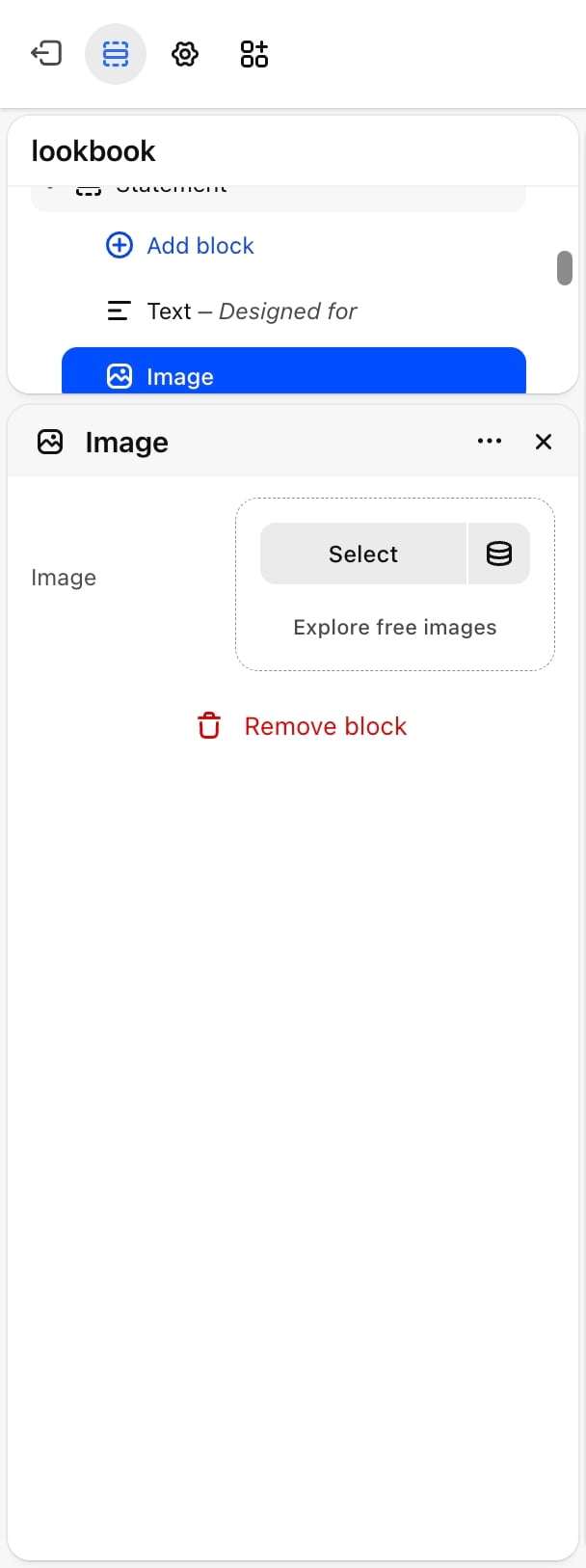
- Image: a small picture shown between the words. It is cropped to a wide 18:11 shape and sized to the type, so it grows and shrinks with Size. A placeholder shows until you pick one.
Best practices
- Keep it to one sentence. The statement reads best as a short line of six to ten words.
- Pick pictures with one clear subject. The pictures are small, so a close crop of a product or texture reads better than a wide scene.
- Check the line on a phone. Large and Extra large words can push each word onto its own line on narrow screens. Try Medium if it looks too broken up.
Related guides
Typography
Set the body font this line uses.
Rich text
Add headings and paragraphs in a single column.