

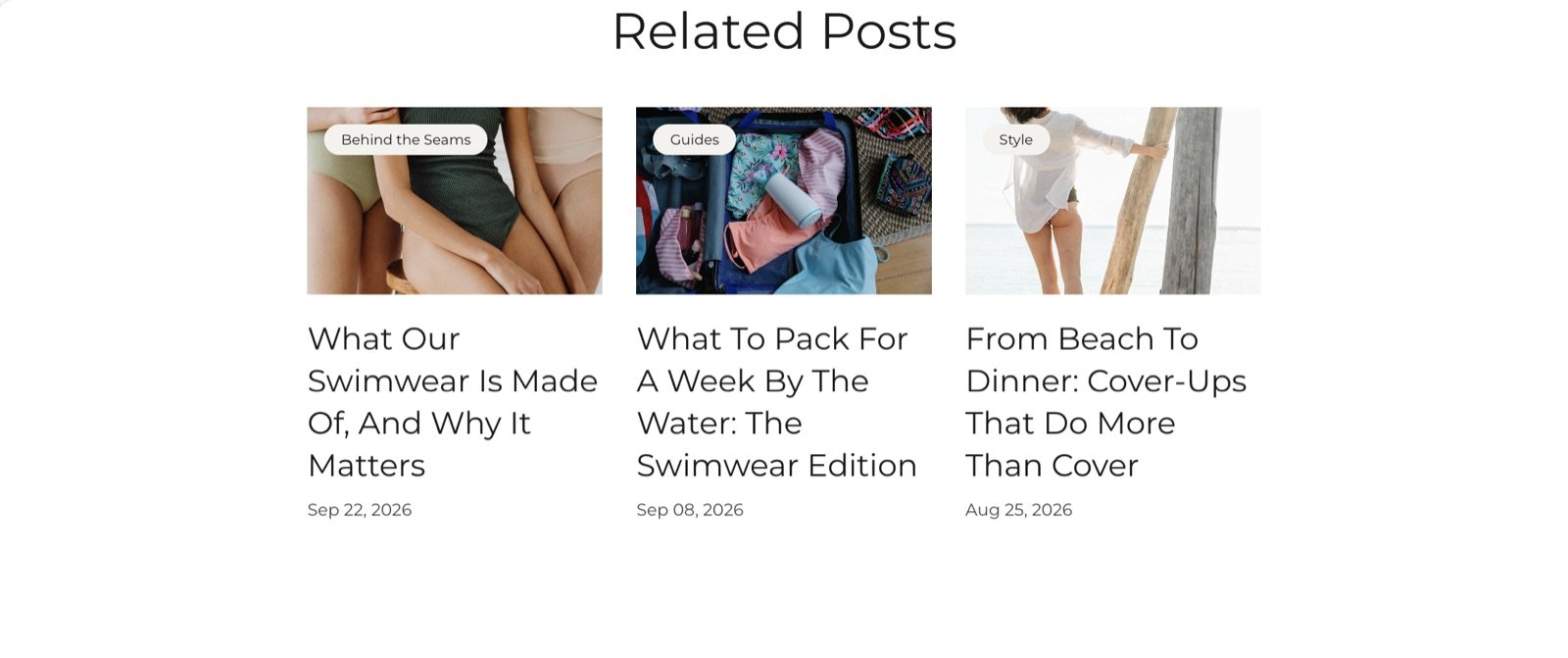
What this section controls
- The heading above the posts.
- How many posts show.
- Two or three columns on large screens.
Which posts show
There is no picker. The section shows the newest articles from the blog the current article belongs to, and skips the article being read. The section is hidden when the blog has only one article.Related posts only works on the blog post template. You can’t add it to other pages.
Getting started
1
Open the Theme Customizer
In your Shopify admin, open Online Store, then Themes, and click Customize next to Facet.
2
Open a blog post
Use the page selector at the top to open Blog posts, then Default blog post.
3
Add the section
Click Add section and choose Related posts. Drag it under the article.
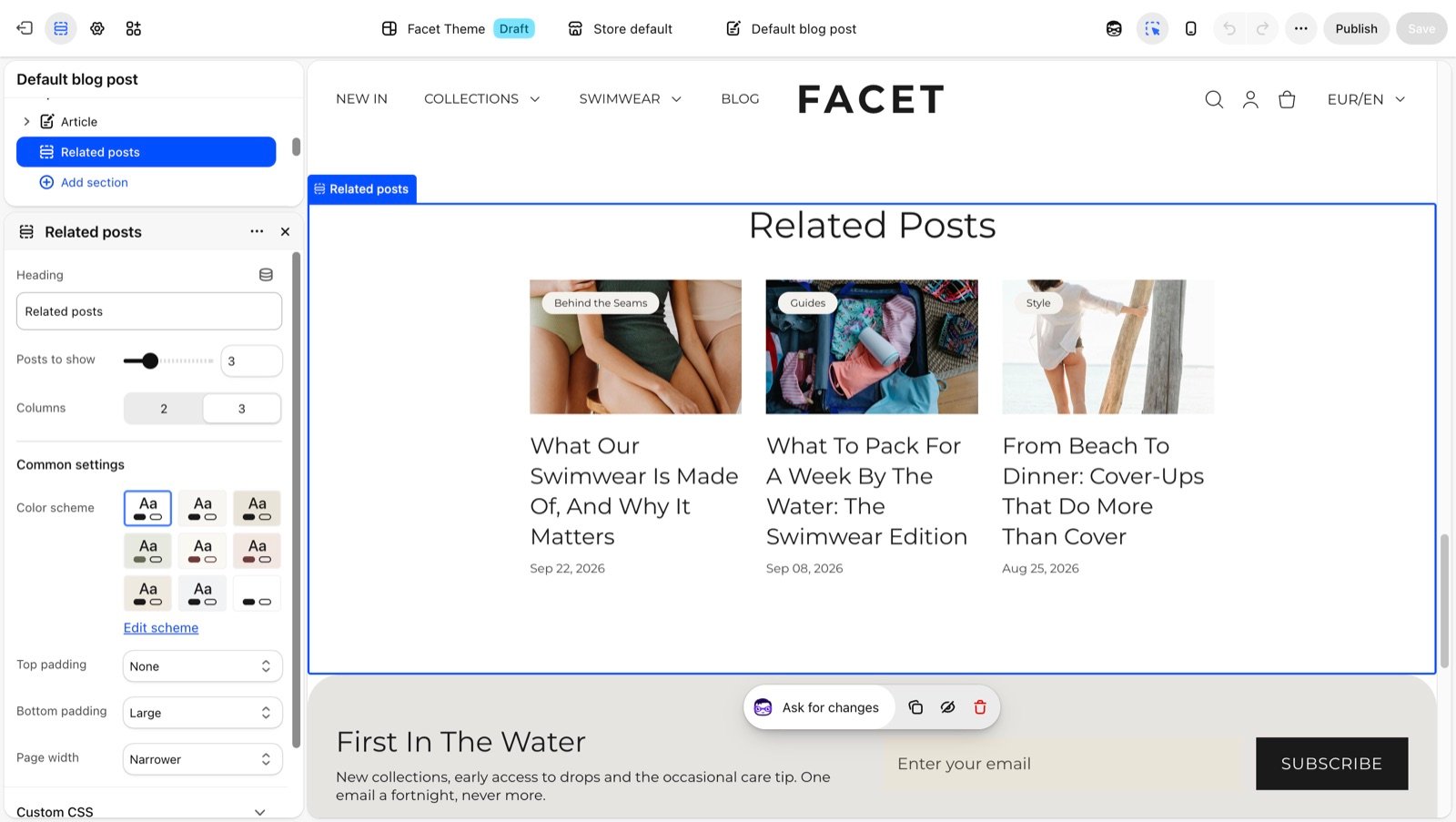
Section settings
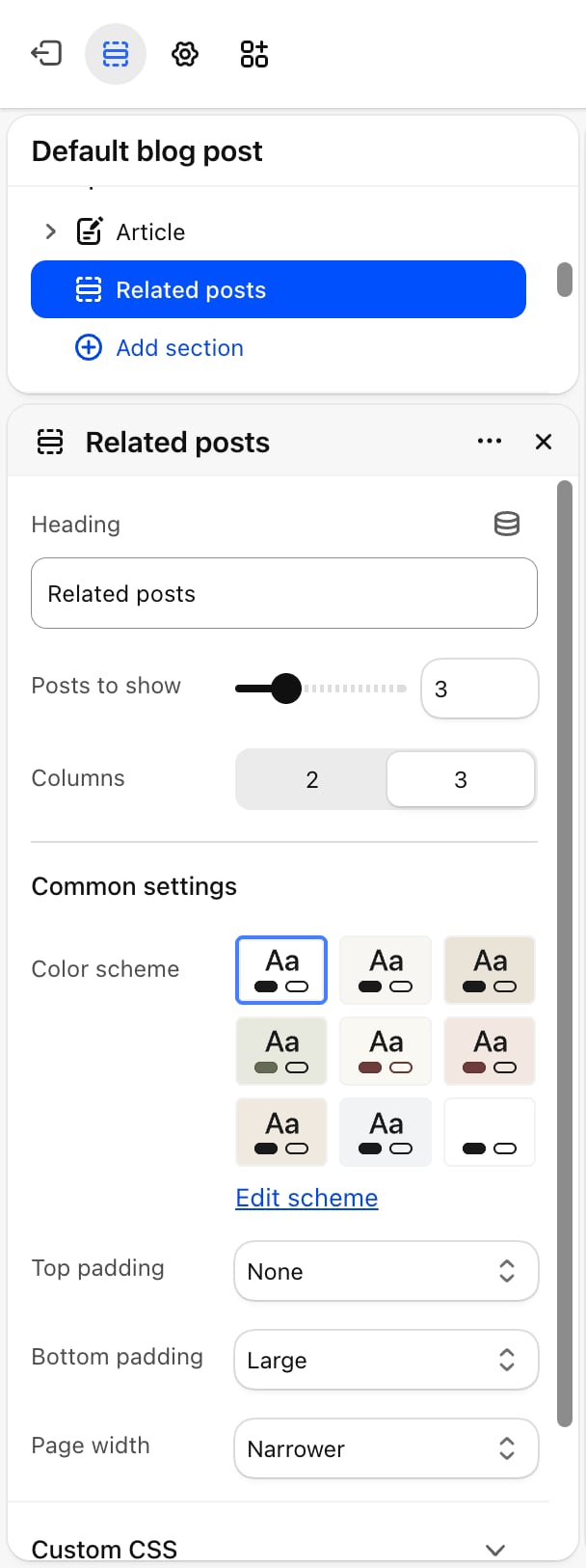
- Heading: the title above the posts. Default: “Related posts”. Leave it empty to hide it.
- Posts to show: from 2 to 6. Default: 3.
- Columns: 2 or 3 (default) on tablets and larger screens. Phones show one post per row.
Common settings
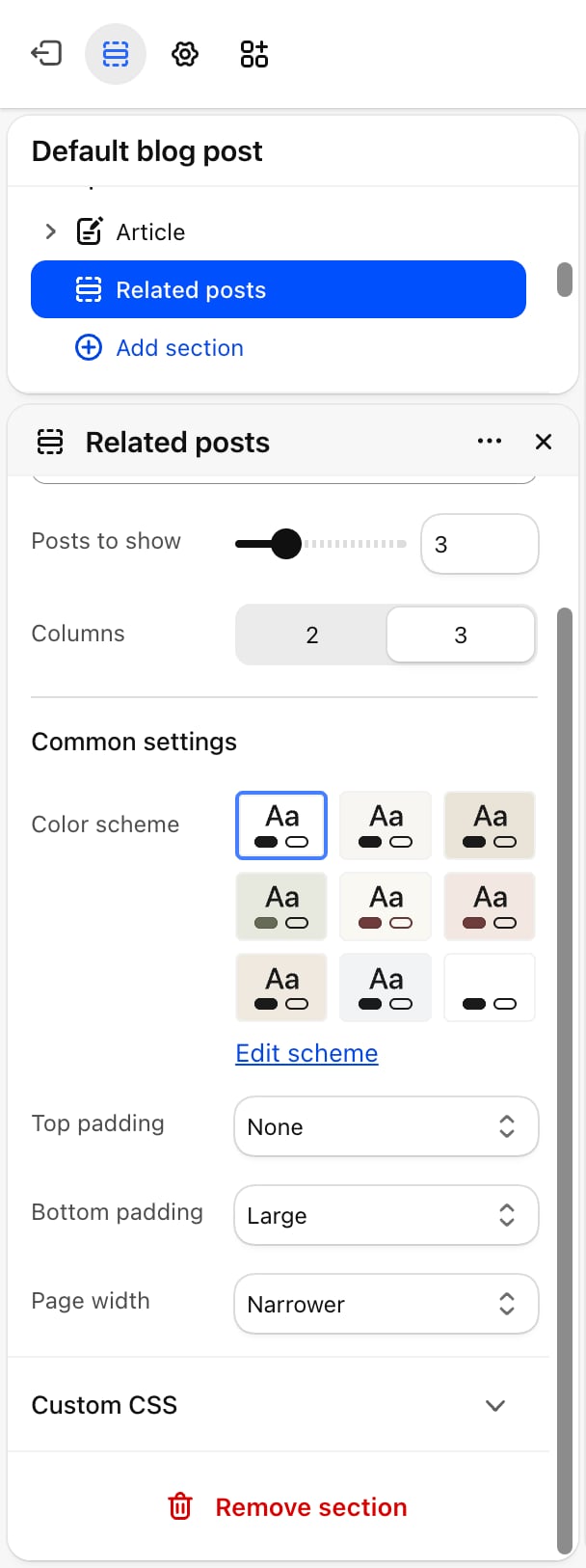
- Color scheme: the colors of the section.
- Top padding: None (default), Small, Medium, Large or Extra large.
- Bottom padding: None, Small, Medium, Large (default) or Extra large.
- Page width: Narrow, Narrower (default), Fluid or Full.
Best practices
- Match the post count to the columns. With 3 columns, show 3 or 6 posts so the last row is full.
- Give every article a featured image. The cards look uneven when some posts have a picture and others don’t.
- Use separate blogs for separate topics. The section only looks inside the current article’s blog, so a blog per topic keeps the suggestions on topic.
Related guides
Article
Set up the blog post template this section sits on.
Blog
Set up the page that lists every post.