

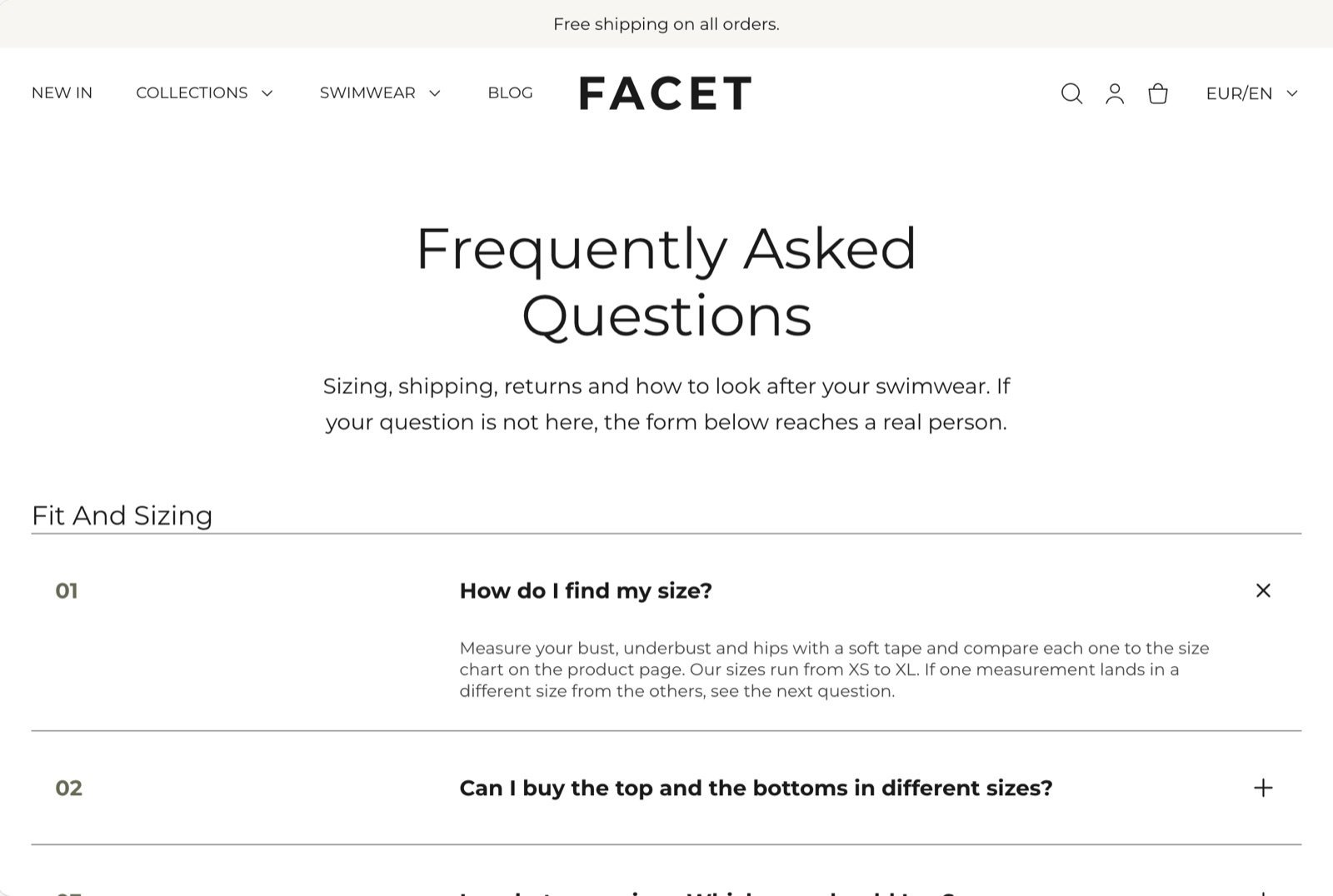
What this template contains
- An FAQ section that opens with a Heading (“Frequently asked questions”) and a Text block, followed by groups of questions. Each group starts with a small heading, such as “Fit and sizing” or “Returns and exchanges”, and lists its questions as FAQ items that open and close.
- A Contact form section headed “Still have a question?” in a contrasting color scheme.
Getting started
1
Create the page
In your Shopify admin, open Online Store, then Pages, and click Add page. Give it a title, such as “FAQ”.
2
Assign the FAQ template
On the same screen, find Theme template and choose faq. Click Save.
3
Write your questions
Open Online Store, then Themes, and click Customize next to Facet. In the page selector at the top, choose Pages, then faq. Click each FAQ item in the FAQ section to change its question and answer, or click Add block to add more.
4
Add the page to your menu
Open Content, then Menus, and add the page to your header or footer menu.
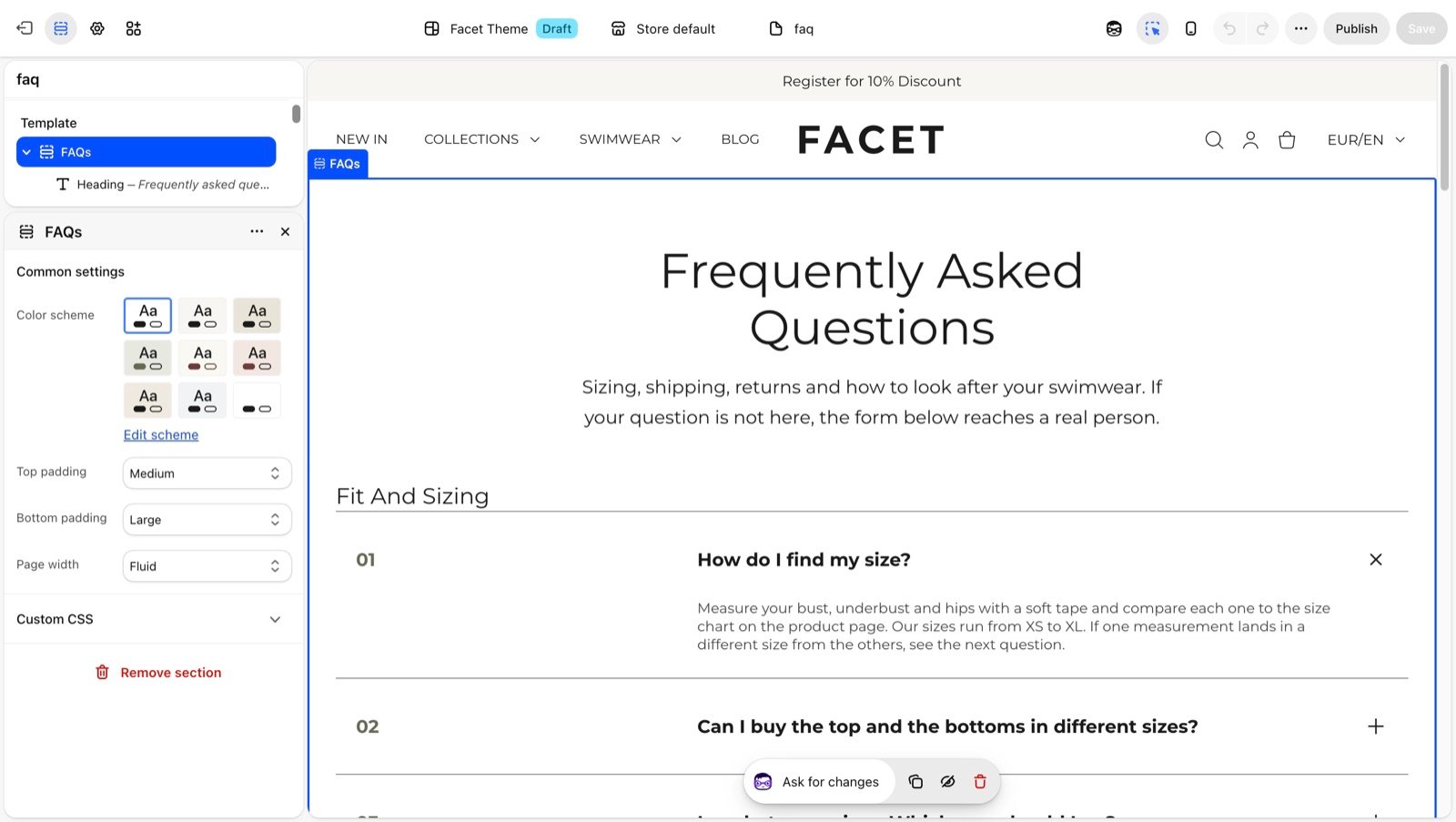
Sections
FAQ
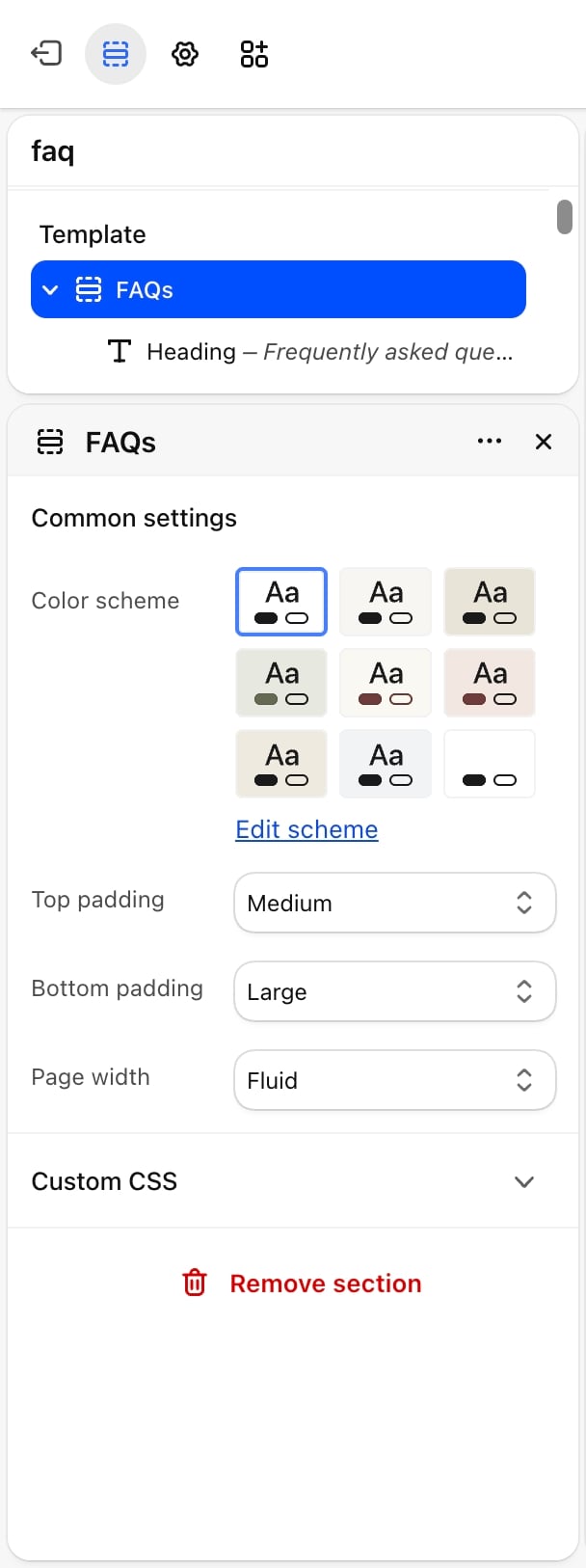
Contact form
The form below the questions. It asks for an order number but not a phone number or country. Its settings are described in Contact form.Best practices
- Group questions by topic. Shoppers scan for a heading such as “Shipping” before they read questions. Keep each group to five questions or fewer.
- Open the most asked question. Leave the first question open so the page shows an answer straight away.
- Keep answers short. Two or three sentences, with a link to a full policy page when more detail is needed.
- Remove the sample questions. The template comes with questions written for a swimwear store. Replace or delete every one before you publish the page.
Related guides
FAQ
Settings for the FAQ section and its items.
Contact page
Set up a separate page for shopper messages.