

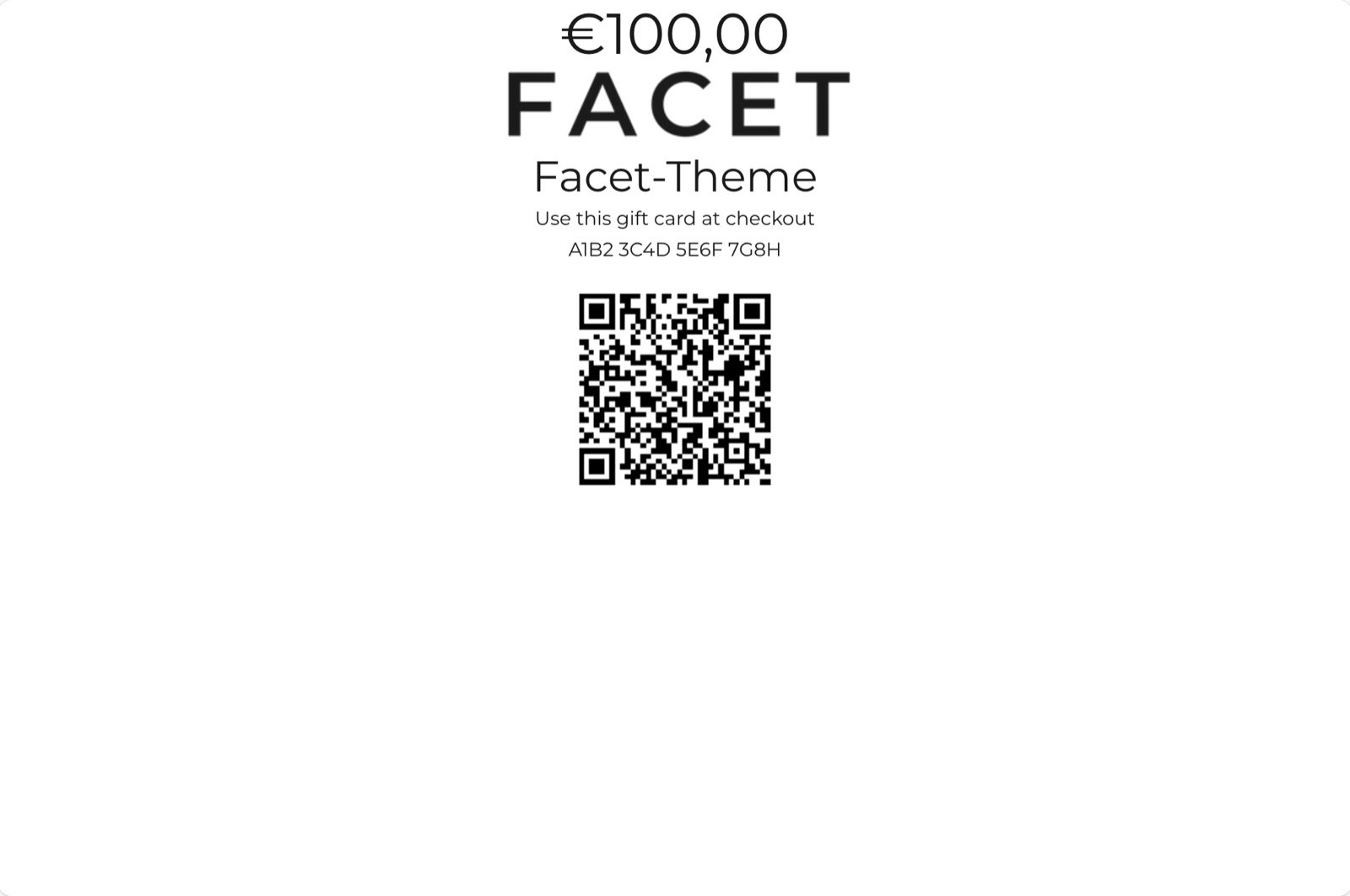
What this page shows
- The remaining balance of the gift card, as the main heading.
- A “This gift card has expired” line when the card has expired or has been turned off.
- The expiry date, when the gift card has one.
- Your store logo. Without a logo, a generic gift card picture shows instead.
- The gift card code, with the line “Use this gift card at checkout”.
- A QR code that store staff can scan to redeem the card in person.
- An Add to Apple Wallet button, when Shopify provides a wallet pass for the card.
Getting started
The gift card page has no section or settings in the Theme Customizer. It is a fixed page that Shopify fills with each card’s details.1
Create a gift card product
In your Shopify admin, open Products, then Gift cards, and click Add gift card product. Shoppers buy it on a normal product page.
2
Preview the page
In your Shopify admin, open Products, then Gift cards, issue or open a gift card, and use its link to see the page your customers get.
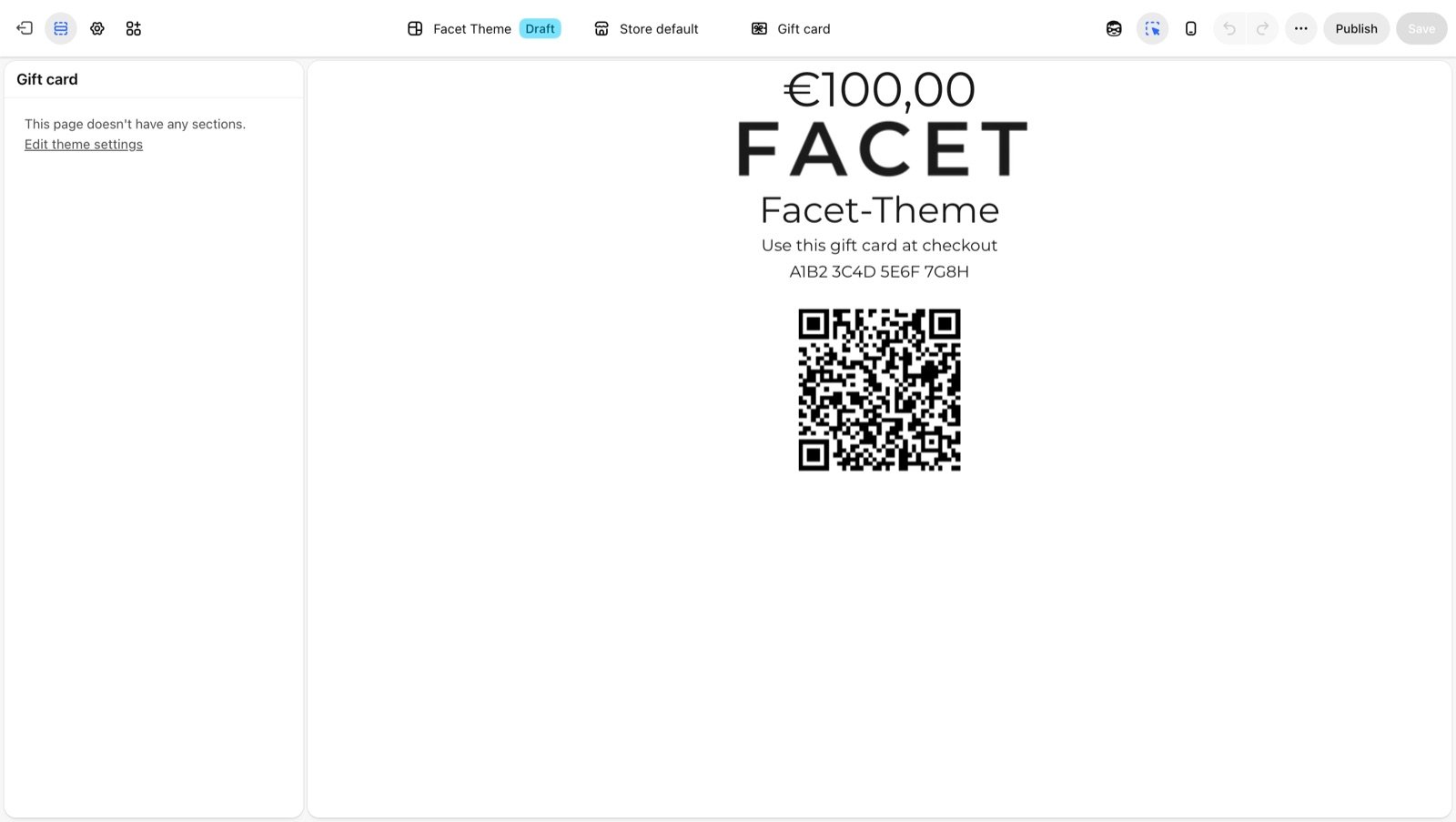
Theme settings that change its look
- Logo: the logo you set in Logo shows on the page. The Logo width setting does not apply here.
- Fonts: the page uses the body and heading fonts from Typography.
- Colors: the page background and text use your first color scheme. See Colors.
Gift card recipient form
On the product page of a gift card product, the Buy buttons block shows an extra section labeled “I want to send this as a gift”. It is closed until the shopper opens it. Inside are these fields:- Recipient email: where Shopify sends the gift card.
- Recipient name (optional).
- Message (optional): up to 200 characters, included with the gift card.
- Send on (optional): a date to send the gift card on, instead of right after the order.
The recipient form needs no setup. It appears on every gift card product that uses a template with the Buy buttons block.
Best practices
- Upload a logo. The logo makes the gift card page clearly yours. Without one, customers see a generic gift card picture.
- Test a purchase. Buy a low-value gift card with the recipient form filled in, to check the email and page your customers get.
- Mention in-store use. If you sell in a physical store, tell customers they can show the QR code at the till.
Related guides
Product page
Set up the Buy buttons block that holds the recipient form.
Logo
Upload the logo shown on the gift card page.