

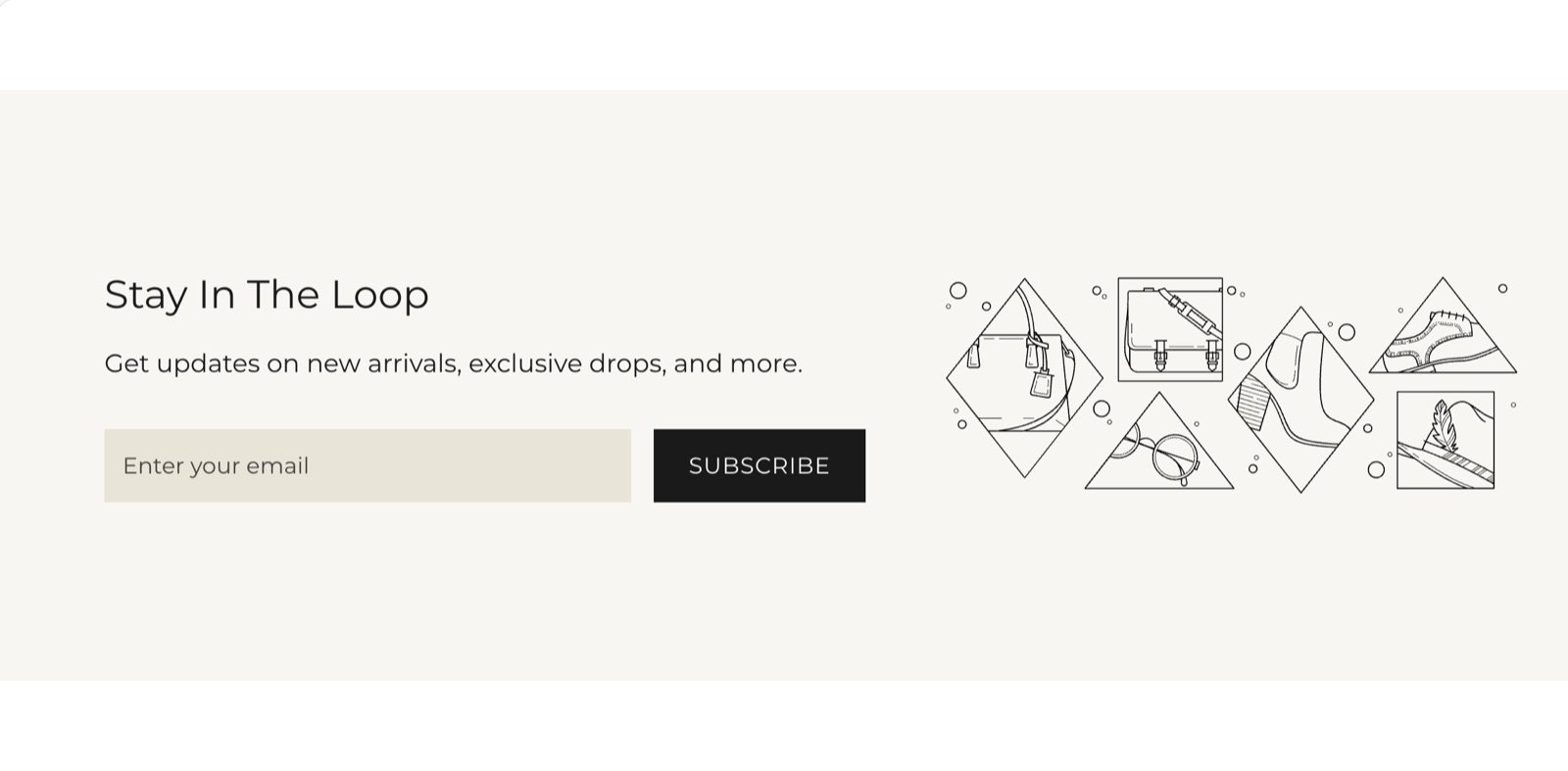
What this section controls
- The picture, with a separate picture for phones.
- Whether the picture sits left, right, behind the text, or not at all.
- The heading, text and sign-up form in the card.
Getting started
1
Open the Theme Customizer
In your Shopify admin, open Online Store, then Themes, and click Customize next to Facet.
2
Add the section
In the Sections panel, click Add section and choose Newsletter banner. The section can’t be added to the header.
3
Pick a picture and layout
Click Newsletter banner, choose an Image, and set Image position.
4
Write your offer
Edit the heading and text blocks to tell shoppers what they get for signing up.
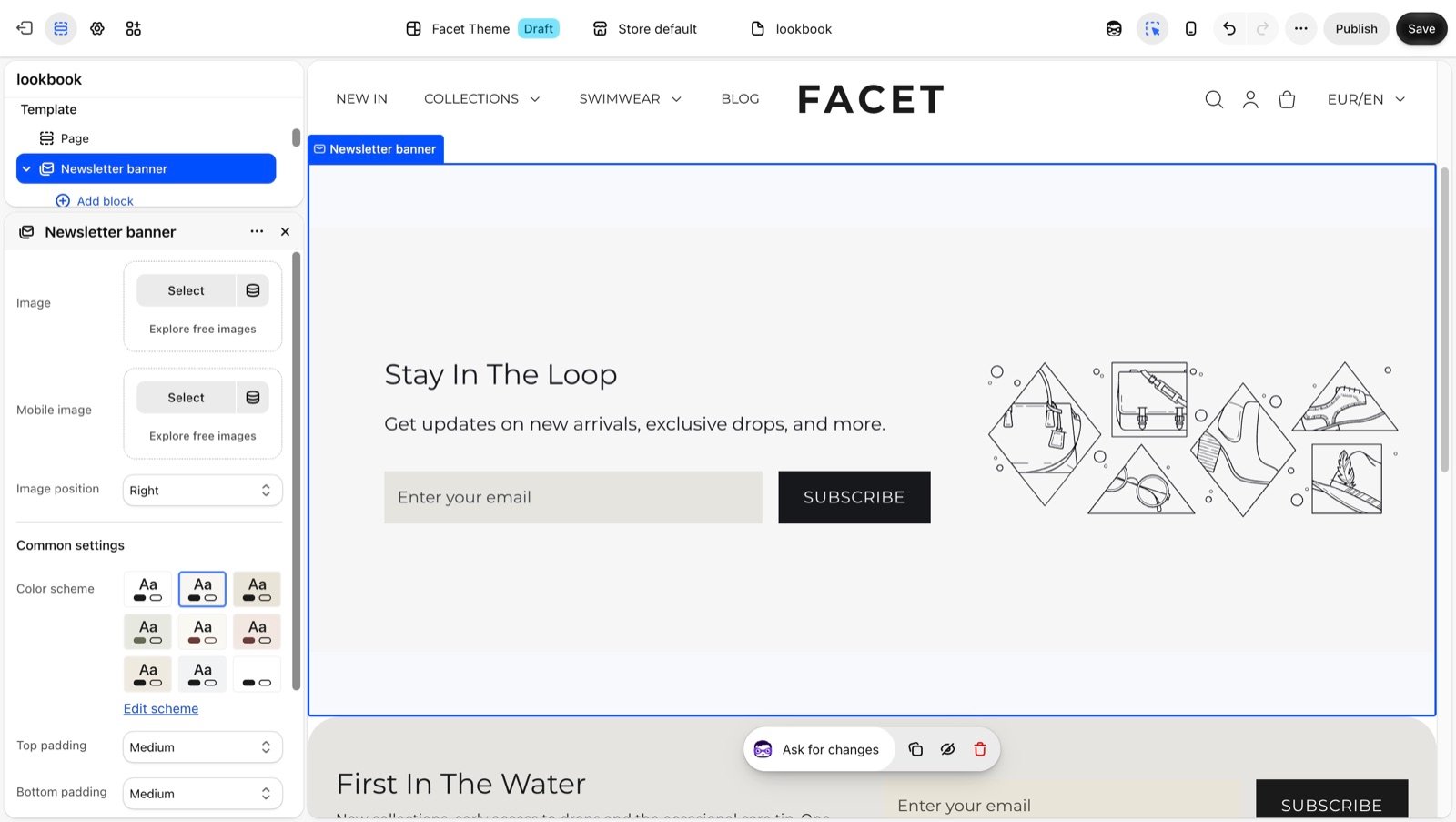
Section settings
Picture
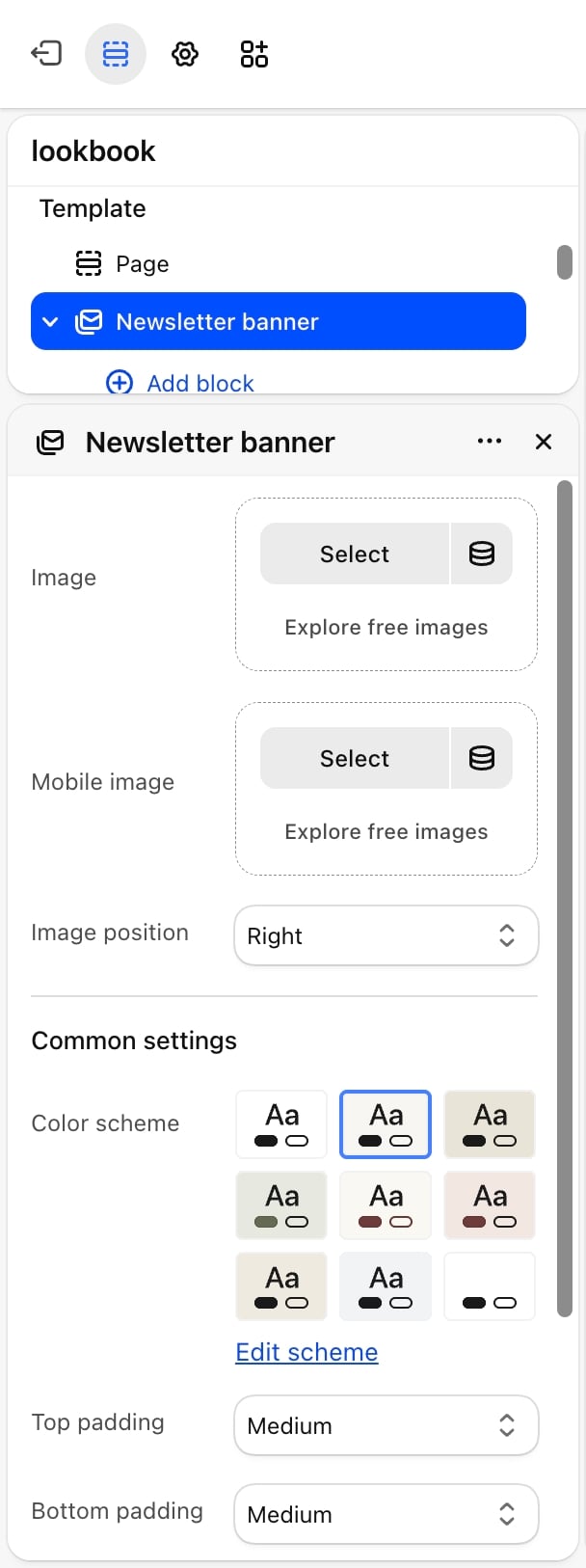
Image and Mobile image
Image and Mobile image
Image is the banner picture. Mobile image is an optional picture for phones, used only when Image is set. Without one, phones show Image. Until you choose a picture, a placeholder shows.
Image position
Image position
- Left or Right (default): on screens 750 pixels wide and larger, the picture takes 40% of the card on that side. On phones it sits above the text in a 4:3 shape.
- Background: the picture fills the card and the text and form sit centered on top of it.
- None: the card shows no picture.
Common settings
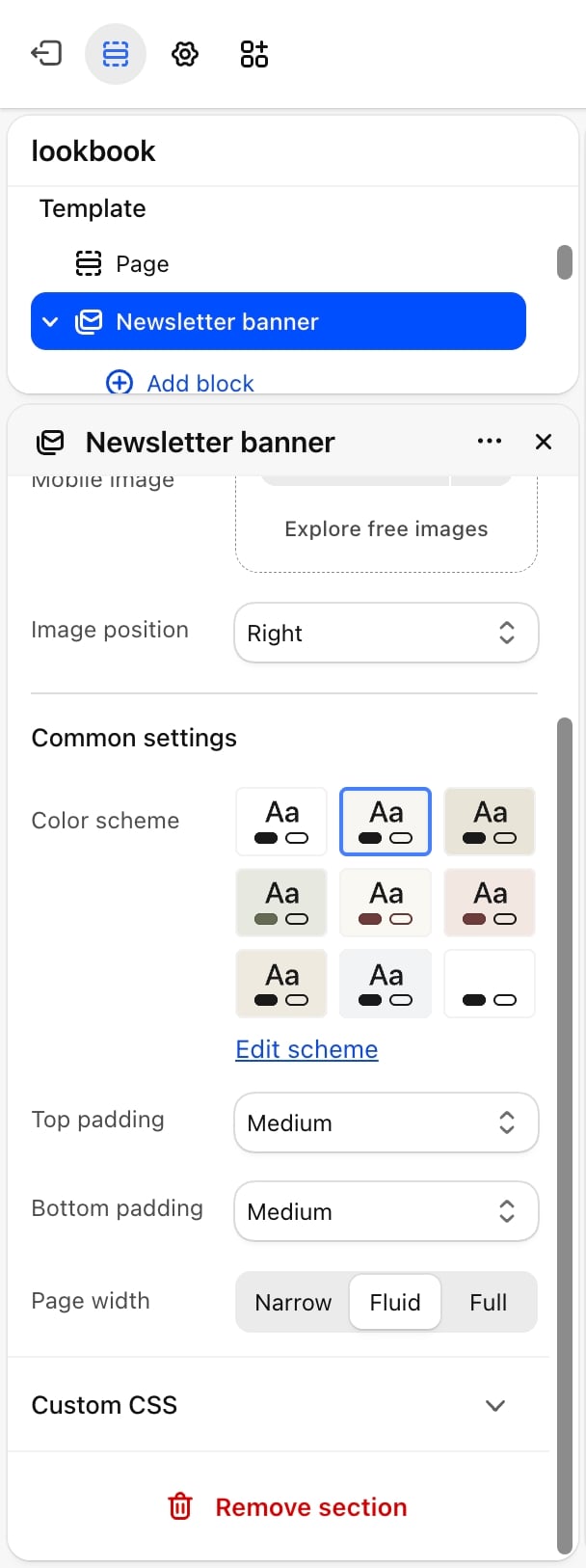
- Color scheme: the colors of the card, its text and the form.
- Top padding and Bottom padding: None, Small, Medium (default), Large or Extra large.
- Page width: Narrow, Fluid (default) or Full.
Blocks
Heading and text
Add Heading and Text blocks to introduce the sign-up. Their settings are described on Theme blocks.Newsletter
The Newsletter block is the sign-up form: an email field and a submit button. It has no settings. When a shopper signs up, Shopify adds them to Customers in your admin as a subscriber to email marketing, tagged newsletter. The form then shows a thank-you message. If Shopify can’t accept the email address, the form shows the reason under the field.Best practices
- Say what shoppers get. A concrete offer, such as early access or 10% off the first order, earns more sign-ups than “Join our newsletter”.
- Check contrast with Background. Pick a calm picture and a color scheme whose text color stands out from it.
- Send the welcome email. Set up a welcome email in Shopify Email or your email app, especially when the banner promises a discount.
Related guides
Promotional pop-up
Ask for sign-ups in a pop-up instead.
Footer
Add a sign-up form to the bottom of every page.