

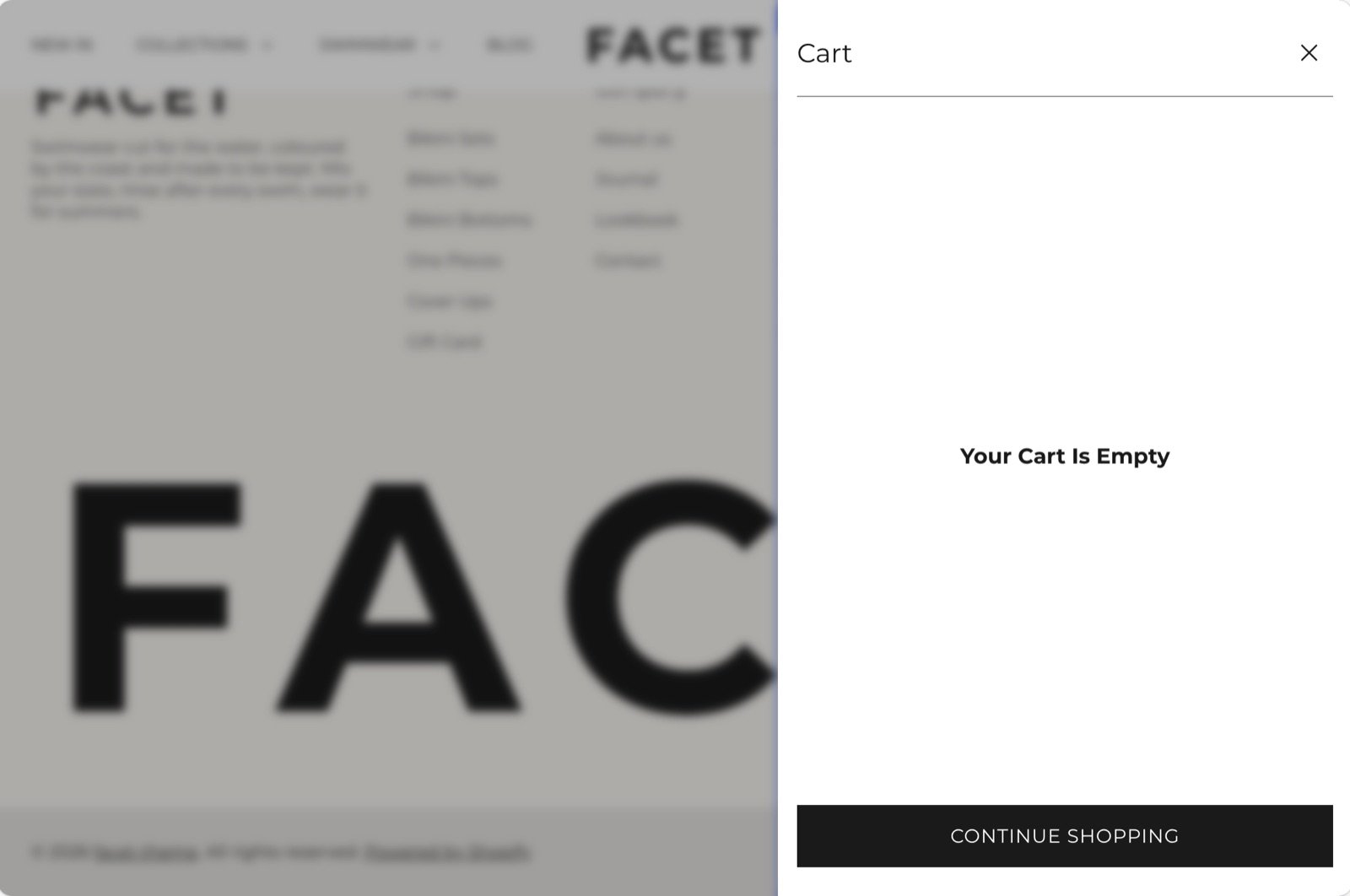
What this section controls
- The drawer heading.
- A progress bar that shows how close the cart is to free shipping.
- A terms checkbox shoppers must tick before checkout.
- The order note field and the express checkout buttons.
- Product recommendations under the cart items.
- The products suggested when the cart is empty.
- The drawer’s color scheme.
Getting started
1
Open the Theme Customizer
In your Shopify admin, open Online Store, then Themes, and click Customize next to Facet.
2
Select the cart drawer
In the Sections panel on the left, find the Overlay group and click Cart drawer. The drawer opens in the preview while it is selected.
3
Set your free shipping amount
Under Free shipping, enter the order total that qualifies for free shipping in Free shipping threshold.
4
Pick an empty cart collection
Under Recommendations, choose an Empty cart collection so an empty cart still suggests products.
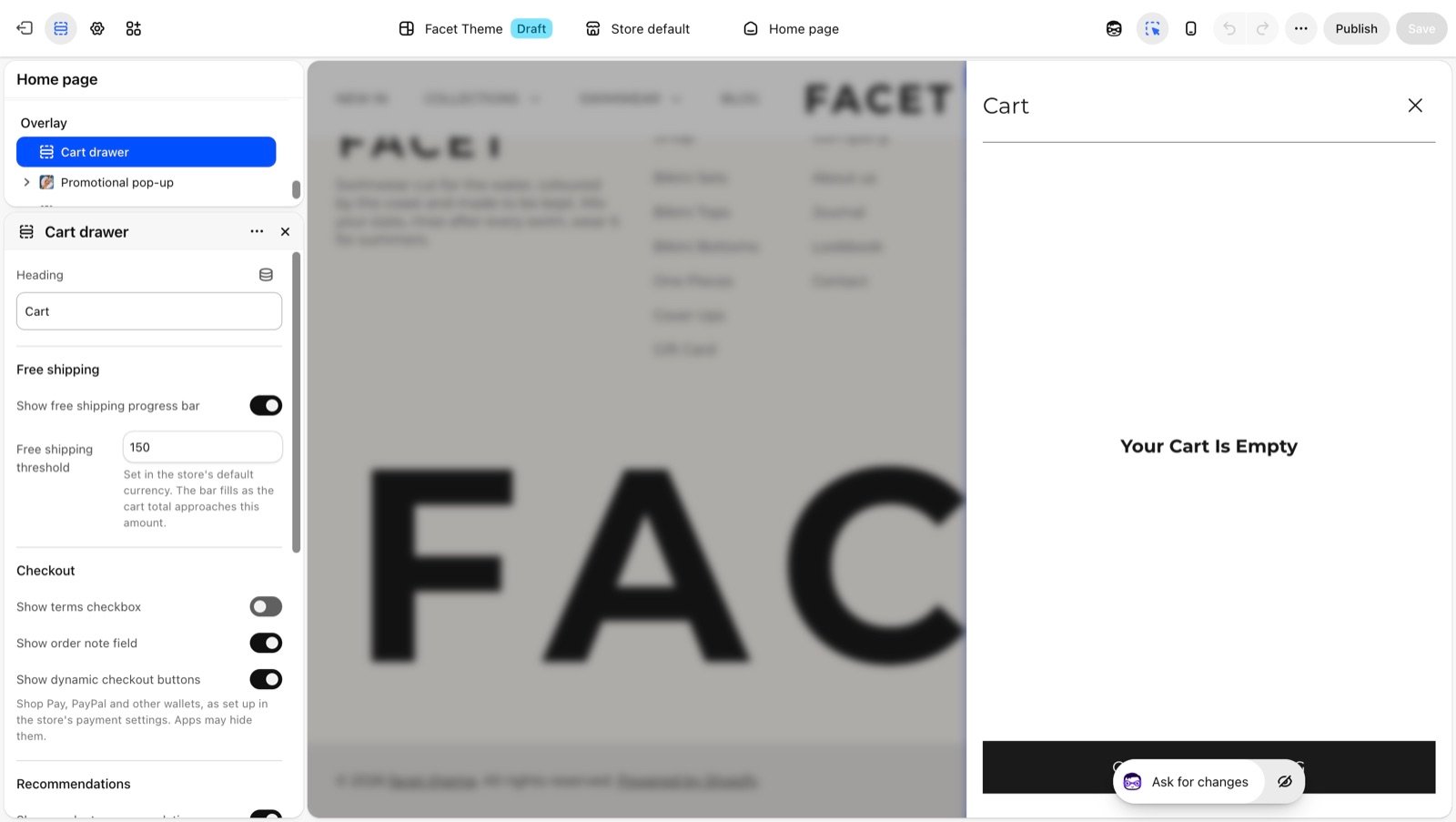
The drawer opens when a shopper clicks the cart icon in the header, and after any add to cart, for example from a product page, a product card or the quick view. On the cart page itself the drawer stays closed and the page updates instead.
Section settings
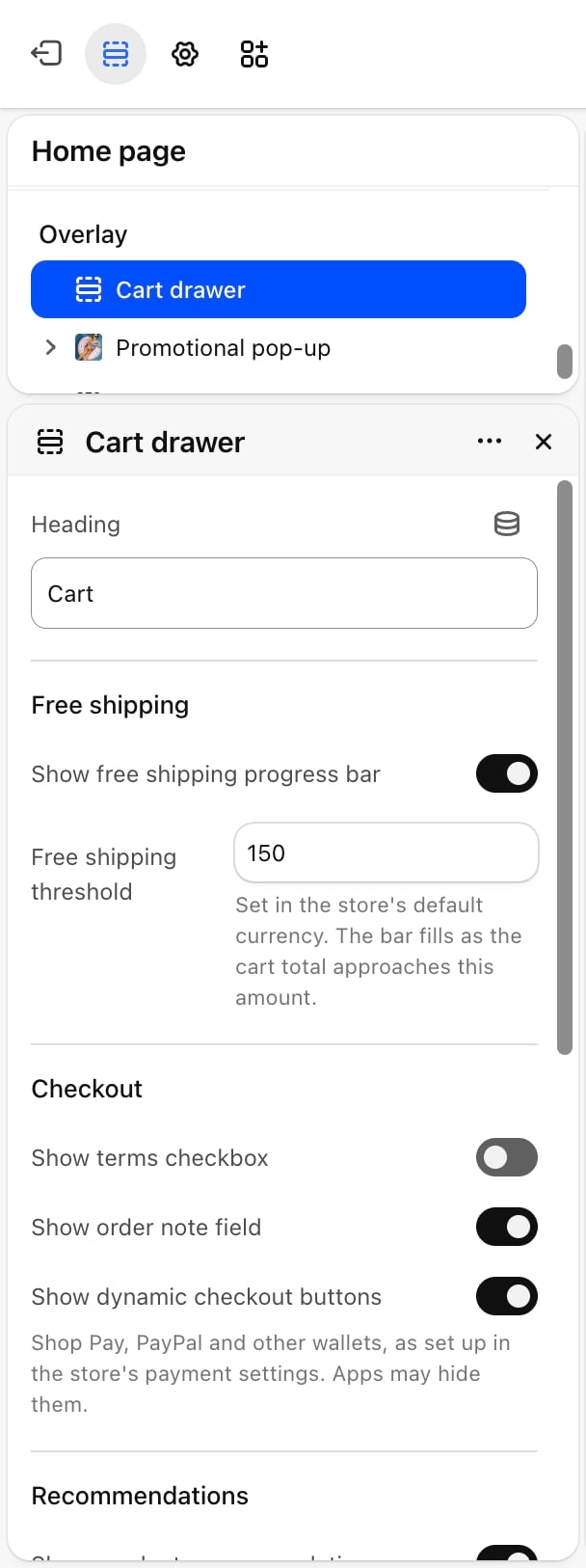
- Heading: the title at the top of the drawer. Default: “Cart”. Leave it blank to show “Your cart”.
Free shipping
Show free shipping progress bar
Show free shipping progress bar
On by default. Shows a bar at the top of the drawer that fills as the cart total grows. While the cart is below the amount, it reads “You’re [amount] away from free shipping!” with a hint to add more. Once the amount is reached, it reads “You’ve unlocked free shipping!”. The bar also shows the cart total next to the threshold.
Free shipping threshold
Free shipping threshold
The order total that qualifies for free shipping, in your store’s default currency. Default: 150. The bar compares it to the cart total after discounts. When a shopper pays in another currency, the bar converts the amount at the current exchange rate, so the amount left and the threshold show in the shopper’s currency. Enter 0 to hide the bar. Appears only when Show free shipping progress bar is on.
Checkout
Show terms checkbox
Show terms checkbox
Off by default. Adds a checkbox above the Checkout button. A shopper who clicks Checkout without ticking it sees “Please agree to the terms to continue”. The express checkout buttons are dimmed and can’t be used until the box is ticked; clicking them shows the same message.
Terms checkbox text
Terms checkbox text
The text next to the checkbox. Link the words to your terms of service page. Default: “I agree to the terms of service”, linked to your terms of service policy. Appears only when Show terms checkbox is on.
Show order note field
Show order note field
On by default. Adds an Order note button under the totals that opens a text box, for gift wrap or delivery instructions. The note holds up to 250 characters, shows a character count, and is saved to the cart when the shopper leaves the field. You see it on the order in your Shopify admin.
The terms checkbox guards the drawer’s Checkout button and the express checkout buttons. The View cart link doesn’t wait for it, and the full cart page has no terms checkbox.
Recommendations
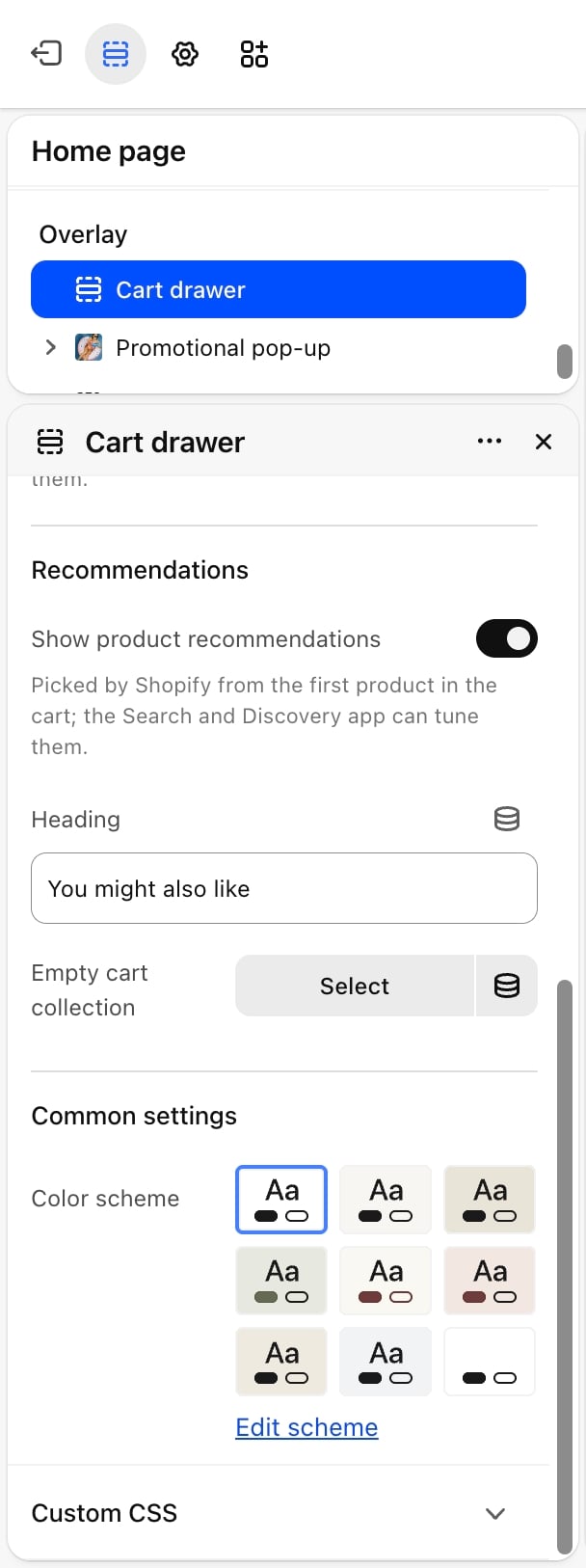
- Show product recommendations: on by default. Shows up to 6 suggested products under the cart items, in a row shoppers can scroll with arrows. Shopify picks them from the first product in the cart, and you can tune them with the Shopify Search & Discovery app. The row is hidden when Shopify has nothing to suggest.
- Heading: the title above the recommendations. Default: “You might also like”. Appears only when Show product recommendations is on.
- Empty cart collection: a collection whose first 4 products are shown when the cart is empty.
Common settings
- Color scheme: the colors of the drawer.
What shoppers see
Cart items
Each item shows its picture, title and line price, with the original price struck through when a discount applies. Under the title the drawer lists the chosen options (for example “Size: M”), any subscription plan, the price per item when the quantity is more than one, the unit price, and the name and amount of any discount on that line. Shoppers change the quantity with the minus and plus buttons, or remove the item with Remove. If they ask for more than is in stock, the drawer shows “Only [count] of this item in stock”.Recommendation cards
Each suggested product shows its picture, title and price (“From” when its variants have different prices) and an Add to cart button. A product with one variant goes straight into the cart. A product with several variants opens the quick view so the shopper can pick options first. Sold-out products have no button.Totals and buttons
Under the items the drawer shows a Discounts row when a discount applies, the Estimated total with its currency, and a note that taxes and shipping are calculated at checkout. Below that come the Checkout button and a View cart link to the full cart page.Empty cart
An empty drawer reads “Your cart is empty”, shows the products from Empty cart collection under the hint “Not sure where to start? Try these products.”, and offers a Continue shopping button that opens your all products page. Without an empty cart collection, or with an empty one, the drawer leaves out the hint and the products.Best practices
- Match the threshold to your shipping rates. If the bar says shoppers have unlocked free shipping, checkout must agree.
- Always set an empty cart collection. The empty drawer’s hint invites shoppers to try the products below it, so leave that space filled with a collection such as best sellers.
- Keep the terms text short. One line with a link reads better than a paragraph above the checkout button.
- Tune recommendations for small catalogs. If the suggestions feel random, set complementary products in the Search & Discovery app.
Related guides
Quick view
Set up the dialog that opens from recommendation cards.
Cart
Configure the full cart page behind the View cart link.