

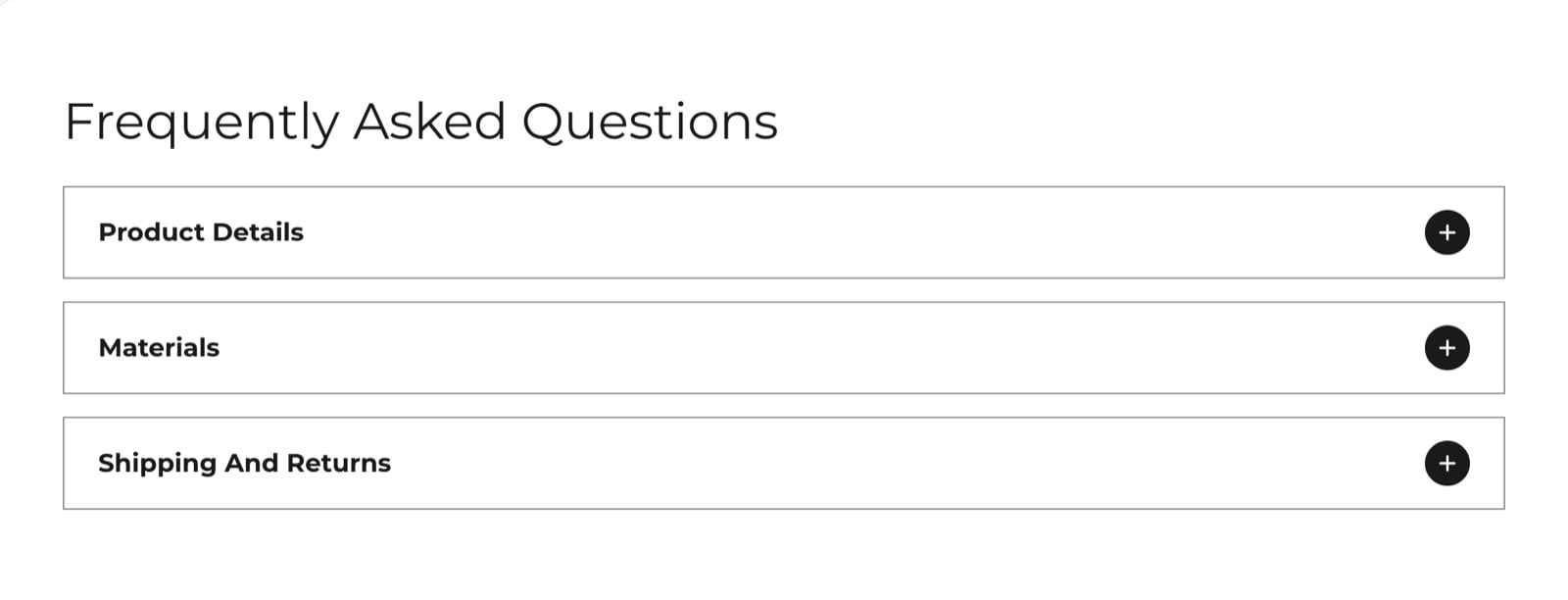
What this section controls
- An optional heading and text above the rows.
- The rows: their headings, their content, and whether they start open.
- The icon that shows a row can open.
Getting started
1
Open the Theme Customizer
In your Shopify admin, open Online Store, then Themes, and click Customize next to Facet.
2
Add the section
In the Sections panel, click Add section and choose Collapsible content.
3
Add rows
Click Add block, then Collapsible row. Type the row’s Heading, then edit the Text block inside it.
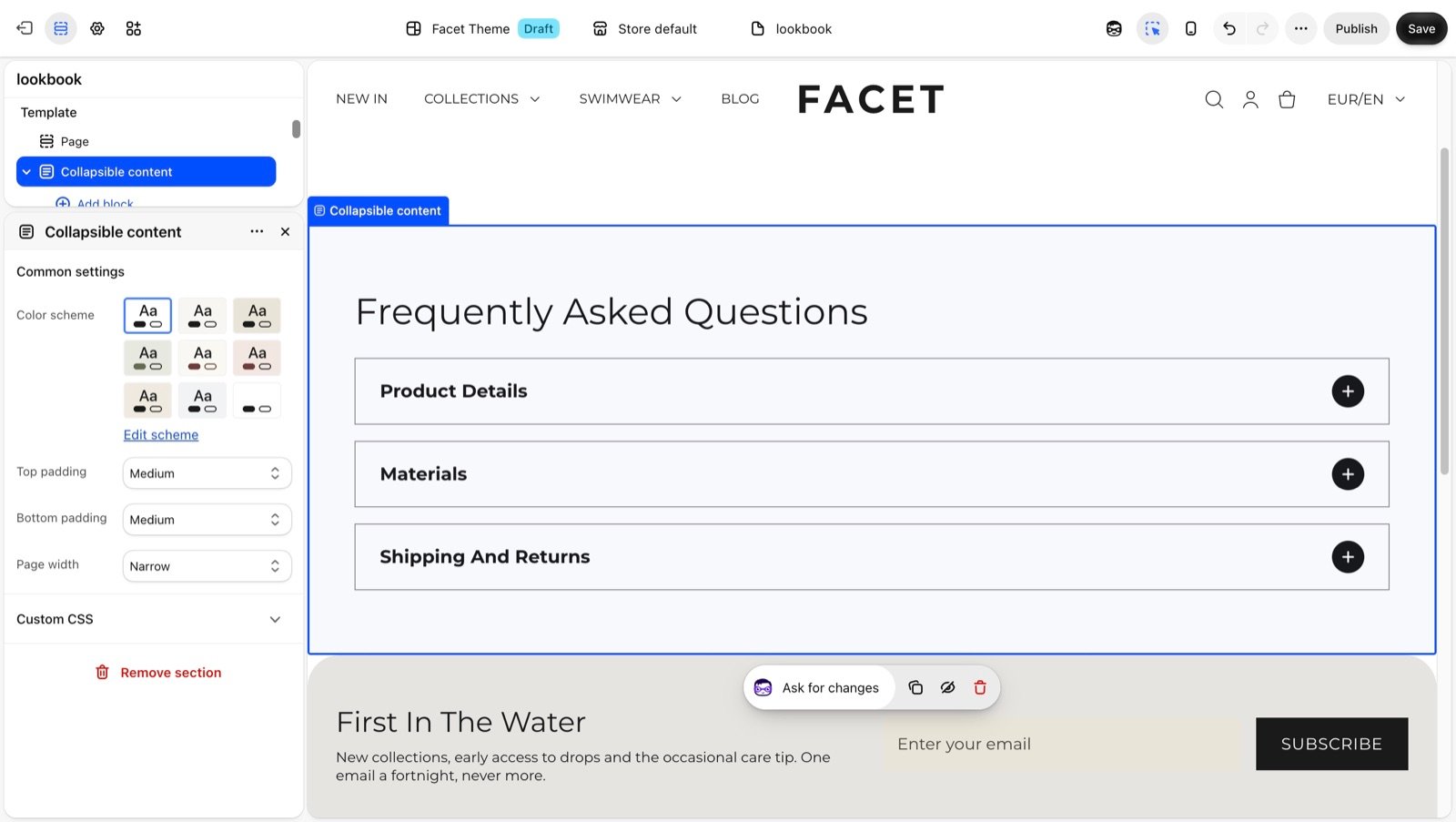
Section settings
Common settings
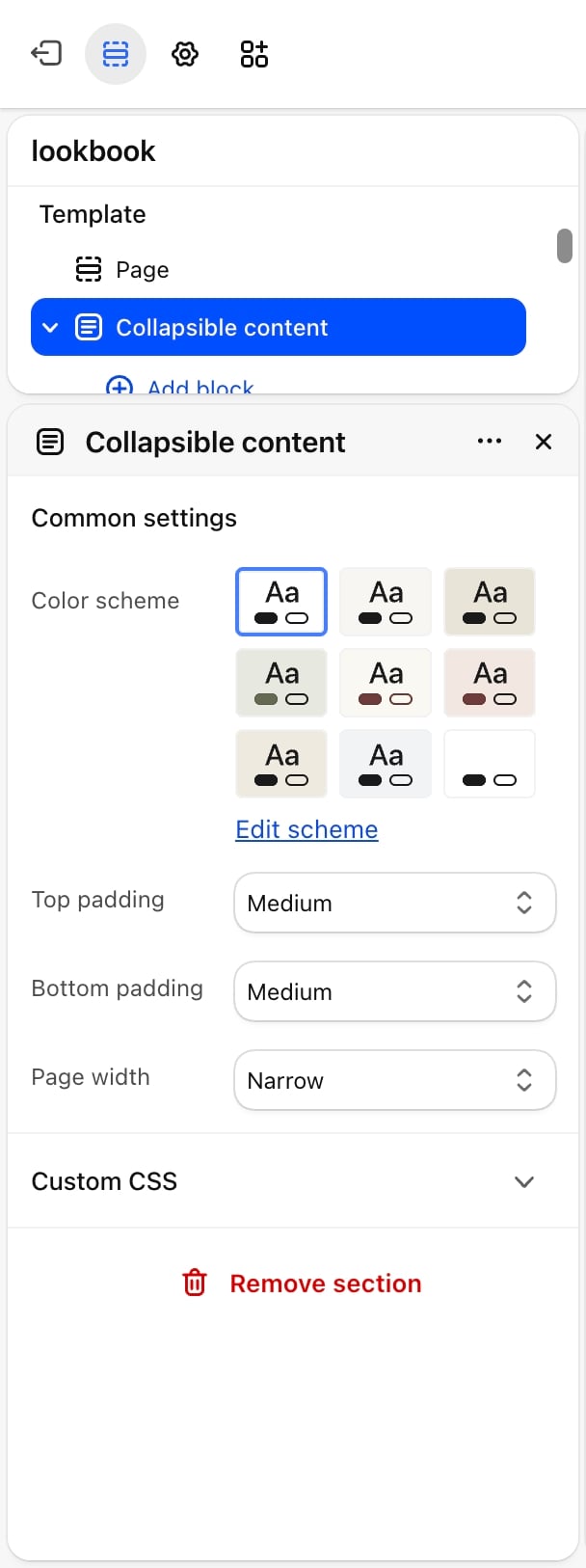
- Color scheme: the colors of the section and the row borders.
- Top padding and Bottom padding: None, Small, Medium (default), Large or Extra large.
- Page width: Narrow (default), Narrower, Fluid or Full.
Blocks
Heading and text
Add Heading and Text blocks to introduce the rows. Their settings are described on Theme blocks.Collapsible row
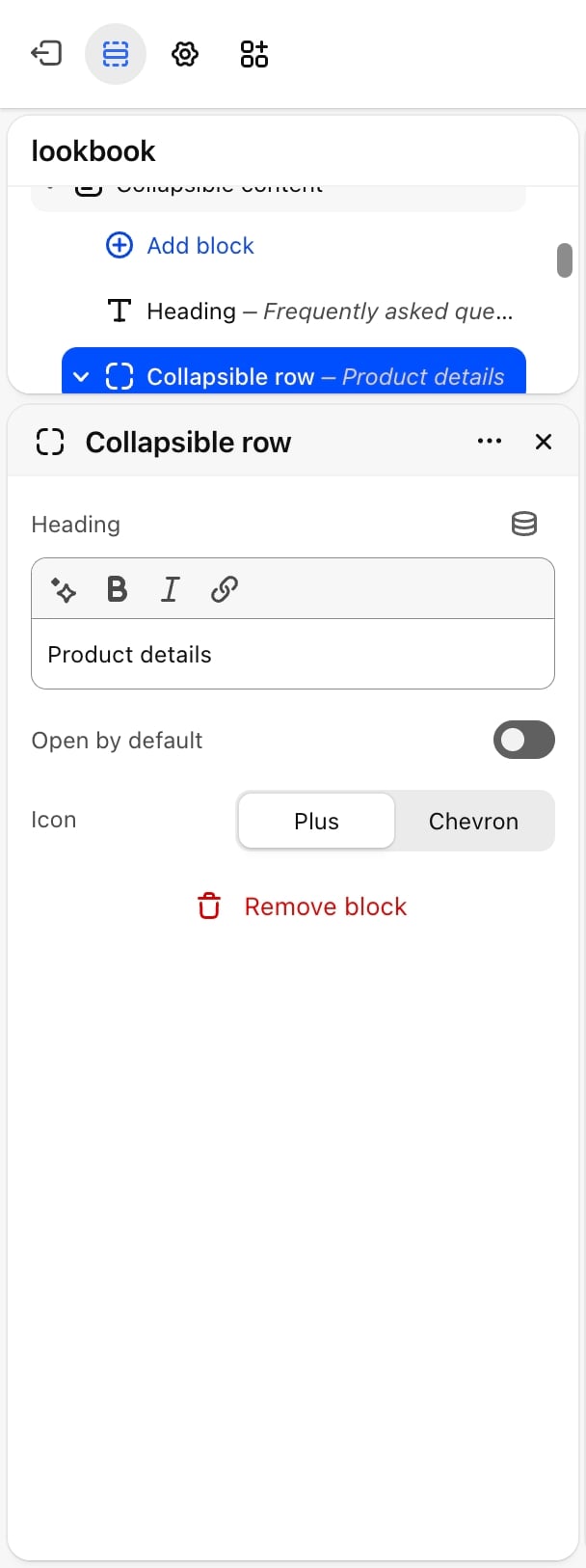
- Heading: the text on the row. Default: “Collapsible row”.
- Open by default: off by default. When on, the row is open when the page loads.
- Icon: the sign at the end of the row. Plus (default) or Chevron.
Best practices
- Write headings as labels or questions. “Shipping and returns” or “How do I find my size?” tell shoppers what they get before they click.
- Open only the most important row. Several open rows make the section long and hard to scan.
- Use the FAQs section for many questions. For a longer list of questions and answers, the FAQs section numbers each question for you.
Related guides
FAQs
Show a numbered list of questions and answers.
Theme blocks
Settings for the heading and text blocks.