

What these settings control
- The logo in the header and at the top of the mobile menu.
- The logo in the footer’s Brand block and on the password page.
- The default picture of the footer’s Large logo block, when that block has no picture of its own.
- The width of the logo.
- The small icon in the browser tab (favicon).
How to access
1
Open the Theme Customizer
In your Shopify admin, open Online Store, then Themes, and click Customize next to Facet.
2
Open Theme settings
Click the Theme settings icon in the left sidebar.
3
Open Logo
Expand Logo, then click Select under Logo to upload or choose your picture.
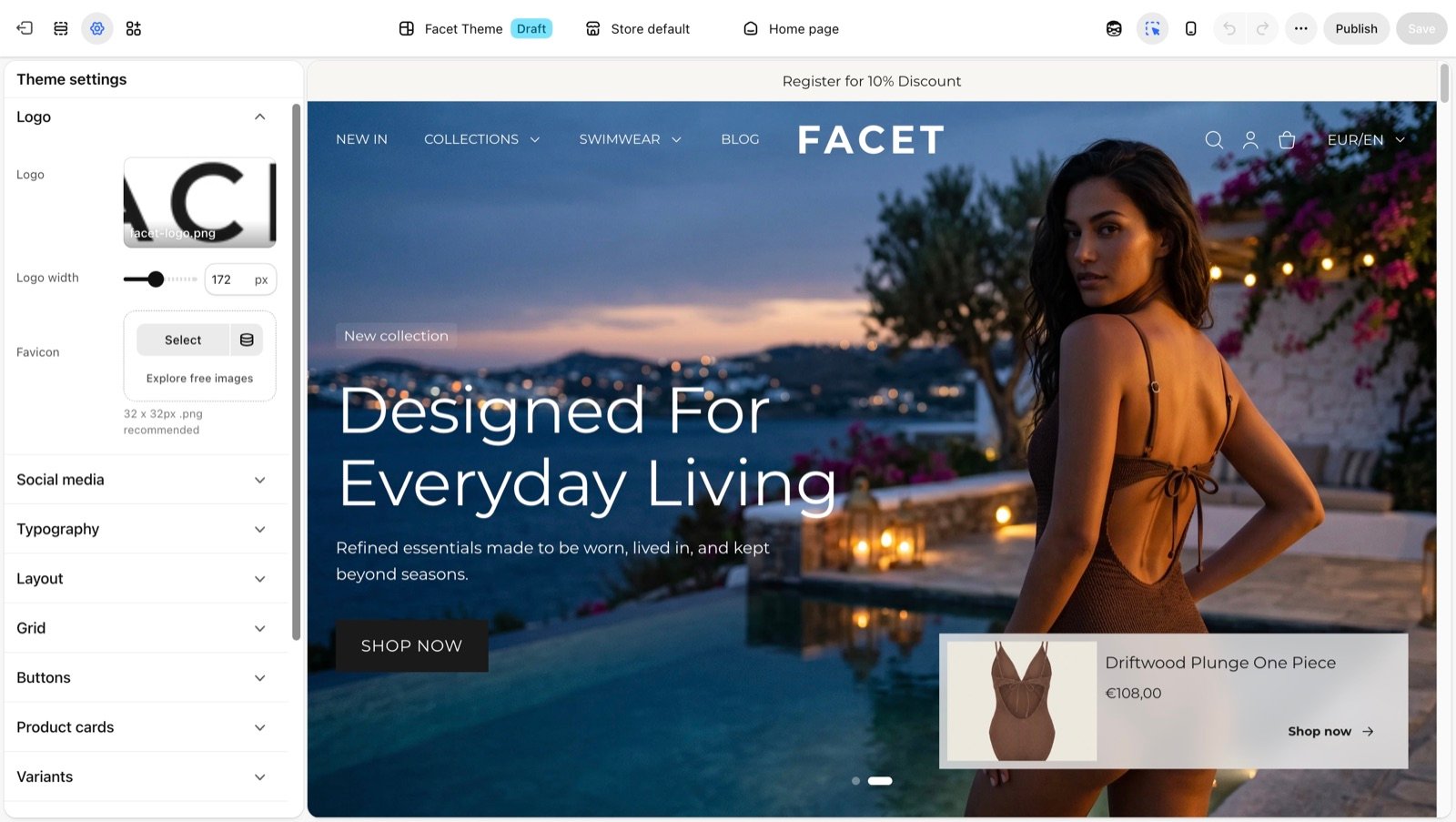
Logo settings
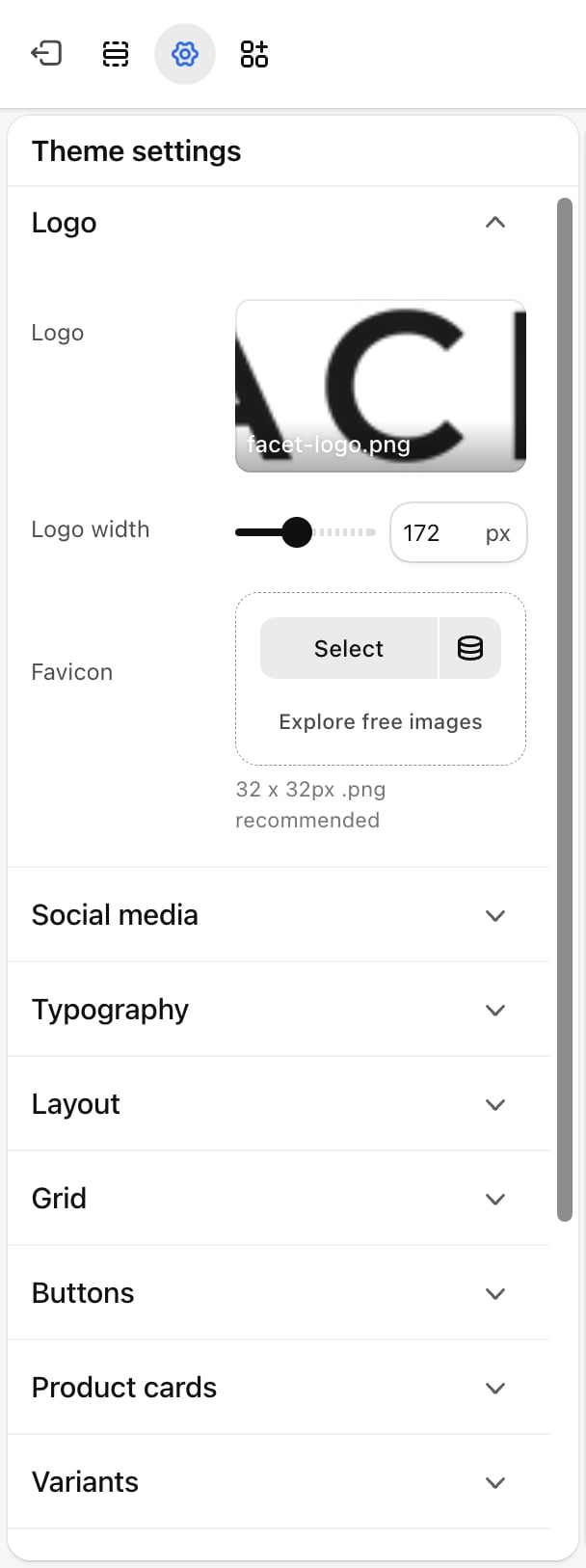
- Logo: the picture used as your store logo. Without one, Facet shows your store name in the heading font instead.
- Logo width: from 80 to 300 pixels. Default: 172. Sets the width of the logo picture in the header, the mobile menu, the footer Brand block and the password page. The height follows the picture’s shape. On narrow screens the logo never grows wider than the space it sits in.
- Favicon: the icon in the browser tab and in bookmarks. Use a 32 x 32 pixel .png file.
The header has its own Use SVG code for logo option. When it is on and Logo SVG code holds code, the header and the mobile menu show the SVG instead of this picture. See Header.
Best practices
- Upload a wide enough file. Facet requests the logo at 600 pixels wide, so a file at least that wide stays sharp on high-resolution screens.
- Use a transparent background. A .png or .svg logo with no background sits cleanly on every color scheme, including a transparent header over a banner.
- Keep the favicon simple. At 32 pixels a full wordmark is unreadable. Use a single letter or a symbol from your logo.
Related guides
Header
Place the logo and set up the SVG logo option.
Footer
Show the logo in the footer’s Brand and Large logo blocks.